Linking Existing Assets to Units After a Resource is Serialized

There might be situations where you have converted a resource to serialized inventory, but you have not included all of your existing assets in the conversion. Or, some of the assets that were linked to the resource did not have an asset status that was matched to the inventory status of “Spare,” “Working,” or “Awaiting Repair Action” and were not converted. You can link an asset and create a serialized resource unit from the resource.
You can use this procedure to link assets to the serialized resource and create units for the assets in the appropriate warehouse.
Note: This procedure only works for assets that are not currently linked to the resource. For assets that are linked to the resource but not yet linked to units, you must follow one of these procedures:

To Link an Asset and Create a Matching Serialized Unit From the Resource

1.
From the Site window, select the Resource Management view, then find and open the resource. The Resource dialog appears.
2.
3.
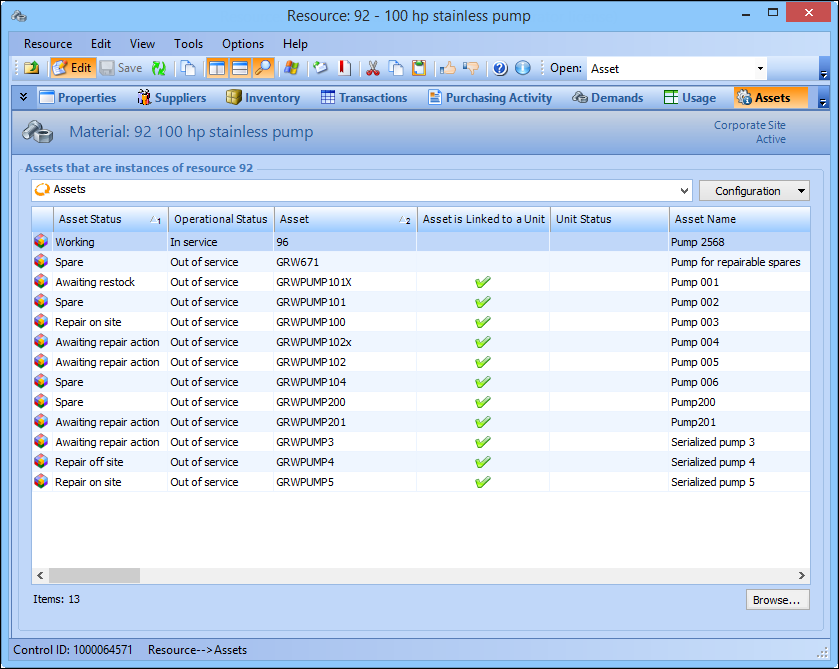
Select the Assets view and the Assets configuration. The table shows the assets that reference this resource and information about assets linked to serialized units.
4.
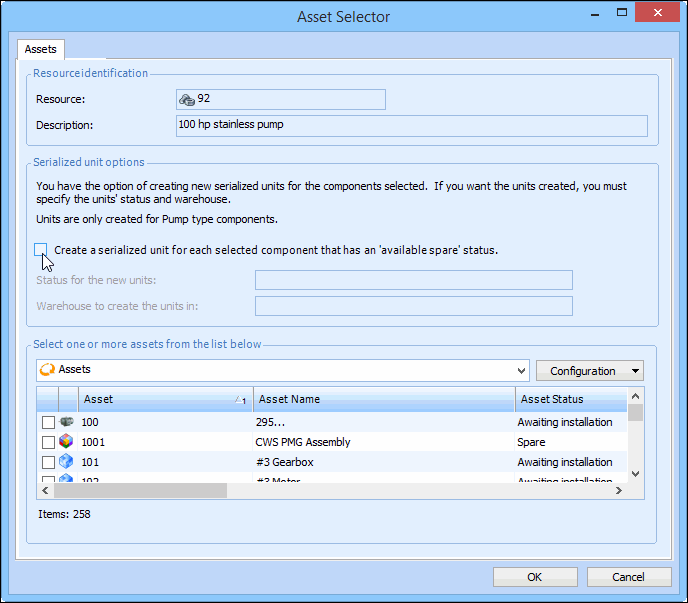
Click Browse. The Asset Selector dialog appears. Component assets are displayed that are not yet matched to this resource.
Note: The system will only create new units for selected assets that are of the same asset type as the serialized resource. Selected assets that are not of the same asset type may be selected, but they will only be linked to the resource; no new units will be created.
5.
Select Create a serialized unit for each selected component.
6.
Select a Status for the new units from the list. The unit status must match the status of the selected assets.
7.
Select the Warehouse to create the units in from the list.
8.
9.
Click OK. One or more serialized resource units are created, and the assets are linked to the units.