|
Changing a Serialized Unit’s Linked Asset
To Change the Linked Asset For a Serialized Resource Unit
1.
2. On the Warehouses tab, select the appropriate warehouse from the table on the left, and then select an item from the list in the table on the right side. The Warehouse Item dialog appears.
4. On the Properties view, select the Units tab. This tab will be available only if the resource is defined as supporting serialized units.
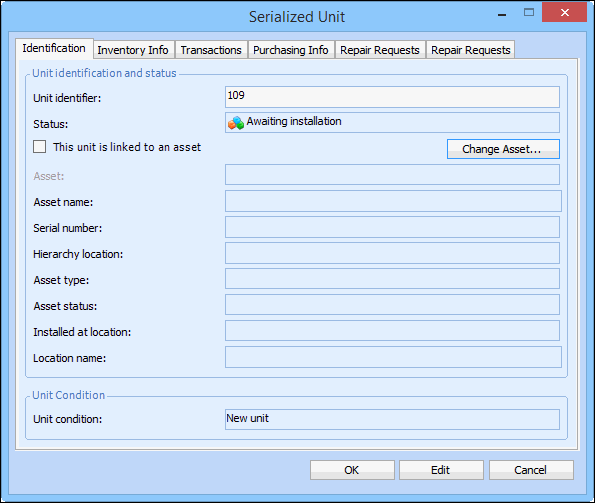
5. Double-click the unit that you want to link to an asset. The Serialized Unit dialog appears. A check in the This unit is linked to an asset box indicates that this resource unit is linked to an asset.
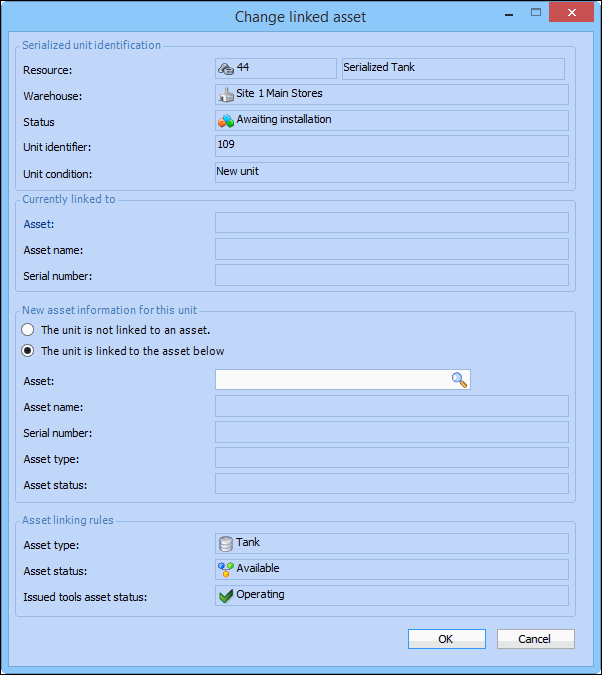
6. Click Change Asset. The Change Linked Asset dialog appears.
7. In the New Asset Information for this Unit section, select The unit is linked to the asset below.
8. Browse to select the asset from the Asset list.
9. Click OK. The asset is now linked to the serialized unit, and the unit is identified by its unique identifier. For more information, see Setting up Unit Identification for Repairable Spares.