Creating Repair Purchase Orders From Scratch

If you are not managing an external repair with a work order, you can create a purchase order from scratch for off-site repairs.
To create a purchase order from a work order with a repair purchase requirement, please see Creating Purchase Orders from a Work Order.

To Create a Repair Purchase Order

1.
From the Site window, select the Purchasing view, the Purchase Orders tab, and then the Purchase Orders tab. By default, this tab lists all open purchase orders for the site and below.
1.
2.
Click New. The Purchase Order window appears.
3.
Browse to select the Supplier. The selected supplier must have a supplier resource set up for repairs.
4.
In the Title box, enter a descriptive name for the purchase order.
5.
6.
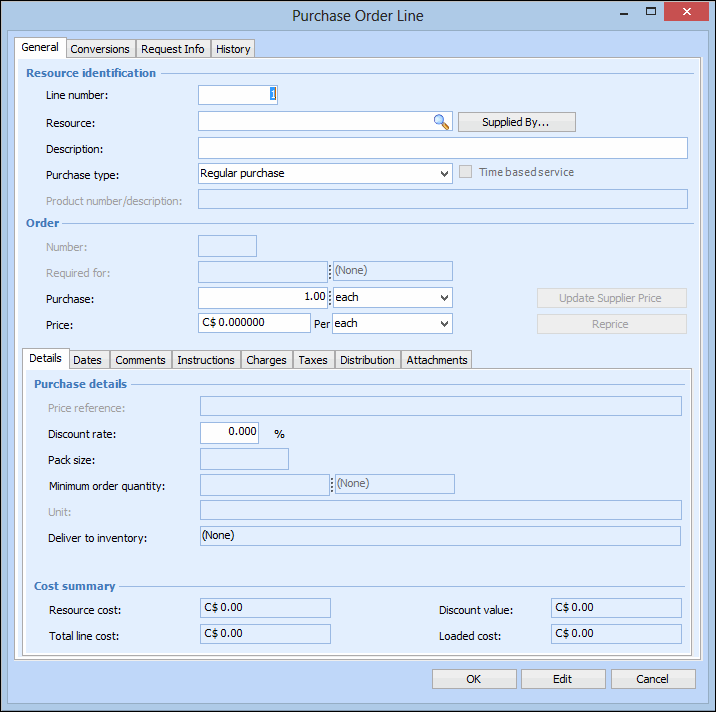
Select the Lines tab, and then click New. The Purchase Order Line dialog appears.
7.
8.
Select the purchase type Repair Order. The Unit list on the Details tab becomes available.
9.
From the Unit list, select the unit for repair.
Note: If you select a unit that has not been issued from inventory (e.g. ‘Spare’), you will need to issue the unit before you can create the Ship unit for repair transaction.
10.
Select the Distribution tab, and complete the following information:
Multiple Accounts: You can select fixed amounts or percentages of the total cost to be charged to various accounts.
Single Account: All costs from this P.O. line will be charged to the account you select.
11.
12.
When you are finished entering the purchase order line, click OK. The line is added to the purchase order.
13.
14.
When you are finished, Save and Close the Purchase Order window.