|
Creating Serialized Inventory Units for Resources
• Available spares — Component assets with an asset status that is matched to the inventory status spare, that are not in operation (out of service), and are available for use, are linked to inventory units with the status of “Spare.”
• Working components — Component assets with an asset status that is matched to the inventory status “Working” and that are in operation (in service) are linked to inventory units with an inventory status of “Working.”
• Unavailable spares — For component assets with an asset status that is matched to the inventory status “Awaiting Repair Action,” that are not in operation (out of service), and are not available for use, APM creates units with a status of “Awaiting Repair Action” and links the assets to the new units.You can convert existing warehouse balances to serialized units from the resource view. You must first activate serialized inventory support. For more information, see Activating Serialized Inventory Support for Resources.To Create Serialized Units From a Resource
1. From the Site window, select the Resource Management view and find and open the resource. The Resource window appears.
3. Select the Inventory view.
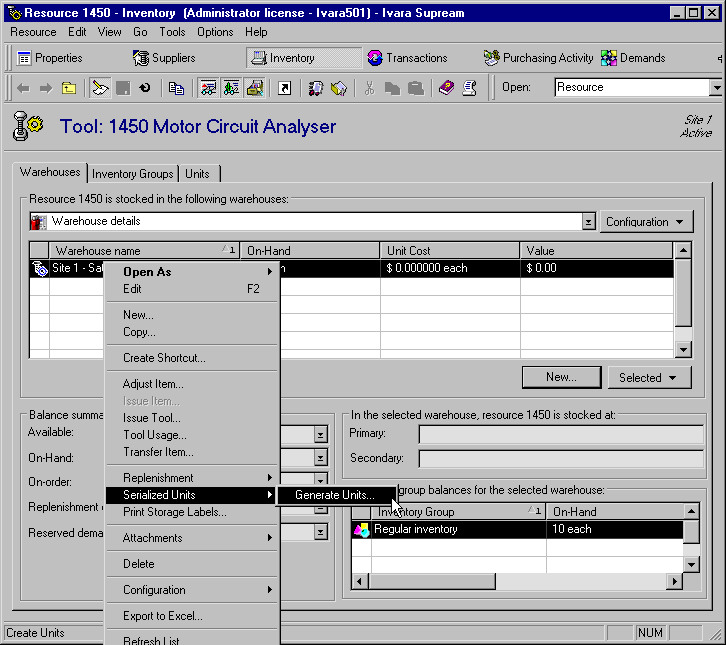
4. On the Warehouses tab, right-click the warehouse for which you are creating units, and then select Serialized Units > Generate Units.
5. The Create Serialized Units dialog appears and the Verify Units button becomes available. The table at the bottom of the dialog lists the units that will be created. You can:
• Add additional new units — Click New. The Create Inventory Units dialog appears. The most common reason for adding new units this way is to add units for assets that did not reference the resource.
6. If necessary, make any changes to the unit information, and then click Verify Units. A confirmation message appears.If the verification is successful, Verify Units is replaced with the Create Units, and the unit information cannot be changed.
7. Click OK.
8. Click Create Units to complete the unit creation process. The units now appear in the list on the Units tab.