Counting Serialized Resources

When you create a count sheet for a serialized resource, a separate line item is created for each unit that is physically in inventory — “Spare,” “Awaiting Re-stock,” and “Returned.” For example, if a resource has ten units, five of which are “Spare,” two are “Returned,” one is “Awaiting Installation,” and two are “Working”, seven items are included on the count sheet.
Count a serialized unit by recording its current status. If the entered status differs from the system’s expected status, you can create a change status type adjustment transaction for the unit.
Inventory balances are maintained by resource and by warehouse. For serialized resources, the following unit status totals are included on the inventory balance:

To Count a Serialized Resource

1.
In the Site window, select the Resource Management view and then the Inventory tab.
2.
Select the Count Sheets tab and then select the warehouse from the list on the left side. All open count sheets for the selected warehouse are displayed in the table on the right.
3.
Right-click the warehouse that you want to count materials in. Click Open as and then Count Sheets. APM opens the warehouse and displays the Count Sheets view.
Tip: You can also select the Warehouses tab, double-click to open the warehouse for which you want to count materials, and then select the Count Sheets view.
4.
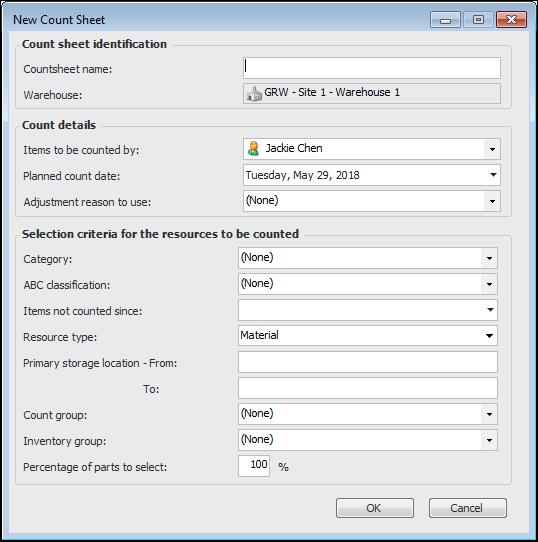
Click New. The New Count Sheet dialog appears.
5.
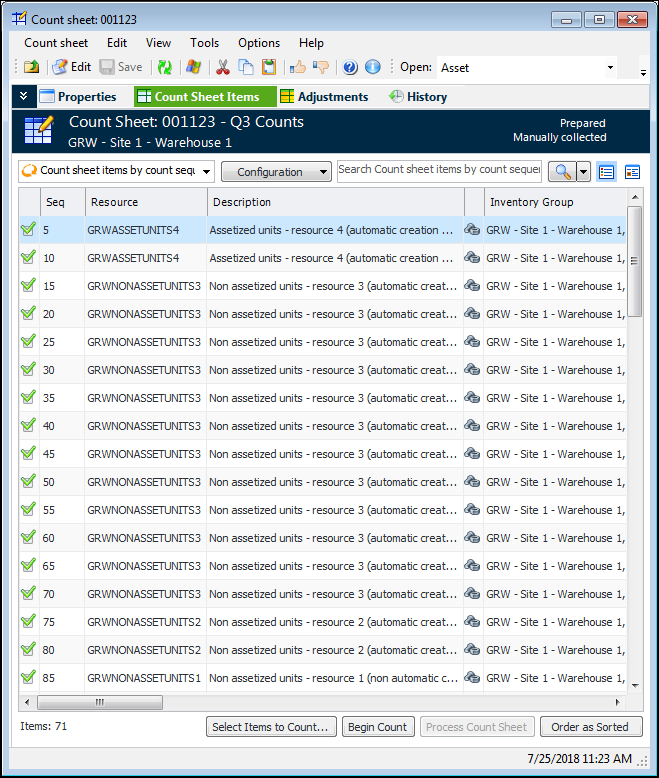
Enter your criteria for parts to be counted. Click OK. APM creates and opens the count sheet. A separate line item is created on the count sheet for each serialized unit.
6.
If you want to change the list of parts on the count sheet, click Select Items to Count. The Change Selection Criteria dialog appears in which you can enter your selection criteria, then click OK. If the list of parts changes, APM asks for confirmation.
7.
To start counting, click the Begin Count button. Confirm that you want to continue and then APM locks the items identified on the count sheet so that they cannot be issued from inventory. Any transactions for the items are held until the count has been completed.
8.
9.
10.