|
Adjusting Inventory Balances for Non-serialized Resources
To Adjust Inventory for a Non-serialized Resource
1.
2. On the Warehouses tab, right-click the warehouse that you want to adjust quantities for. Select Open as and then Stocked Items. APM opens the warehouse and displays the Stocked Items tab on the Stocked Items view.
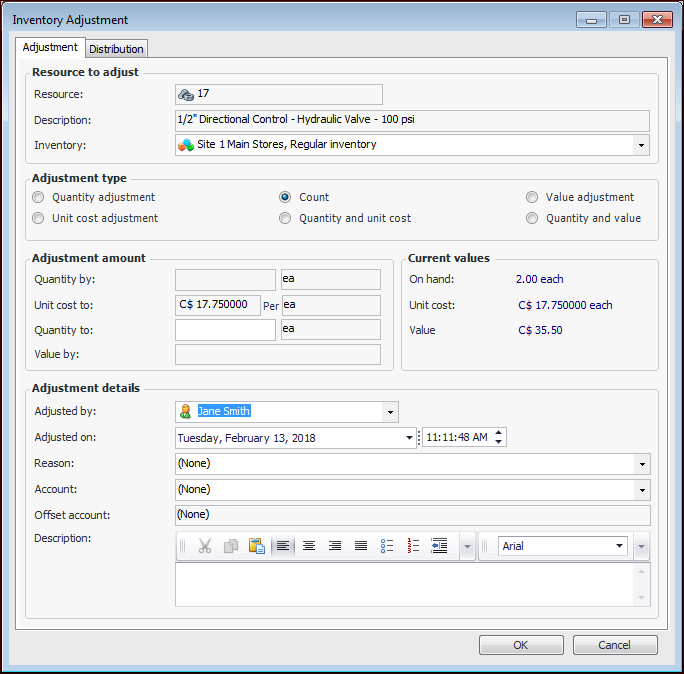
4. Right-click the warehouse item and select Adjust Item. The Inventory Adjustment dialog appears.Resource to Adjust
• Inventory: Select the warehouse inventory group which holds the balances for the item. For example, if you are adjusting inventory for a consignment item, select the appropriate consignment inventory group.Adjustment Type
• Count: Updates the quantity of items on hand to reflect the physical count of items in the warehouse. Enter the number of items that are currently in the warehouse. The difference between the original value and the replacement value is calculated, and the appropriate adjustment made.
• Quantity: The entered quantity is added to or subtracted from the warehouse item’s current on-hand balance. This type of adjustment is typically used when a known quantity of an item must be added to or removed from inventory. For example, if a number of items were found to be defective, an adjustment quantity of x is adjusted out (or down). The unit cost is not affected.Adjustment amount
Adjustment Details
• Adjusted by: The person adjusting the inventory.
• Adjusted on: The date and time the inventory was adjusted.
• Reason: Select the reason that the inventory was adjusted from the list.
6. When you are finished entering information, click OK. APM posts the new transaction and makes the appropriate inventory adjustments in the warehouse.