
Recommissioning Serialized Resource Units

Decommissioned serialized resource units can be recommissioned if, for example, a unit was decommissioned in error or if it becomes feasible to repair the unit. If you change a unit’s status from “Decommissioned” to “Recommissioned,” the value of the unit is added to inventory. This value is credited to a work order task, asset, or GL account.

To Recommission a Serialized Resource Unit
1.
In the Site window, select the Resource Management view and then the Inventory tab.
2.
On the Warehouses tab, select the warehouse in which the resource is decommissioned, from the list on the left side. The list of stocked resources is shown in the table on the right side.
3.
Right-click the resource for the unit being decommissioned and select Adjust Item. The Inventory Adjustment dialog appears.
4.
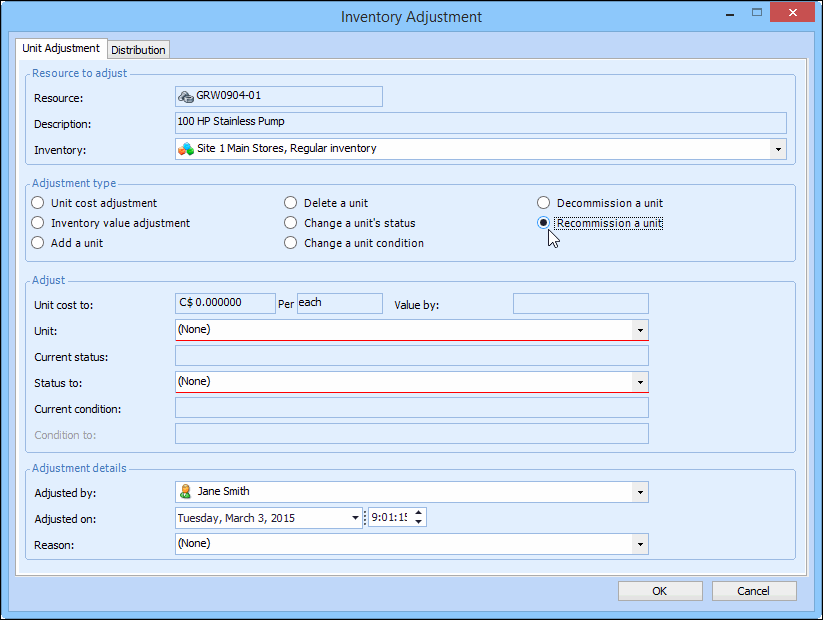
Identify the Resource and Inventory. When you are enter the part number for a serialized resource, the Recommission a unit option is available. For example:
5.
Select Recommission a unit as the adjustment type.
6.
Select the Unit to recommission. Only units with the status ‘Decommissioned’ are displayed.
7.
Select the new Status for the unit after the transaction — ‘Spare’ or ‘Returned to inventory.’
8.
Select the Reason for the adjustment.
9.
Select the Distribution tab, and enter the work order, asset, or GL account to charge for the adjustment.
10.
Click OK to post the adjustment.