Reliability Project Management

Reliability projects are used to organize and track project tasks and linked analyses and objects. Objects that can be linked to a project are:
Reliability projects are usually employed in APM implementations that integrate with external CMMS systems using AWEIS. Consequently, they typically rely on project tasks rather than work orders to identify and track the work required. These projects do not usually track planned and actual costs.
Note: This functionality is generally available. You must first enable feature 99 to use the functionality in APM. In the Enterprise window, select the Features view and the Enabled Features tab. Click Browse, select “Support for reliability projects” and click OK. If APM is running as a smart client, click Refresh Enabled Features on the server. Then restart the client to use the functionality.
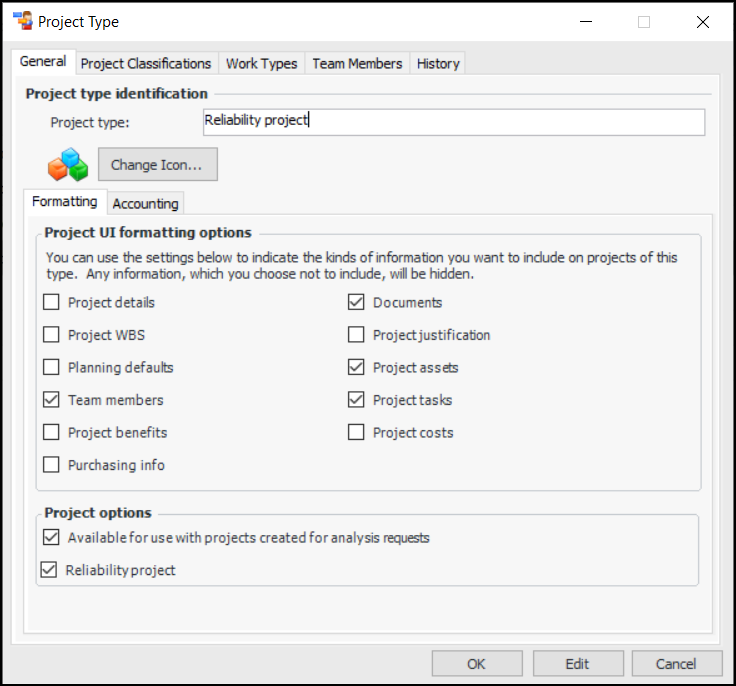
The project type determines the kinds of information available in the Project window. Here is a typical reliability project type:
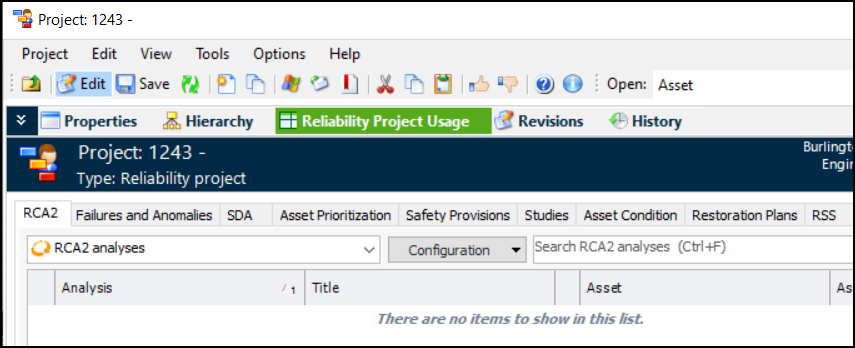
When Reliability project is selected in the project type, the Project window displays the Reliability Project Usage view, which lists the objects linked to the project. For example:
The rest of this topic explains concepts specific to reliability projects:

Project Tasks

Project tasks provide a simple way to identify actions without requiring work orders and work order tasks. Project tasks have limited properties and are not meant to replace work orders when work planning is required.
Note: This functionality is generally available. You must first enable feature 98 to use the functionality in APM. In the Enterprise window, select the Features view and the Enabled Features tab. Click Browse, select “Support for project tasks” and click OK. If APM is running as a smart client, click Refresh Enabled Features on the server. Then restart the client to use the functionality.
You can select a project task when linking an object (for example, an analysis) to a project. You can also add tasks to a project in the Tasks tab in the Project window.

Project Hierarchy

The project hierarchy allows you to break a project down into any number of sub-projects and levels. In addition to providing a graphical view of the project structure, the project hierarchy is used to push a project’s approval status down the hierarchy. When a higher-level project is approved, sent for approval, redrafted, or rejected, the status can be applied to the project’s sub-projects.

Approvals Process

APM supports the approval of projects. Your site’s approval settings determine if projects require approval.
When a project is sent for approval, the route selected is based on the project that is being approved. Each approval route for projects can identify the project or projects it can be used with. Alternatively, on the project itself, you can add the project to a new or existing route.
If approval is based on monetary limits or thresholds, the value of the project is its estimated cost. The estimated cost includes the cost of the project’s sub-projects.
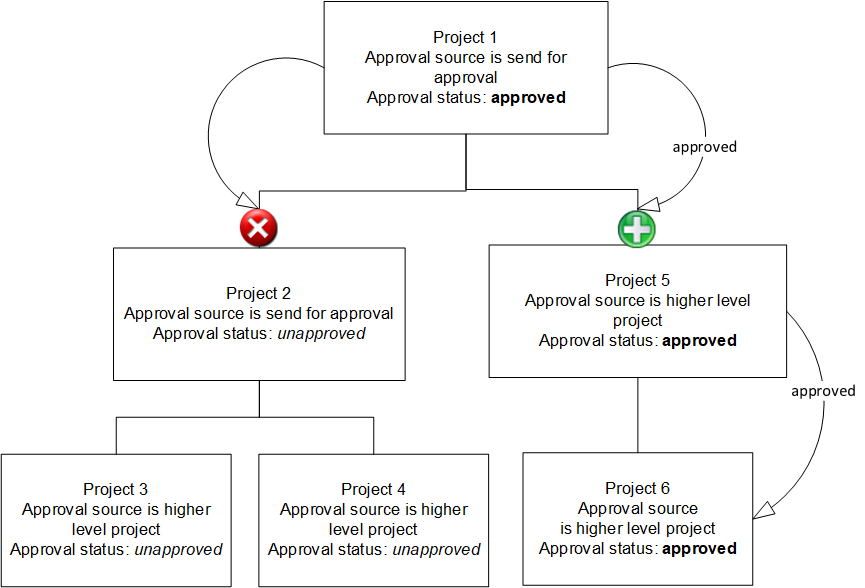
The system uses the project hierarchy to push the project’s approval status down to the sub-projects. When a project’s approval status changes to “sent for approval”, “approved”, “rejected”, or “redrafted”, the status is also applied to all of the project’s sub-projects. The project’s approval status is not applied to sub-projects that are being approved separately.
Project statuses are flexible. Depending on your site settings, certain actions (such as editing) might or might not be allowed when a project’s approval status is “waiting for approval”, “approved”, or “rejected”.
See Approving Documents for more information on the approval process in APM.

Effect of the Project Hierarchy on Approvals

The project hierarchy is used in two ways by the approval process. First, the costs of a project’s sub-projects are rolled up the hierarchy to determine the value of the project for approval purposes.
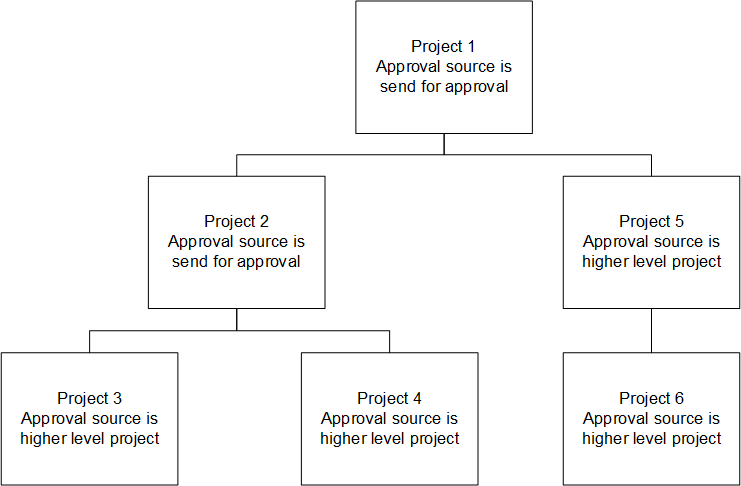
The second way in which the hierarchy is used is to push the approval status down the hierarchy. When a project is approved, sent for approval, redrafted, or rejected, the status is also applied to the project’s sub-projects. In case this approach is not appropriate, a rule has been included on the project to allow you to indicate if the project’s approval originates with a higher-level project and approval is pushed down the hierarchy, or if the project is approved separately. If the project is approved separately, the approval status from the higher-level project is not applied; the project is sent for approval independently.
To illustrate, here is the approval process for the project structure:
When project 1 is approved, its approval status is pushed down as follows:

Project Hierarchy Code and Location

The project’s hierarchy code and location serve the same purpose as the asset hierarchy code and location.
The project hierarchy code allows you to identify a project’s location within the project hierarchy. The hierarchy location contains the project’s hierarchy code concatenated with the hierarchy codes from the project’s parents and higher-level ancestors.

Project Status and Events

Project status consists of user-defined values that are used to track the progress of each project. Project events and project status controls are linked to project status. The events determine the automatic status changes upon a common project activity, such as sending a project for approval. The controls linked to each status determine the actions that can be taken when a project has a particular status.

Project Events

Events settings allow you to define the status for a number of predefined project actions. The project’s status is automatically changed when the action is performed. For example, when a project’s work orders are closed, its status is automatically set to “closed”.
A project status can be associated with the following actions:

Project Status Controls

Project statuses allow you to control the actions that can be performed on a project. The project’s status is shown in the Project window in the Properties view, General tab. Each project status definition includes the activities that are allowed for that status. For example, whether or not the project’s properties can be changed is controlled by the project status.
The following activities can be controlled by the project status:
 

Approval Process Examples

To effectively use the approvals process and activity controls with projects, you must set up your project statuses in a logical fashion. The project status definition determines the actions that can or cannot be carried out when the project has that status. For example, if you set up a status called “Approved”, it makes sense to disallow the activity “Project may be sent for approval”.
The following table outlines a suggested set of statuses and their controls for use with approvals functionality. Using these settings ensures that the project retains an audit trail where appropriate. You can choose to use these statuses or create your own, depending on your circumstances. The documentation, however, assumes that the status “Approved” is as shown below.