Creating a Reliability Project

Reliability projects are used to organize and track project tasks and linked analyses and objects. Objects that can be linked to a project are:
Reliability projects are usually employed in APM implementations that integrate with external CMMS systems using AWEIS. Consequently, they typically rely on project tasks rather than work orders to identify and track the work required. These projects do not usually track planned and actual costs.
Note: This functionality is generally available. You must first enable feature 99 to use the functionality in APM. In the Enterprise window, select the Features view and the Enabled Features tab. Click Browse, select “Support for reliability projects” and click OK. If APM is running as a smart client, click Refresh Enabled Features on the server. Then restart the client to use the functionality.
This topic explains how to create a reliability project in an APM implementation where:
You can create projects in the site’s Work Management, Strategy Development, Reliability Program, or Performance Management views. This topic explains how to create a project from the site’s Strategy Development view.

To Create a Project

1.
From the site’s Strategy Development view, select the Projects tab. This tab shows all of the projects planned on your site.
2.
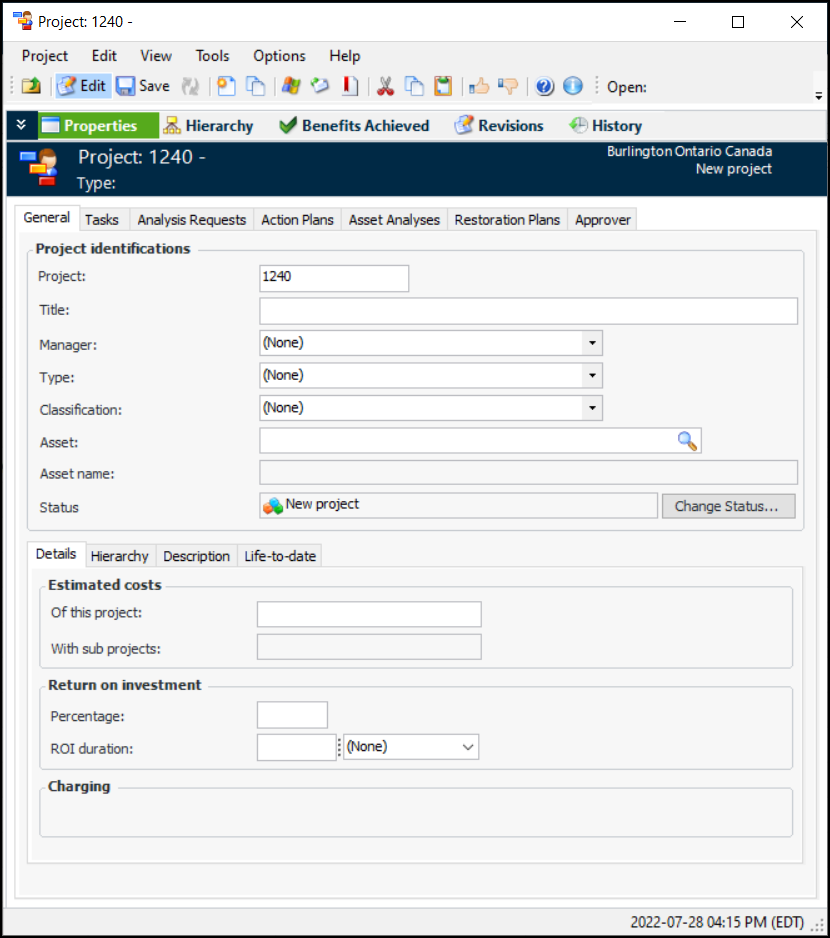
Click New to create a project. The Project window appears.
Note: The Project window displays the status associated with the creation event.
3.
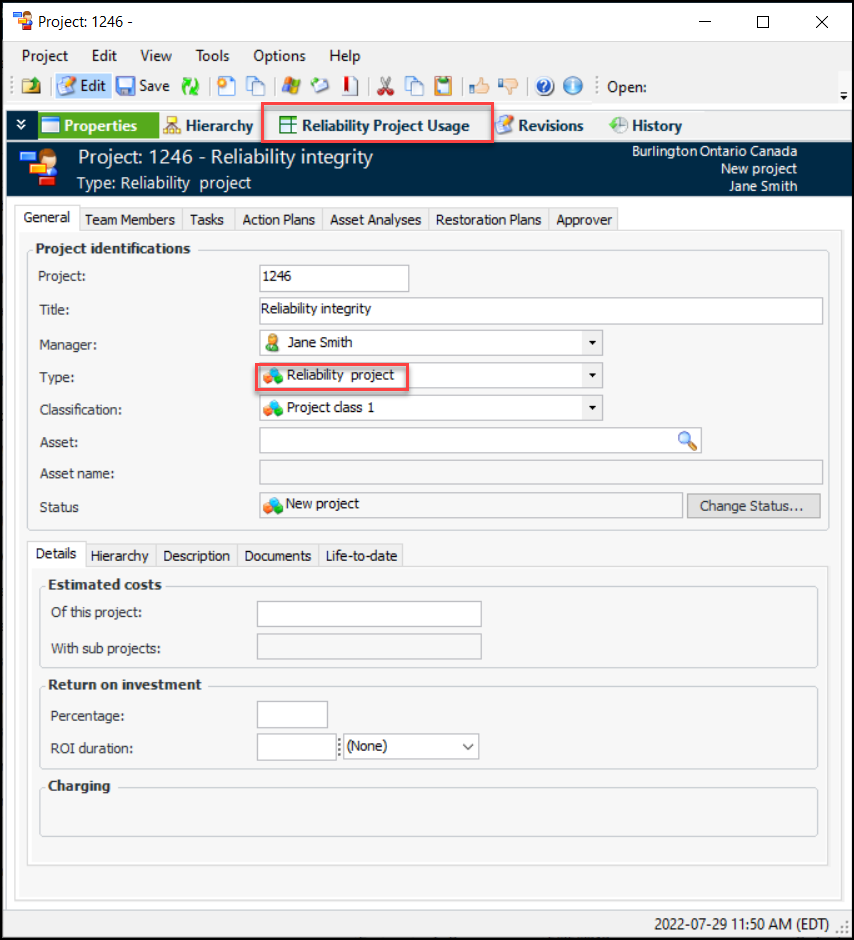
Tip: If you have the required security settings, you can right-click in the Type box and click New to add a new project type.
When you select a project type that supports Reliability projects, the Project window changes to include the Reliability Project Usage view. For example:
4.
Optionally, you can browse to select an asset to assign to the project. The Asset and Asset name boxes are populated with the asset information. The asset information provides a reference that makes it easier to search for projects.
Note: For information about changing the status, see Changing Project Status.
5.
On the Details tab, you can enter values for the estimated costs and return on investment, if appropriate. See Defining Estimated Cost, Project Life, and ROI.
6.
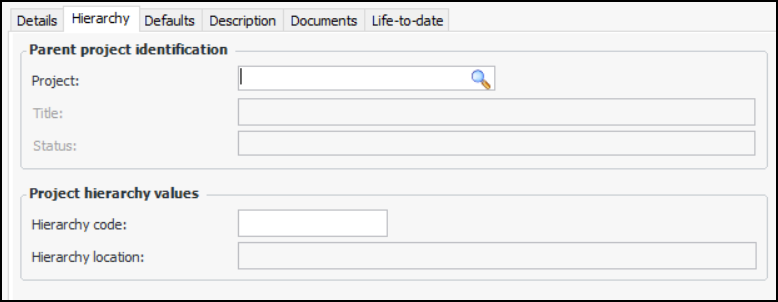
Select the Hierarchy tab:
7.
8.
On the Description tab, provide more information about the project.
9.
10.
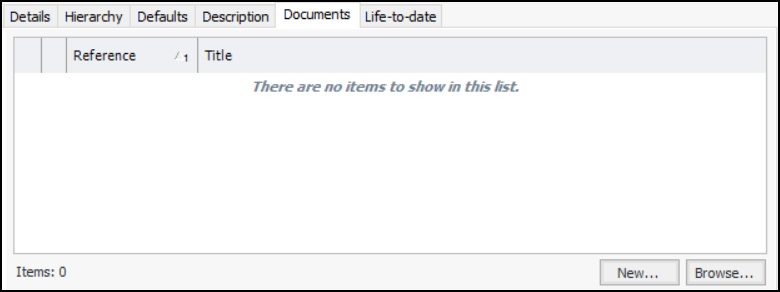
Click New to create a document, or click Browse to select an existing one. For more information, see Creating a Standard Document.
11.
12.
If the project type allows team members, select the Team Members tab and add employees or consultants to the team. For more information, see Setting up the Project Team.
13.
14.
Now that you have created the reliability project, you are ready to do the following: