Marking a Gas Transaction as Incorrect

You can mark the most recent transaction for a gas container as incorrect. This allows you to create a replacement transaction. Note that if an indicator reading was generated from the transaction, you must deal with the reading and any alarm manually.
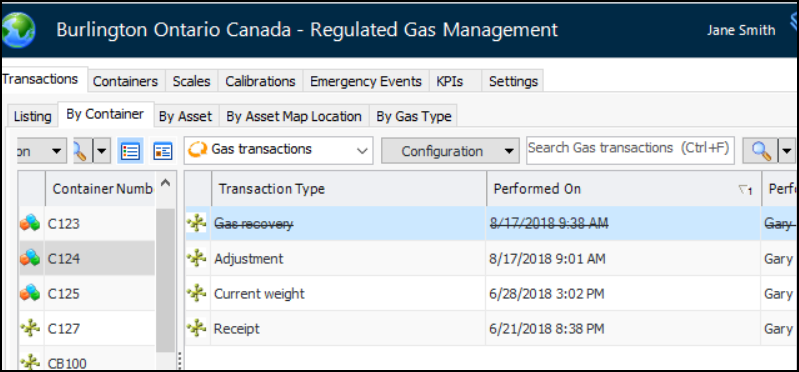
Once the transaction is marked incorrect, you cannot change any of its properties. It is displayed as scored through in tables. For example:
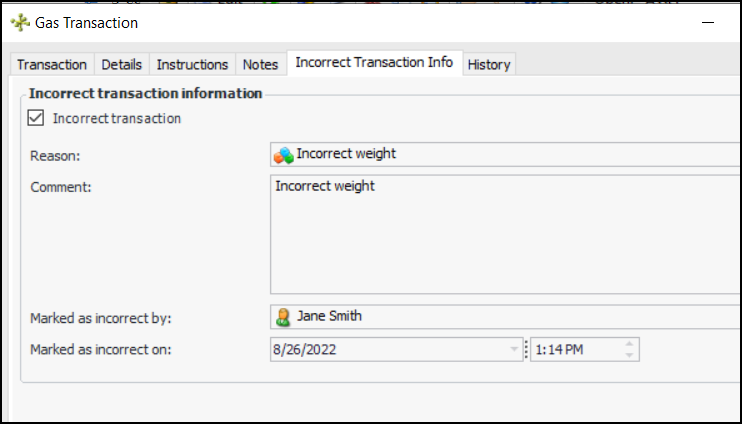
The Gas Transaction window displays the Incorrect Transaction Info tab, which shows information about the action. For example:
This topic explains how to mark a transaction as incorrect. For information about setting up reasons, see Setting up Reasons for Incorrect Gas Transactions.

To Mark a Transaction as Incorrect

1.
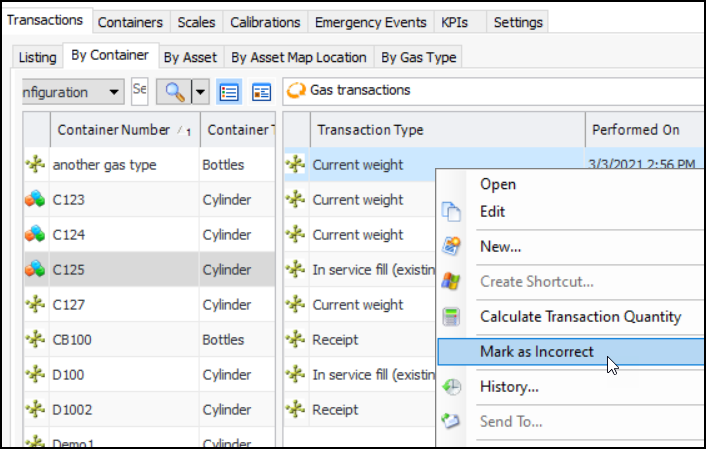
In the Site window, select the Regulated Gas Management view and the Transactions tab. Select the By Container tab.
2.
3.
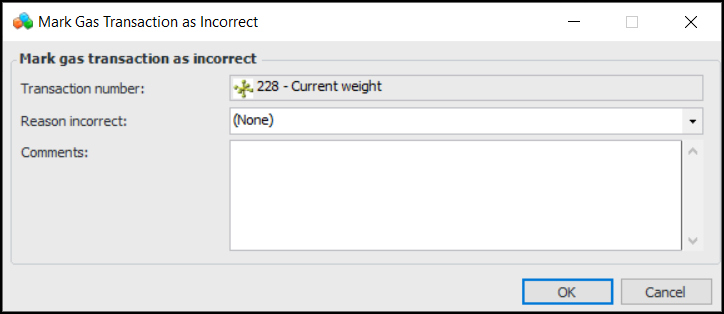
The Mark Gas Transaction as Incorrect dialog appears:
4.
Select an option from the Reason incorrect list.
5.
In the Comments box, provide more information about the problem.
6.
Click OK. The transaction is shown as scored through. You can open the Gas Transaction window to view information about the action.