Creating an Adjustment Gas Transaction

The adjustment gas transaction records a change to the container or asset information, typically to correct data-entry errors. It requires the transaction description. Optionally, you can select the container ID, the location asset (for example, headquarters or substation), the weight as measured, adjustment value, and the scale used to measure the container.
Note: Transaction types and their requirements are defined to your organization’s specifications, so the example transaction in this topic might differ from what you see in APM.

To Create an Adjustment Gas Transaction
1.
In the Site window, select the Regulated Gas Management view and the Transactions tab.
2.
In the By Container tab, select the container and click New. The Gas Container window appears.
Tip: You can also create the transaction from the location of the container. In the Site or Asset window, select the Regulated Gas Management view and the Transactions tab. In the Site window, select the By Asset tab and select the location asset in the tree. The asset information is shown in the Gas Transaction window.
3.
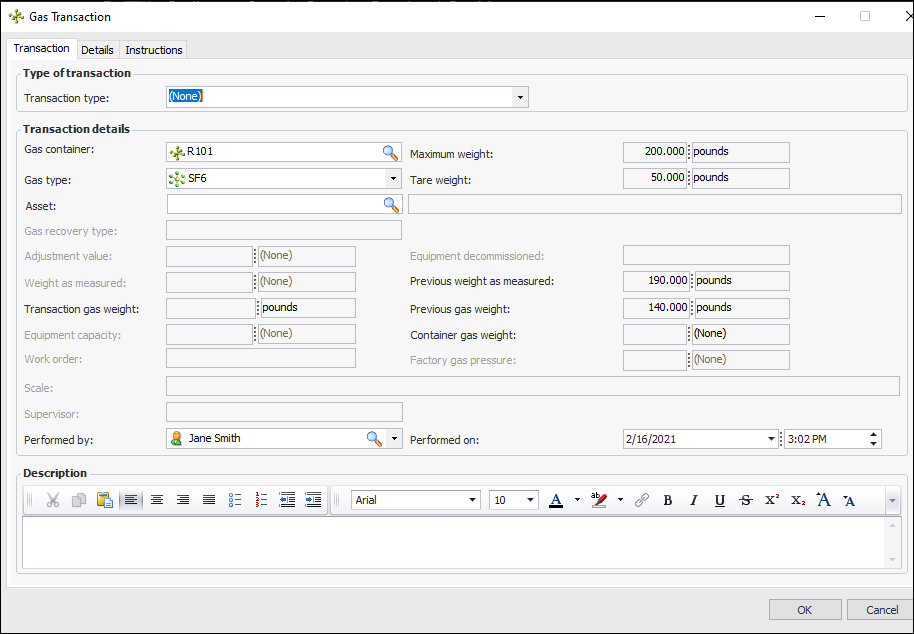
In the Transaction type list, select “Adjustment”.
Note: If the transaction type requires you to read instructions before proceeding, the instructions are displayed. Click Acknowledge Instructions when you have read them.
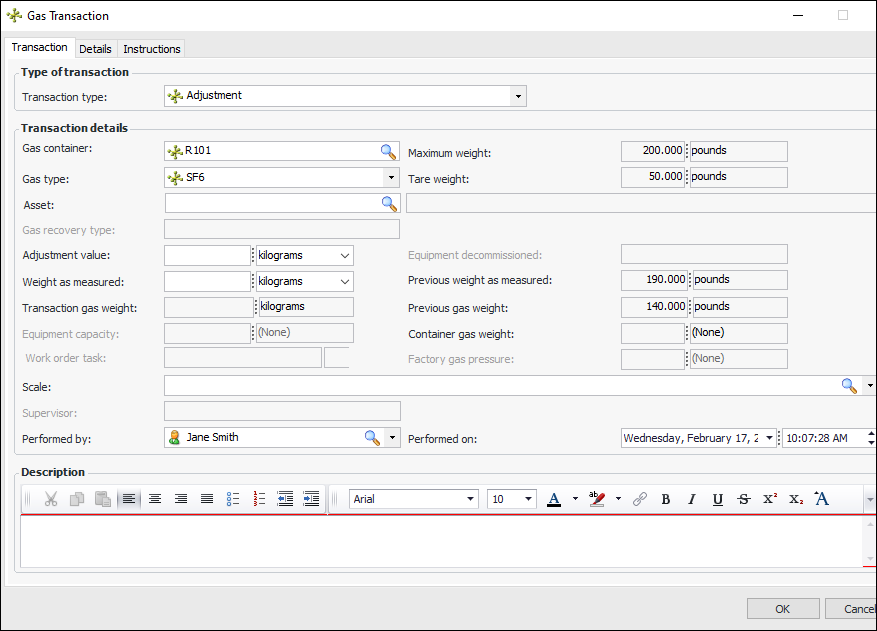
The Transaction tab appears with changes based on the transaction type’s requirements. For example:
Note: Be sure to select the Instructions tab (even if you were not required to acknowledge instructions) before you complete the transaction.
The default gas type on the container is automatically selected in the Gas type box. The maximum and tare weights are copied from the container record.
4.
In the Asset list, select or browse for the appropriate asset.
Note: The transaction is assigned to the asset’s site by default. The transaction site is shown on the Details tab, along with the transaction details.
5.
In the Weight as measured box, enter the weight of the container.
APM calculates the transaction gas weight: the current weight is subtracted from the previous weight as measured.
APM calculates the container gas weight (amount of gas left in the container) by subtracting the tare weight from the weight as measured.
6.
In the Scale list, select the instrument used to weigh the container.
7.
The Performed on and Performed by boxes are populated automatically. You can change the values if required.
Note: If the performed-on date is prior to the container’s most recent transaction, Transaction gas weight is replaced by the message “Calculation pending”. When you click OK to save the transaction, the transaction gas weight is calculated and the transaction tables and windows are updated. This allows APM to ensure that the most recent performed-on date is taken into consideration.
Tip: If you wish to confirm gas transaction weights, select one or more transactions in any tab under the Transactions tab. Right-click and click Calculate Transaction Quantity.
8.
9.
Click OK. The dialog closes and the transaction is added to the tab.