
|
Sending an RCM2 Analysis for Approval
Tip: For general information about the approval process, see Document Approvals. For instructions on approving requests, see Approving a Document.Tip: To view information about the analysis’ approval requests, select the History view and the Approvals tab. Information about the current and historical requests is displayed.To Send an Analysis for Approval
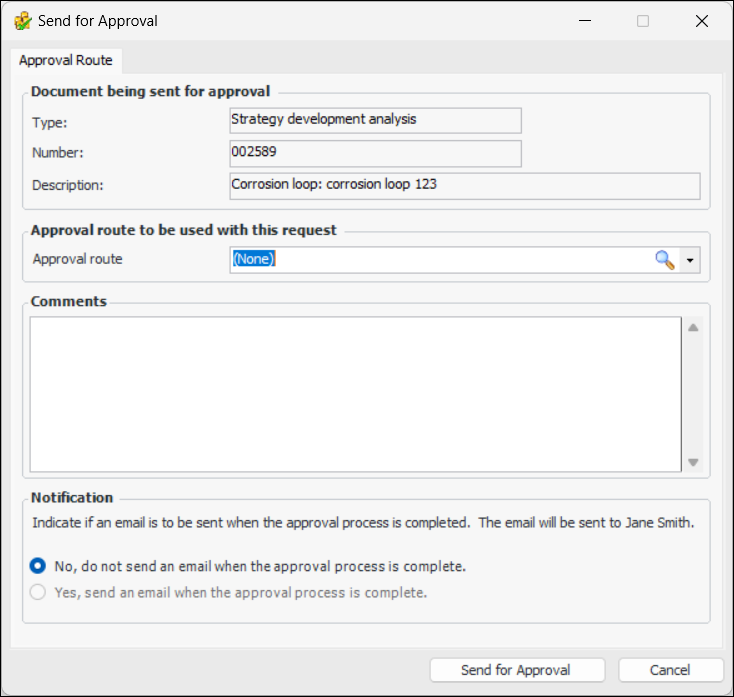
1. Open the analysis that you want to send for approval. Click the Analysis menu and then Send for Approval.Tip: You can also right-click the analysis in a table and click Send for Approval.
2. Select the Approval Route from the list. Only approval routes that are valid for strategy development analyses and the analysis type are listed.
3. Enter a comment, if you wish. Requester comments are displayed in the site’s Approvers view, Requests tab, as well as in the Approval Request window in the Request Info tab.To have APM automatically send an email to the originator when all approvers have reviewed the request, select Yes, send an email when the approval process is complete.
5. Click Send for Approval. The request is sent to the first approver on the route and the approval status is updated (shown in the window banner). If a study status is linked to the event, the status is updated.