|
Setting Mapping Options for a Failure Mode Copy
Tip: If you wish to return to the site-level settings, click Site Values and then Reset. This option is used when you have made a number of changes to the criteria, are unhappy with the resulting suggested mappings, and want to start over.To Set Mapping Options
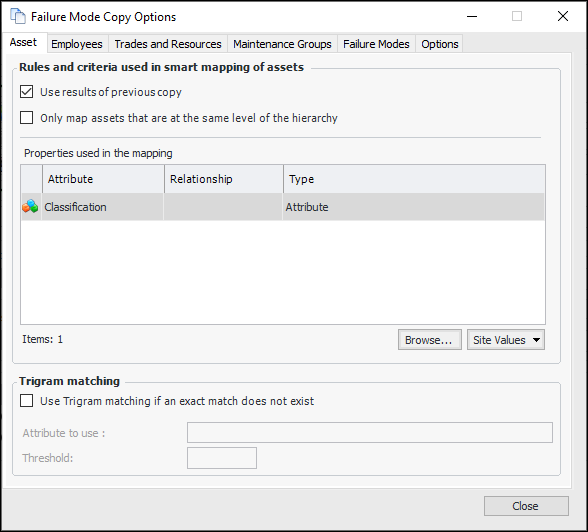
1. In the Copy Failure Modes wizard, Identify Target step, click More Options. The Failure Mode Copy Options dialog appears.
2. Select mapping defaults on the Asset, Employees, Trades and Resources, Maintenance Groups, and Failure Modes tabs. The following sections explain the options.
3. When you are finished, click Close.Use Results of Previous Copy
When a failure mode copy is performed, the asset mappings are saved by the system. When Use results of previous copy is selected, the next time a copy is performed for the same asset structures, the system retrieves the saved asset combinations and reuses them. If more than one match is found, the most recent of the previous mappings is used.
Only Map Assets at the Same Level of the Hierarchy
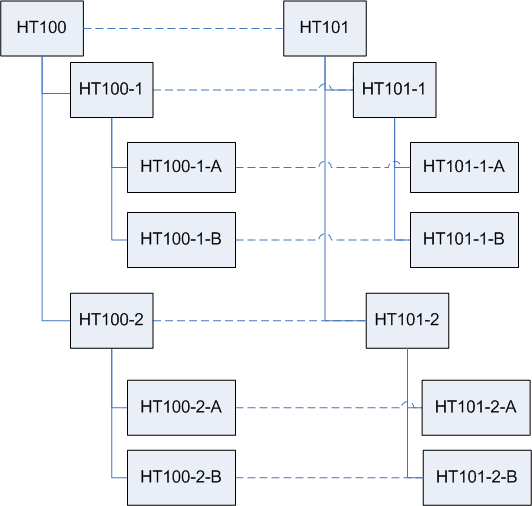
When this option is selected on the Asset tab, APM limits the suggested mappings to assets that are at the same relative level in their hierarchy structure as the source asset. The mapping starts with the starting asset in the source asset structure and the starting asset in the target asset structure. The first-level assets are mapped, then the second-level descendants, and so on. The mappings can also involve ancestors of the starting assets. As with descendants, first-level source ancestors are mapped to first-level target ancestors, and so on up the hierarchy.Adding Properties to Use in Smart Mapping
To Add Properties to Use in Smart Mapping
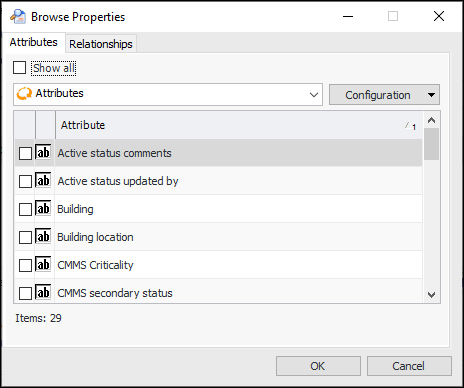
1. In the Failure Mode Copy Options dialog, click Browse. The Browse Properties dialog appears. Here is an example for the Asset class.
4. Select the Relationships tab and make any selections you require.
5. When you are finished, click OK. The Properties table now displays the attributes and relationships you selected.Tip: To remove a property, right-click it in the Properties table and click Delete. Click Yes in the confirmation message that appears.Using Trigram Matching
Select Use Trigram matching if the string attributes that you selected for smart mapping might not match the target values exactly. Trigram searching is useful for identifying the closest match when the exact syntax or spelling of the target object is not precisely known.To Use Trigram Matching
1. Click Use Trigram matching if an exact match does not exist.
3. Enter a value in the Threshold box if you want to specify a cut-off point for Trigram matching. For example, if the threshold is 0.5, any object that returns a score lower than 0.5 will not be presented as a match.Reviewing the Results of Trigram Matching
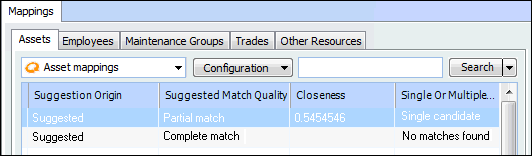
You can see the results of Trigram matching when you are reviewing suggested mappings in the Copy Failure Modes wizard. The Asset mappings table includes the following columns. You can also double-click a mapping to view its properties.
• Suggested Origin displays the method used for matching. The possible values are:
•
•
•
• Suggested Match Quality indicates if exact or partial (Trigram) matching was used. Possible values are:
• Closeness is the score obtained in the Trigram matching process. A closeness value of 1.0 is an exact match.
• Single Or Multiple Candidates indicates whether multiple candidates were found. Possible values are:Selecting Other Options
To Select Other Options
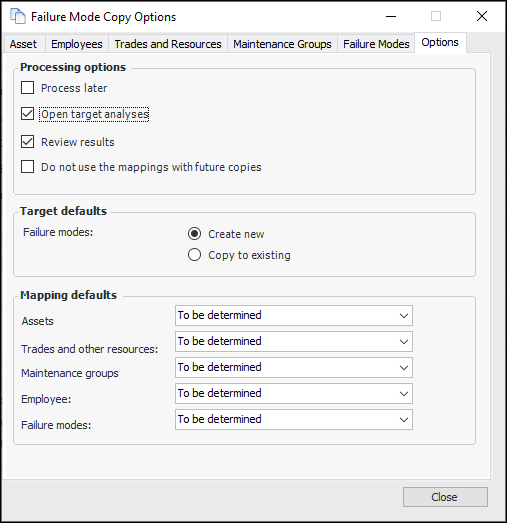
1. In the Failure Mode Copy Options dialog, select the Options tab.
• Create new – a copy of the object is created when the copy request is processed
• Copy to existing – the source failure modes’ properties are copied to the target failure modes
• Exclude – the source asset is excluded from the copy, as well as any failure modes, indicators, and standard tasks and jobs that refer to it
• Map to primary target asset – the source asset is mapped to the target asset selected as the starting point for the structure
• New – a copy of the source asset is created when the copy request is processed. The appropriate indicators, standard tasks, and standard jobs are created on the new asset
• Same – the source asset is used as the target. The source object’s existing objects are referenced on the target failure modes. For example, the indicators identified on the source are also referenced on the new failure mode.
• To be determined – the user determines the mapping method in the wizard
• New – a copy of the source objects is created when the copy request is processed
• Same – the source object is used as the target
• To be determined – the user determines the mapping method in the wizard
• Blank – no mapping is suggested if a match is not found. The object can be mapped manually.
• New – a copy of the source objects is created when the copy request is processed
• Same – the source object is used as the target
• To be determined – the user determines the mapping method in the wizard
• Blank – no mapping is suggested if a match is not found. The object can be mapped manually.
• Same – the source object is used as the target
• To be determined – the user determines the mapping method in the wizard
• New – a copy of the source objects is created when the copy request is processed
• To be determined – the user determines the mapping method in the wizard