Setting Risk Analysis Options for an RCM2 Analysis

This topic explains how to set the risk analysis options for an analysis. If the analysis uses an analysis type, the risk analysis settings are copied from the analysis type. You can review and change them as required.
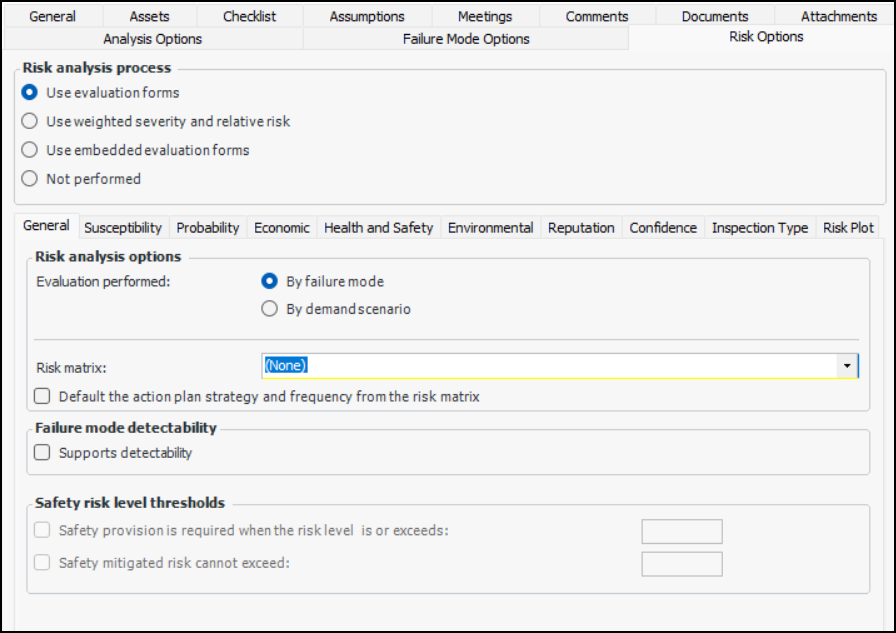
There are four initial options for risk analysis:
Use evaluation forms – The analysis team uses pop-up questionnaires to evaluate the probability of failure, consequences (economic, health and safety, environmental, and reputation), and confidence factors. APM then calculates the risk and shows it in the risk matrix. This process can be used with failure modes or demand scenarios.
Use weighted severity and relative risk – The analyst assesses the severity of economic, health and safety, environmental, and reputation consequences, assigning a number (weighting) to each factor. The analyst also enters the probability of failure and the confidence factor. APM then calculates the relative risk and shows it in the risk matrix. This process can be used with failure mode risk analysis only; it cannot be used to evaluate demand scenarios.
Use embedded evaluation forms – The analysis team selects options in the Risk tab of the Maintenance Action Plan window to evaluate probability and consequence factors. Safety analyses (SIF and HAZOP) use this type of form.
Not performed – Risk analysis features are not shown in the analysis window.
This topic explains how:

To Set Options for Using Pop-up Evaluation Forms

1.
2.
3.
On the Properties view, select the Risk Options tab. Click Use evaluation forms.
4.
On the General tab, select By failure mode. (Demand scenario risk analysis is normally performed on MTA2 or RBI analyses.)
5.
6.
7.
8.
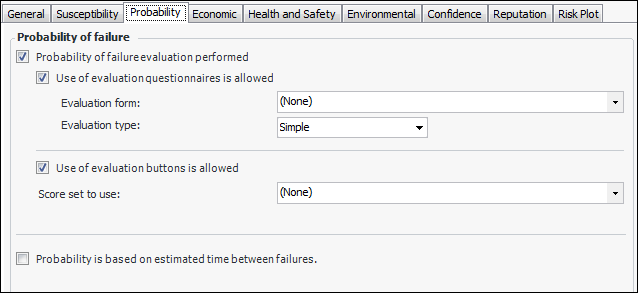
Select the Probability tab.
9.
Simple – The evaluator can select one statement for each category on the form.
Detailed – The evaluator can select two statements for each category on the form.
The probability of failure is determined by the estimated time between failure (ETBF) without maintenance tasks. When this option is enabled, the Estimated time between failures without maintenance box appears in the Failure Mode window, Criticality tab.
10.
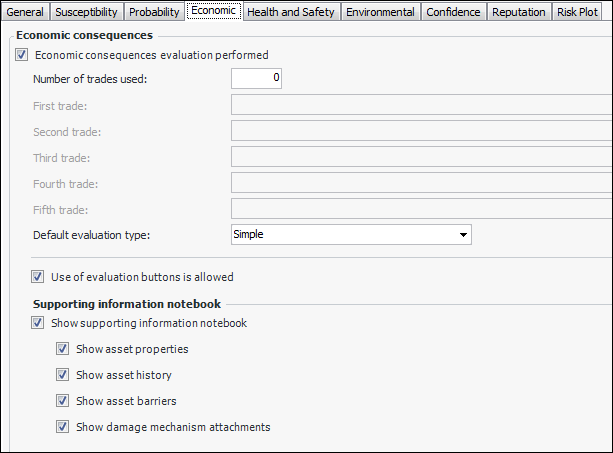
Select the Economic tab.
11.
12.
13.
Simple – The evaluator can select one statement for each category on the form.
Detailed – The evaluator can select two statements for each category on the form.
14.
When Use of evaluation buttons is allowed is selected, analysts can simply click the button that represents the result of their economic evaluation. If this option is not selected, the buttons are disabled.
15.
Show supporting information notebook – Displays a small panel in the online form containing tabs for the different types of reference information
Show asset propertiesAsset Properties tab displays the failure mode asset’s general information, documents, photographs, manufacturer, and so on
Show asset historyHistory tab displays checksheets, failures, and more
Show asset barriersBarriers tab displays failure barriers
Show damage mechanism attachments – On RBI analyses, the economic evaluation’s Attachments tab displays the documents attached to the damage mechanism on which the failure mode is based
16.
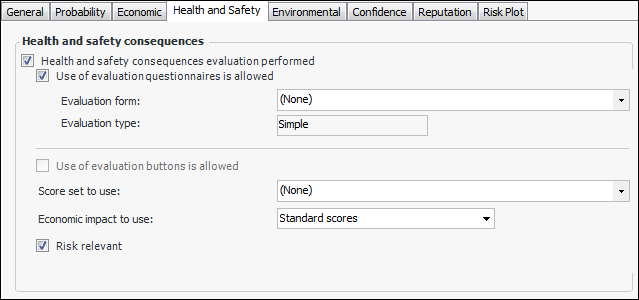
Select the Health and Safety tab.
17.
Simple – The evaluator can select one statement for each category on the form.
Detailed – The evaluator can select two statements for each category on the form.
18.
Select the Environmental and Reputation tabs in turn and set the options for using evaluation questionnaires and buttons.
19.
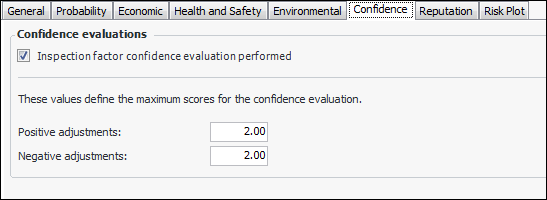
Select the Confidence tab.
20.
Note: If you set the positive and negative adjustments to 0.00, the confidence evaluation questionnaire’s adjustment values are used.
21.
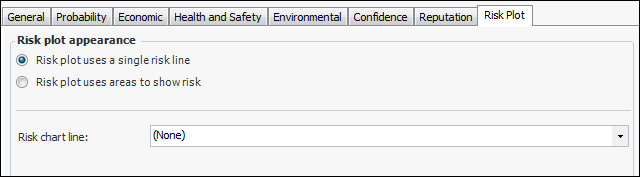
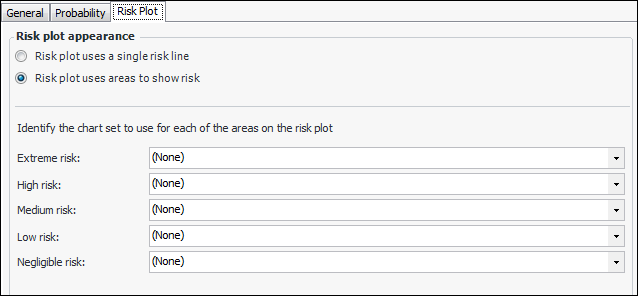
Select the Risk Plot tab. The risk plot chart can show either a single risk tolerance line or colored areas for one or more risk levels.
22.
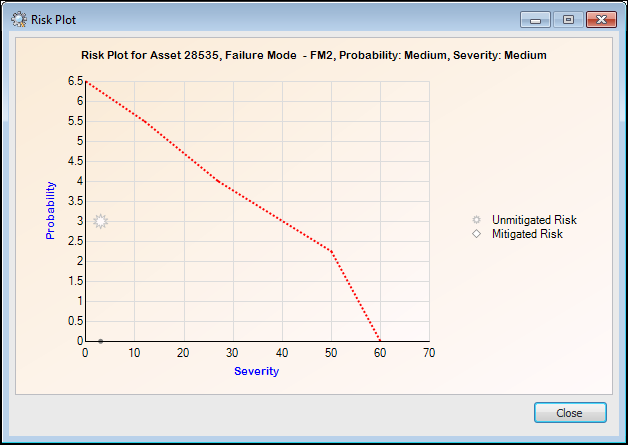
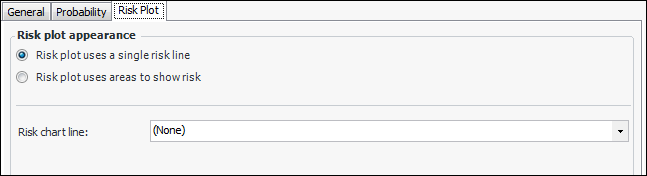
Risk plot uses a single risk line – risk plot chart displays a line to indicate the failure mode’s initial risk. Select the chart line style from the list, for example, “FM risk tolerance line”. Here is an example of a risk chart with a single line:
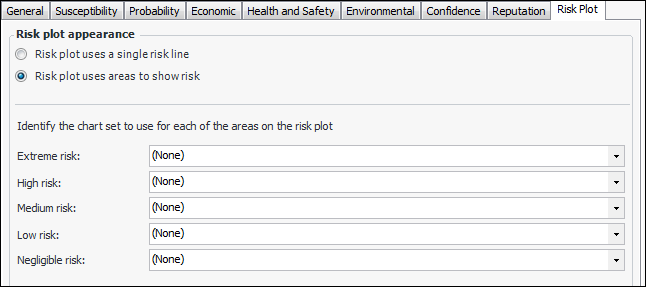
Risk plot uses areas to show risk – Each severity level is represented by a colored area in the chart. The window changes as follows:
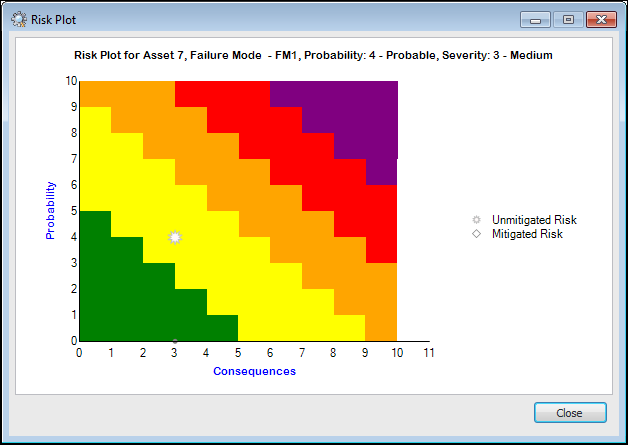
Select the appropriate chart line style for each risk level that you wish to show. Here is an example of a risk chart with all five areas:

To Set Options for Using Weighted Severity and Relative Risk

1.
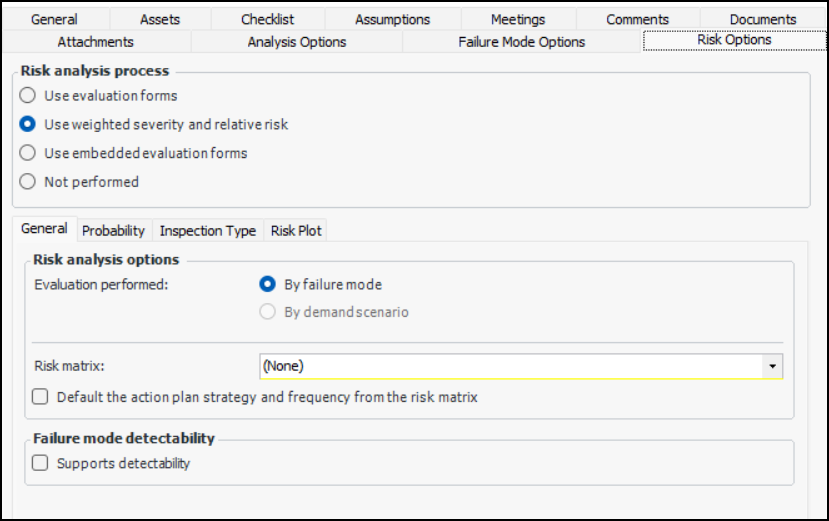
In the Strategy Development Analysis window, Properties view, select the Risk Options tab. Click Use weighted severity and relative risk.
2.
On the General tab, set the following options:
3.
Select the Probability tab. To determine the probability of failure based on ETBF, select Probability is based on estimated time between failures. When this option is enabled, the Estimated time between failures without maintenance box appears in the Maintenance Action Plan window, Criticality tab.
4.
Select the Risk Plot tab. The risk plot chart can show either a single risk tolerance line or colored areas for one or more risk levels.
5.
Risk plot uses a single risk line – risk plot chart displays a line to indicate the failure mode’s initial risk. Select the chart line style from the list, for example, “FM risk tolerance line”. Here is an example of a risk chart with a single line:
Risk plot uses areas to show risk – Each severity level is represented by a colored area in the chart. The window changes as follows:
Select the appropriate chart line style for each risk level that you wish to show. Here is an example of a risk chart with all five areas: