|
Developing RCM2 Functions and Failure Modes
Developing a function in APM using the Facilitation view is a three-step process:This section explains how to develop functions, functional failures, failure modes, and failure effects using the Facilitation view, Info Worksheet tab. It includes links to detailed topics for some tasks.You can also copy functions and failure modes into the analysis. For more information, see Copying RCM2 Failure Modes.To Create Functions
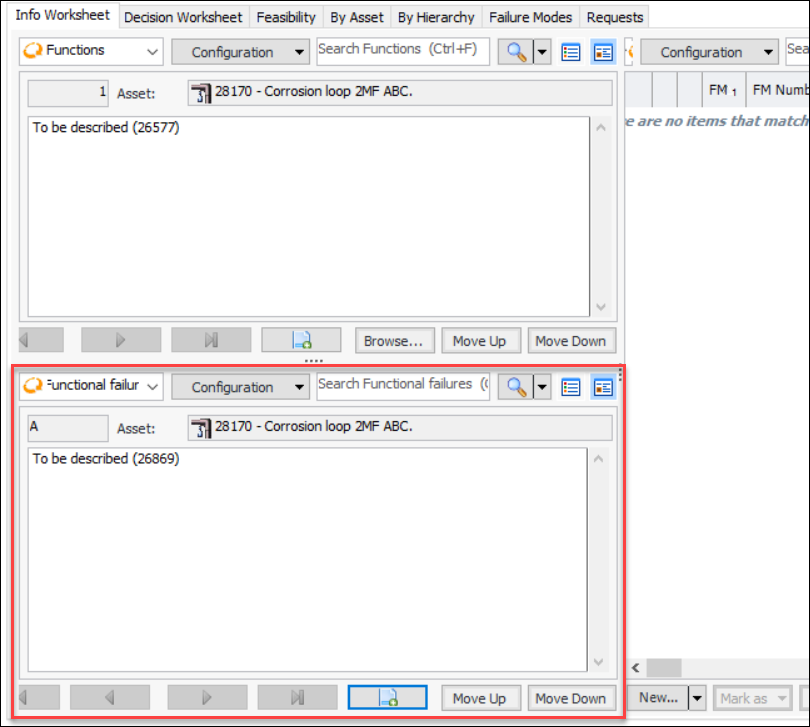
1. Open the RCM2 analysis and select the Facilitation view, Info Worksheet tab. By default, the “View as Form” icon () is selected in the Functions and Functional failures areas.
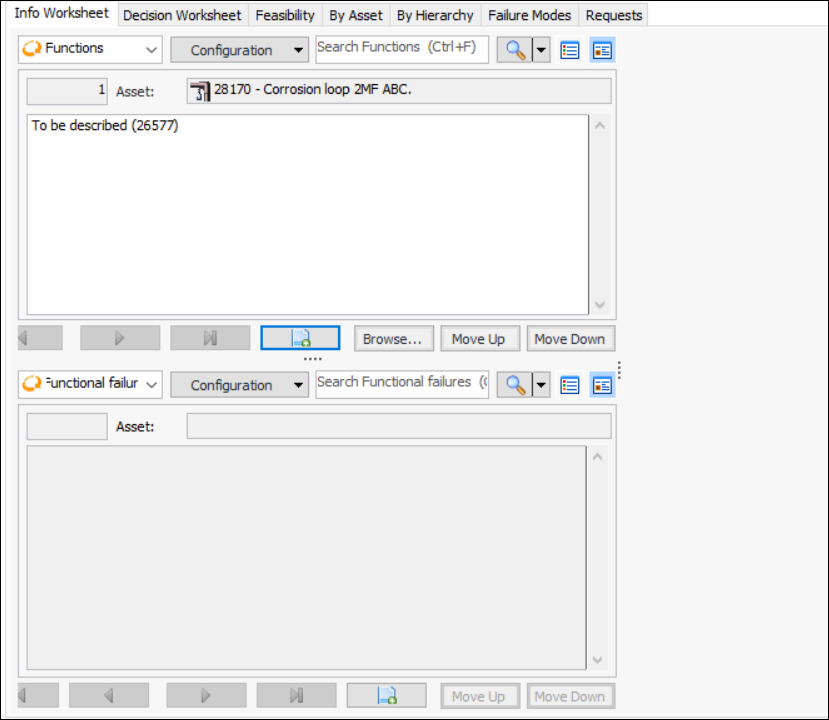
3.
4. In the Function box, describe the function.Tip: You can also copy functions, their functional failures, failure modes, and action plans into the analysis. Click Browse. The Copy Failure Modes wizard appears. For information about using the wizard, see Copying RCM2 Failure Modes.Tip: To re-sequence functions as needed, clickto view the functions in a table. Use the Move Up and Move Down buttons to change their order. The sequence numbers change accordingly.
To Define a Function’s Functional Failure
1. In the Info Worksheet tab, ensure that the correct function is displayed in the form view. You can use the buttons to navigate between functions, functional failures, and failure modes.
2. In the Functional failures area, click. The functional failure is assigned a sequential RCM2 reference letter. The Functional failure box is open for editing.
Tip: To re-sequence functional failures as needed, clickto view them in a table. Use the Move Up and Move Down buttons to change their order.
To Create a Failure Mode
1. In the Info Worksheet tab, ensure that the correct function and functional failure are displayed. You can use the buttons to navigate between functions, functional failures, and failure modes.
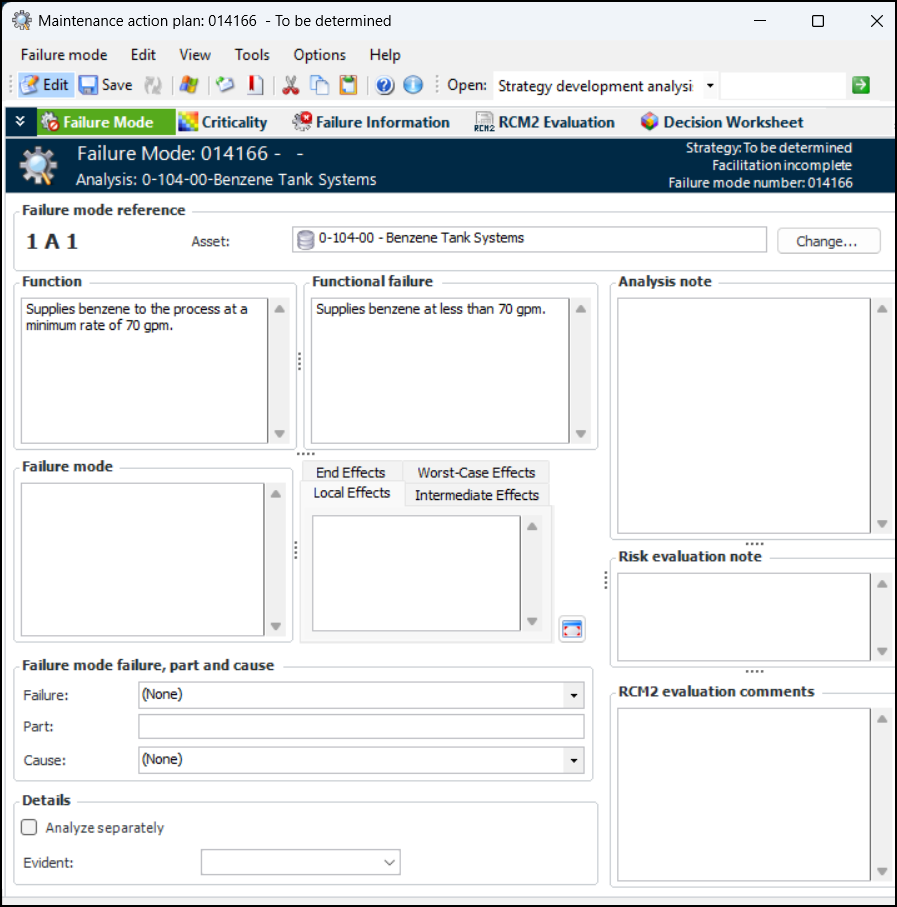
2. The Information worksheet configuration is best viewed in table mode, which is the default selection. Click the New list and then From Scratch. The Maintenance Action Plan window appears, showing the function and functional failure. For example:The Failure mode reference area displays the unique identifier for the failure mode, which consists of the number assigned to the function, the functional failure’s letter, and a sequential number assigned to the failure mode.Tip: You can hide the notes boxes by selecting an option in the analysis’ failure mode options. In the Strategy Development Analysis window, select the Properties view and the Failure Mode Options tab. On the User Interface tab, click Hide notes sidebar.
• Click Change. The Change Asset dialog appears.
• Tip: Select the Asset History view to see information about the analysis asset’s checksheets, failures, work orders, and work requests. If APM has been configured to access live information in an SAP Plant Maintenance system, you can view the notifications and maintenance orders associated with the analysis asset’s equipment or functional location.
4. Describe the failure mode in the Failure mode box.If the Failure effects box is displayed, describe what happens when the failure mode occurs.
• Local Effects –Local effect on the piece of equipment
• Intermediate Effects – Intermediate effect on a higher level equipment or asset
• End Effects – End effect on the asset or system being analyzed
6. In the Failure mode failure, part and cause area, select a failure and cause from the lists and enter a description of the effected part.
7. In the Evident list, select “Yes” or “No”. A failure mode is evident if its effects become apparent to the operating crew under normal circumstances if the failure mode occurs on its own.
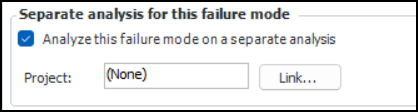
8. If you wish to analyze a complex failure mode in its own analysis, select Analyze separately.You can link the failure mode to an analysis request that is tracked by a project. Select the RCM2 Evaluation view and click the Link button at the bottom:
9. Select the Susceptibility view, if available, to perform susceptibility to failure analysis. For more information, see Evaluating Susceptibility to Failure for RCM2 Failure Modes.
10. Select the Criticality view to perform risk analysis. For more information, see Performing RCM2 Failure Mode Risk Analysis.
11. Select the Failure Information view, Failure Data tab to provide failure-tracking information. For more information, see Recording Failure Data for RCM2 Analyses.
12. Select the Failure Information view, Failure Pattern tab to record the failure pattern. For more information, see Recording Failure Data for RCM2 Analyses.
13. Select the RCM2 Evaluation view to analyze the consequences of the failure modes and arrive at strategies for preventing or mitigating failures. For more information, see Evaluating RCM2 Failure Mode Consequences.
14. Select the Feasibility view to evaluate whether the proposed maintenance strategies are worth doing; that is, whether implementing the maintenance tasks will cost less than the savings achieved by avoiding the failure. For more information, see Evaluating the Feasibility of RCM2 Maintenance Tasks.
15. Select the Implementation view to develop action plans. For more information, see Developing Primary RCM2 Action Plans.
16. Select the Details view and tab to select a failure type and failure classification, assign usage details, and see review requests and related root causes. For more information, see Recording and Reviewing RCM2 Failure Mode Details.
17. Select the Details view, Documents tab to browse for standard documents that are relevant to the analysis.
18. Select the Details view, Symptoms tab to assign keywords or phrases that summarize the evidence an operator would see when the failure occurs or is about to occur. For more information, see Adding Symptoms to an RCM2 Failure Mode.
19. Select the Details view and various Notes tabs to add and review the analysis, risk evaluation, and RCM2 evaluation notes.