Developing Primary RCM2 Action Plans

An action plan in a strategy development analysis identifies an asset’s failure mode and recommends an action to prevent the failure or mitigate its consequences. For example, some RCM2 action types are condition-based maintenance and failure-finding maintenance.
If risk evaluation is used in the analysis, you can specify (in failure mode options) that the RCM2 evaluation be based on the results of the risk evaluation. In that case, the recommended action is selected automatically in the Primary Action Plan tab, and additional information can be supplied, for example, the frequency. The RCM2 evaluation always needs to be reviewed to ensure that it is complete.
Developing an action plan involves describing and setting options for the action. Depending on the action type, you can assign an inspection task, indicators, corrective tasks, follow-up work, or a standard document to the plan. If a failure mode requires more than one type of action, you can create secondary action plans for it.
Tip: You can open two or more action plans in separate windows. Right-click an action plan or failure mode in a table listing (for example, in the Decision Worksheet), click Open As, and then either Facilitation or Implementation, depending on the information you wish to view. The Maintenance Action Plan window opens.
Tip: You can press Ctrl + A to select all of the contents of any text box. This is handy if you wish to copy information from one box to another. You can also add action plans to an RCM2 analysis by copying them from another analysis or template. For more information, see Copying RCM2 Failure Modes.
This section explains how to develop the recommended action using the Maintenance Action Plan window.

To Develop a Primary Action Plan

1.
Open the analysis and select the Facilitation view, Info Worksheet tab. Double-click a failure mode to open the Maintenance Action Plan window.
2.
In the RCM2 Evaluation view, ensure that a strategy has been selected. This makes the Implementation view available in the window.
3.
4.
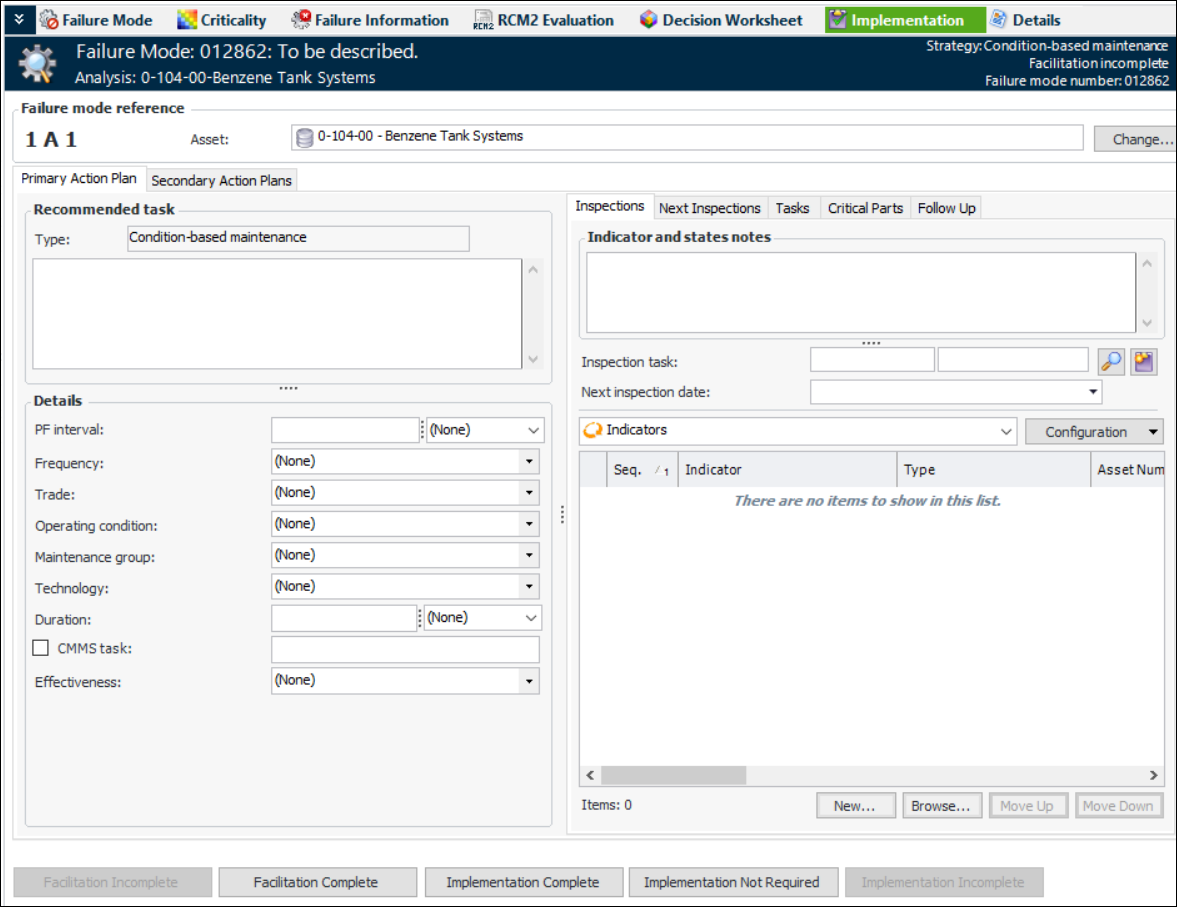
Select the Implementation view and the Primary Action Plan tab. The information on this tab varies depending on the recommended strategy. Here is an example for condition-based maintenance:
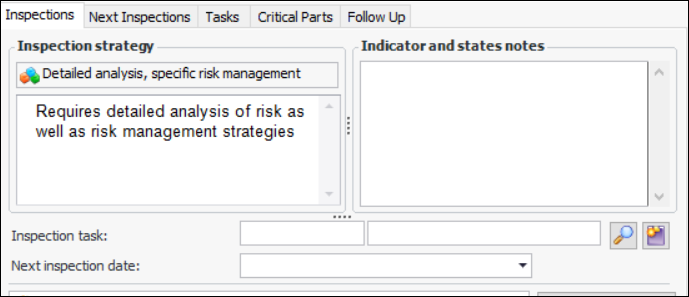
Tip: If an inspection strategy has been assigned to the failure mode, the strategy and its description are displayed on the Inspections tab. For example:
5.
In the Recommended task area, provide a description of the recommended task in the text box.
6.
In the Details area, set the options for the task.
Note: If APM is configured to interact with a SAP Plant Maintenance system, System condition and Work center are available in the Details area.
The following table describes the details for each of the types.
Tip: To create a modification type, click in the box and press F3. The Modification Type dialog appears, where you can provide a name and icon for the type.
Note: For information about using the Calculate Failure-Finding Interval utility, see Calculating a Failure-Finding Interval for an RCM2 Analysis.
7.
For more information, see:
8.
9.