Evaluating RCM2 Failure Mode Consequences

After functions and their functional failures, failure modes, and failure effects have been recorded in the analysis, you can evaluate the consequences of each failure mode to arrive at strategies for preventing or mitigating failures.
The evaluation involves determining whether the failure is evident or hidden and then categorizing the consequence as safety-related, environmental, or operational. A recommended strategy is selected for each failure mode, for example, an on-condition task or redesign. The team can then evaluate the economic feasibility of performing the recommended tasks and develop action plans to deal with each failure mode.
Note: If you will be evaluating the economic feasibility of proposed tasks, the recommended strategy sets the task type in the feasibility study. You can perform the evaluation on the Maintenance Action Plan window’s Feasibility view or, on the Evaluation tab, click $ next to the recommended task. The “Task Worth Doing” dialog appears. For more information, see Evaluating the Feasibility of RCM2 Maintenance Tasks.
If you performed risk evaluation for an evident failure mode, the result can be used to select the consequence options in the RCM2 evaluation. APM checks the Health and Safety effect first. If its severity is designated for use in RCM2 evaluations, the S - Safety consequence is set to “Yes”. Otherwise, APM checks the Environmental effect. If its severity is not designated for RCM2 evaluations, the Economic effect is checked. If its severity is used for RCM2, the O - Operational consequence is set to “Yes”.
Note: The RCM2 Evaluation option in the analysis’ failure mode settings must be enabled. See Setting Failure Mode Options for an RCM2 Analysis.
APM offers a few ways to perform and record the evaluation. For example:
This section explains how:

To Use the Decision Logic Questionnaire

1.
2.
3.
Select the Info Worksheet tab and double-click the failure mode to open the Maintenance Action Plan window.
4.
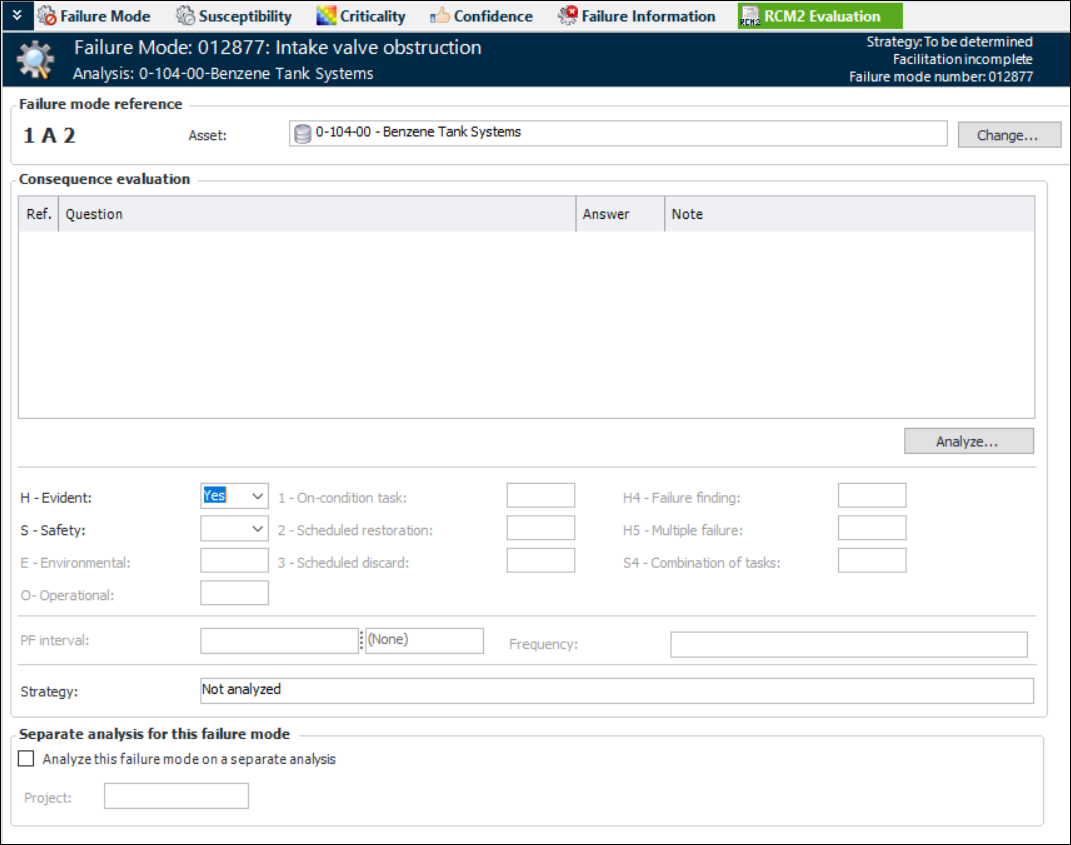
Select the RCM2 Evaluation view. For example:
5.
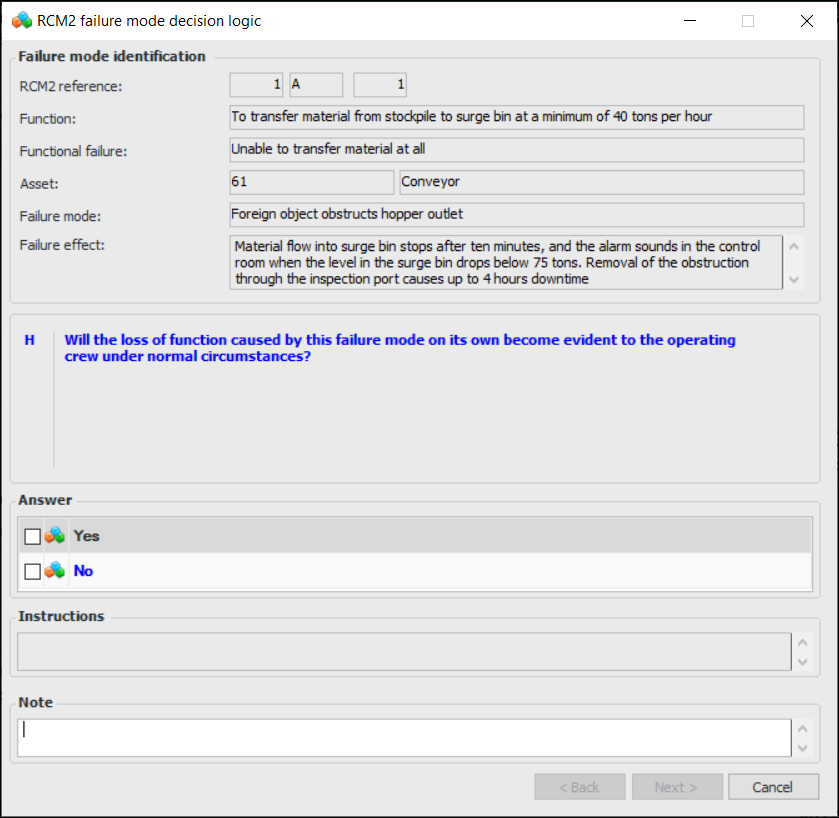
Click Analyze. The RCM2 Failure Mode Decision Logic window appears:
6.
7.
8.
Click Next. The question that appears follows from the answer to the previous question. Continue to answer questions and click Next until the recommended strategy is displayed.
Tip: To revise an answer, click Back to return to it. Revise your answer and continue through the questions by clicking Next.
Note: If your analysis takes you to question H4, “Is a scheduled failure-finding task technically feasible and worth doing?”, you can calculate the failure-finding interval before deciding on the answer. Click FFI and see Calculating a Failure-Finding Interval for an RCM2 Analysis for more information.
9.
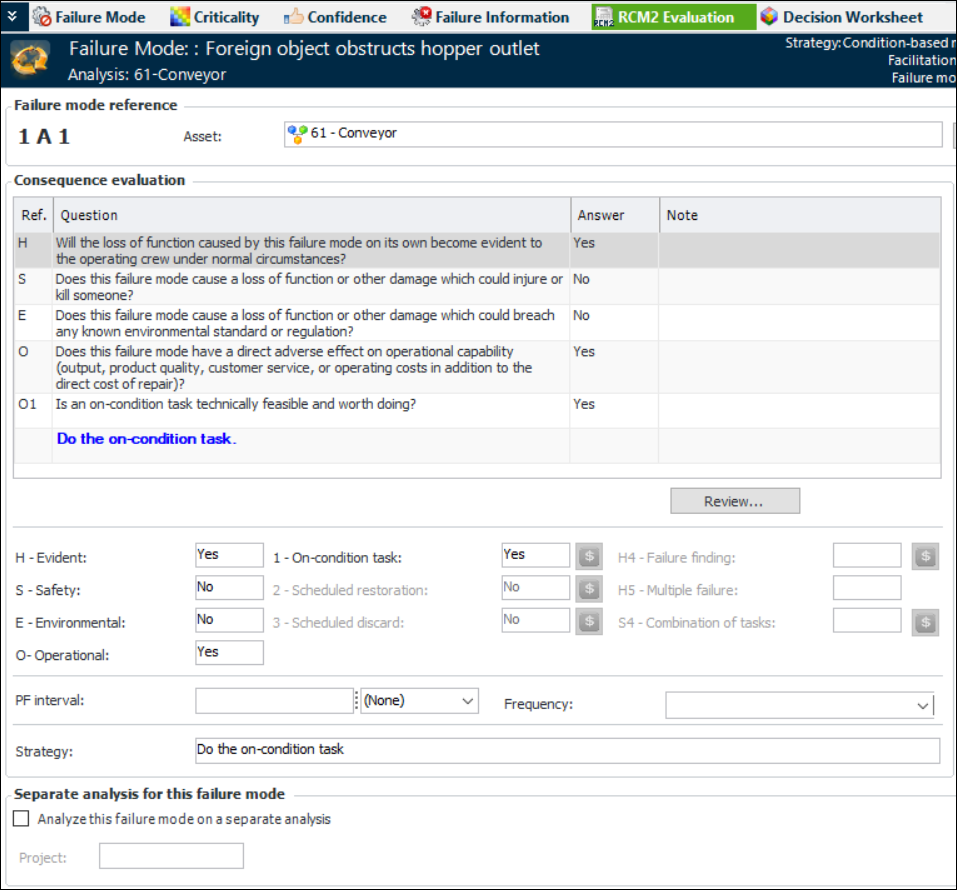
When the recommended strategy is displayed, click Finish. The consequence and strategy are displayed in the Consequence evaluation area. For example:
10.
To revise the evaluation, click Review. The RCM2 Failure Mode Decision Logic window appears, where you can go through the questions and revise them as needed.
11.

To Manually Record a Failure Mode Evaluation

1.
2.
In the H-Evident list, select Yes or No. A hidden failure does not become apparent to the operating crew under normal circumstances if the failure mode occurs on its own. The next option becomes available depending on whether the failure is evident or hidden.
3.
Continue selecting Yes or No as options become available. The options are:
4.
You can calculate the failure-finding interval to determine if a failure-finding task is feasible. Click Calculate FFI, which appears when H4 is set to Yes. For information about using the Calculate Failure-Finding Interval dialog, see Calculating a Failure-Finding Interval for an RCM2 Analysis.
When you have finished selecting the options that apply to the failure effect, the recommended strategy is displayed in the Strategy box. Besides the strategies described above, the following could be recommended:
No scheduled maintenance: Assets are left in service until a functional failure occurs, at which point they are repaired or replaced.
This strategy applies to hidden, operational, and non-operational consequences.
Redesign: A one-time change to the equipment, training, maintenance, or operating procedures is required. Redesign is compulsory if the consequence adversely affects safety or the environment.
Compulsory redesign applies to hidden, safety, and environmental consequences.
Desirable redesign applies to hidden, operational, and non-operational consequences.
5.
When you have evaluated the failure mode, you can record detailed information about the recommended task. For more information, see Developing Primary RCM2 Action Plans.

To Use the Decision Worksheet

1.
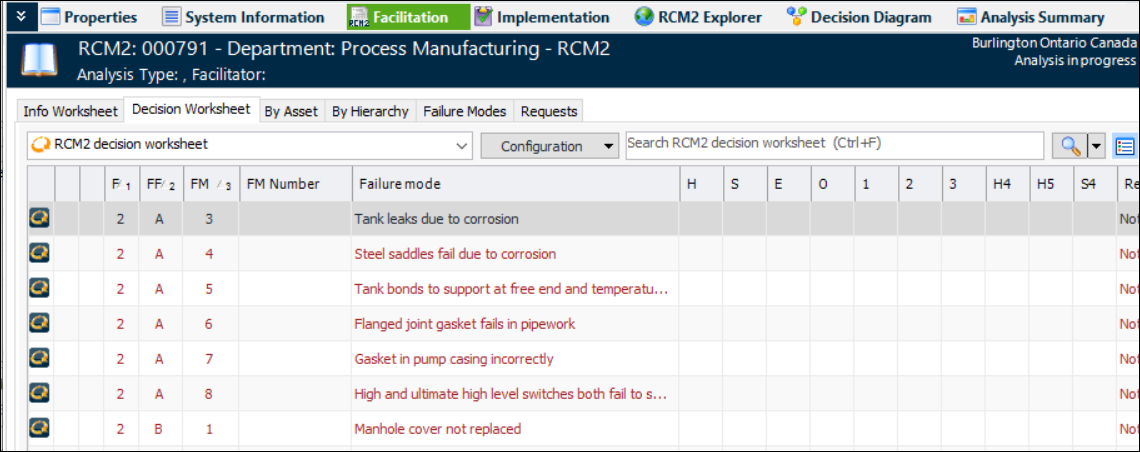
In the Strategy Development Analysis window, select the Facilitation view, Decision Worksheet tab.
2.
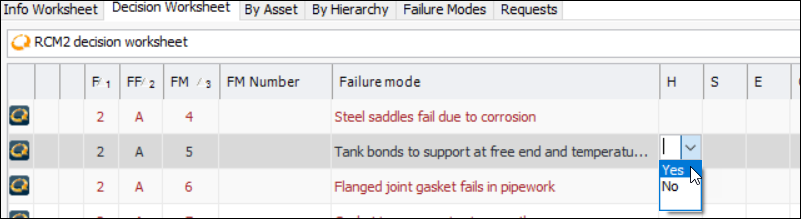
Select the failure mode in the table and press F2. The H list becomes available:
Note: To analyze the failure mode in another RCM2 analysis, keep pressing Tab until the Analyze separately option is available (the last column on the right). Click the check box. The task type changes to “To be analyzed separately”. The failure mode remains in the current analysis, but you cannot develop it further.
3.
If the failure consequence is evident, select Yes. If it is hidden, select No. A hidden failure does not become apparent to the operating crew under normal circumstances if the failure mode occurs on its own.
4.
5.
Select Yes for the available options that apply to the failure effect. The possible consequences and their recommended strategies are:
S-Safety – There is an unacceptable risk that the effects of the failure mode could kill or injure someone.
E-Environmental – There is an unacceptable risk that the effects of this failure mode could breach a known environmental standard or regulation.
O-Operational – The failure mode has a direct adverse effect on the operational capability of the asset (output, product quality, customer service, military capability, or operating costs in addition to the cost of repair). A non-operational failure does not adversely affect safety, the environment, or operations, but repair or replacement is required for any item(s) that may be affected by the failure.
1-On condition task – This task entails checking for potential failures so that action can be taken to prevent the functional failure or to avoid the consequences of the functional failure. On-condition tasks are so called because the items that are inspected are left in service on the condition that they continue to meet specified performance standards.
2-Scheduled restoration – The scheduled task restores the capability of an asset at or before a specified interval (age limit), regardless of its condition at the time, to a level that provides a tolerable probability of survival to the end of another specified interval.
3-Scheduled discard – The scheduled task entails discarding an asset at or before a specified age limit, regardless of its condition at the time.
H4-Failure finding – This task involves checking a hidden function at regular intervals to find out whether it has failed. The intervals are calculated based on the required availability of the asset and the reliability of the protected function. This strategy applies when the failure effect is hidden.
If you then select Yes for H4, you can calculate the failure-finding interval on the Analysis tab. See the next section.
H5-Multiple failure – A multiple failure occurs if a protected function fails while its protective device or protective system is in a failed state. This option applies when the failure effect is hidden.
S4-Combination of tasks – If a failure mode or a multiple failure could affect safety or the environment and no scheduled task on its own reduces the risk of failure to an appropriate level, a combination of tasks (usually from two different task categories, such as an on-condition task and a scheduled discard task), might be needed. This strategy applies to safety and environmental consequences.
When you have finished selecting the options that apply to the failure consequence, the recommended strategy is displayed in the Recommended Strategy column. Besides the strategies described above, the following could be recommended:
6.
7.