Creating Analysis Requests for RCM2 Failure Modes

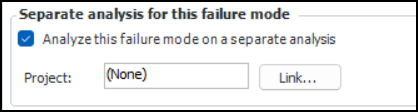
When developing failure modes on an RCM2 analysis, you might wish to analyze a complex failure mode in its own analysis. In the Maintenance Action Plan window, select the RCM2 Evaluation view and click Analyze this failure mode on a separate analysis. The current analysis maintains a reference to the failure mode, but you cannot evaluate it or assign a recommended strategy.
When you select Analyze separately, the Link button becomes available. You can link the failure mode to an analysis request that is tracked by a project. When you are ready to create the analysis, process the request. Alternatively, you can cancel requests and reopen processed and canceled requests.
This topic explains how:

To Create an Analysis Request for a Failure Mode

1.
2.
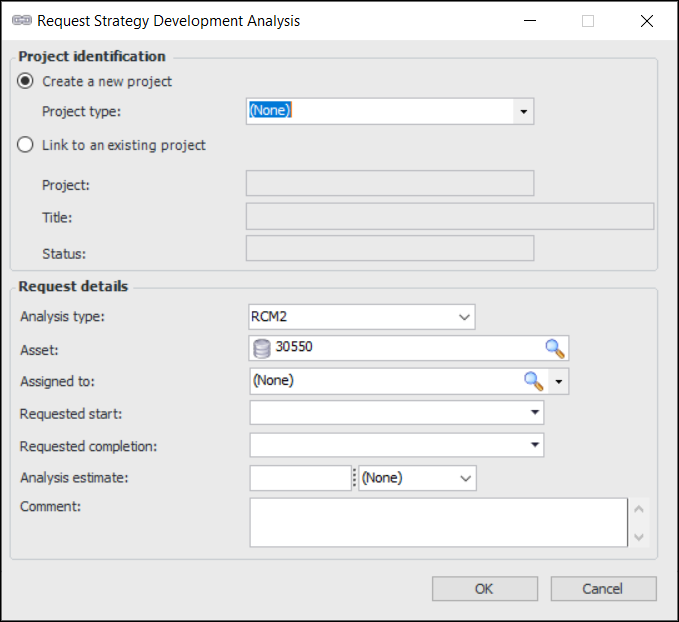
Click Link. The Request Strategy Development Analysis dialog appears:
3.
To link to a new project, select Create a new project. Select a project type from the list.
To link to an existing project, select Link to an existing project. Click the browse icon () to select the project and click OK. The project’s number, title, and status are displayed.
4.
5.
6.
Click OK. The project and analysis request are created. The project number is displayed in the Project box. To open its Project window, double-click the icon.
7.
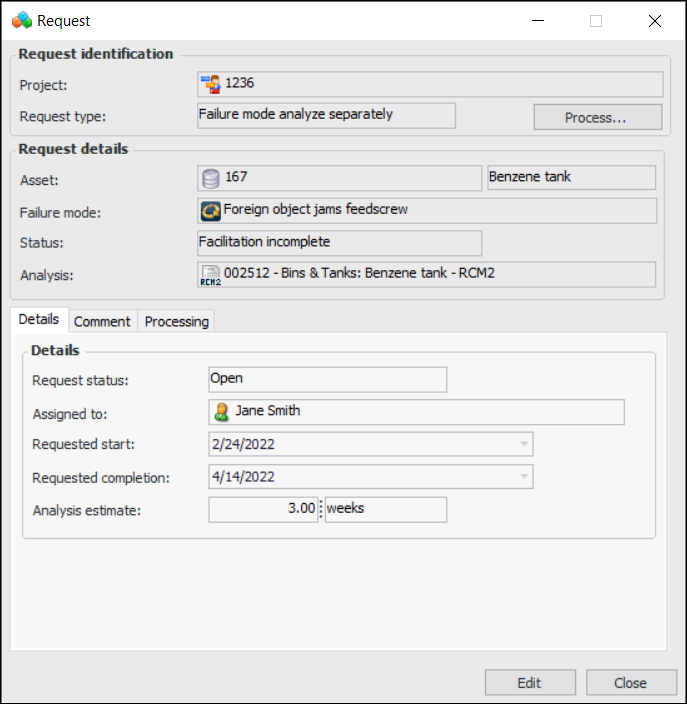
You can view analysis requests and projects in the Facilitation view, Requests tab. Select the “Analysis requests for the analysis asset” configuration. Double-click an analysis request to view information about it.

To Process an Analysis Request

1.
Open the analysis, select the Facilitation view, and then the Requests tab. Select the “Analysis requests for the analysis asset” configuration.
2.
3.
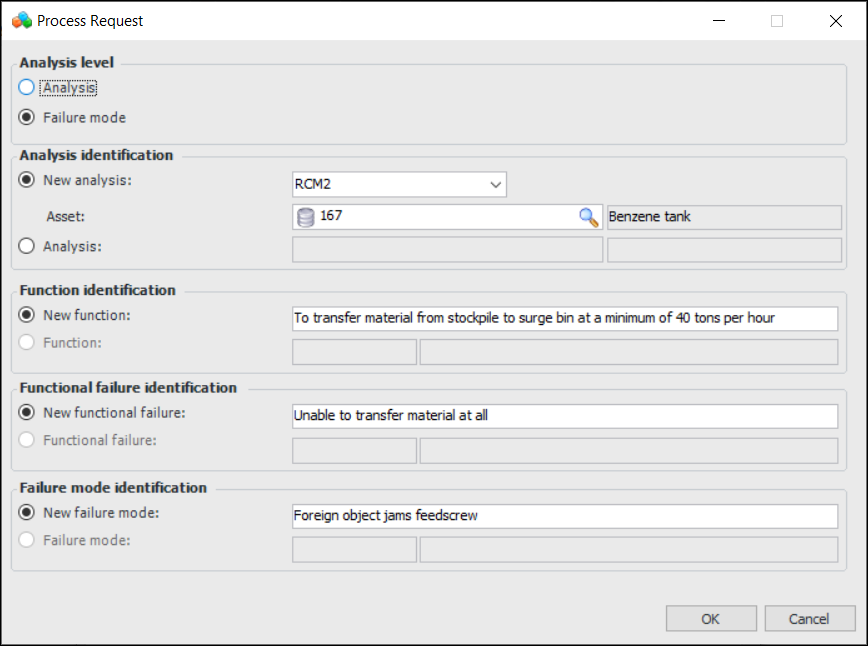
Click Process. The Process Request dialog appears. For example:
4.
Analysis – You can link to a new or existing strategy development analysis.
Failure mode - You can link to a new or existing failure mode in a new or existing strategy development analysis.
New analysis – Select the analysis type and identify the asset. The selected asset’s child assets in the physical hierarchy are automatically added to the new analysis.
Analysis – Click the browse icon () to select the analysis.
5.
Click OK. The Strategy Development Analysis window appears, where you can develop the analysis. The request status changes to “Processed”.
Tip: In the Request dialog, select the Processing tab to view information about processing, including the analysis and failure mode that were created and their completion information.

To Cancel or Reopen an Analysis Request
1.
Open the RCM2, select the Facilitation view, and then the Requests tab. Select the “Analysis requests for the analysis asset” configuration.
2.
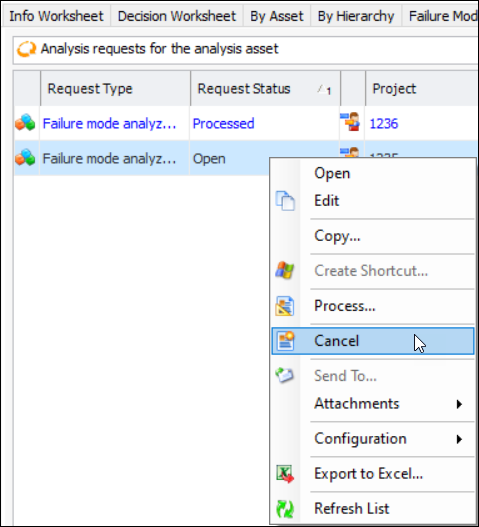
Right-click the request and click either Cancel or Reopen. For example:
The request status changes accordingly.