Creating Solutions for Root Causes

The result of a root cause analysis is a well-defined problem, a comprehensive list of contributing causes, and one or more root causes. When the RCA has been approved, if required, the next step is to create a failure mode and add it to a new or existing strategy development analysis. You can then create corrective tasks and other measures to resolve the problem and prevent future failures.
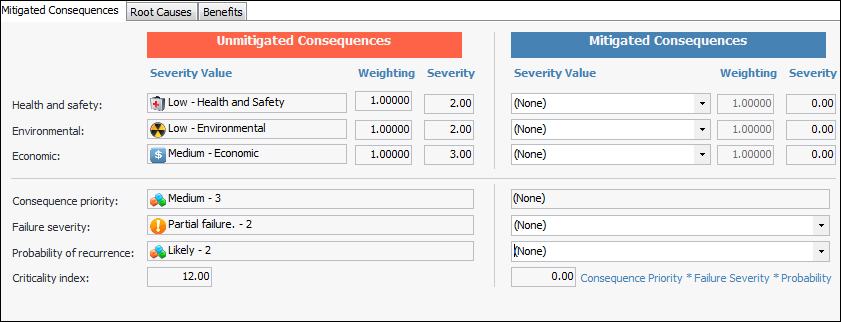
You can also record the impact that mitigation actions have on containing the results of the incident. Compare unmitigated and mitigated consequences and costs.
In some cases, you might choose to create a strategy development analysis in the future. For example, if the analysis team identified several root causes, you might need to prioritize them and conduct analyses over an extended period. You can create a request for each analysis and a project to track its creation.
When you are ready to create the strategy development analysis, process the request. Alternatively, you can cancel an analysis request or reopen a canceled or processed request.
Note: Depending on how analysis statuses are set up for the site, the RCA might need to be approved before the Analyze Failure Mode and Request Analysis options are available.
When solutions have been implemented, you can return to the RCA and document the benefits in the Solution view.
This topic explains how:

To Compare Unmitigated and Mitigated Consequences

1.
In the RCA window, select the Solution view and the Mitigated Consequences tab. The Unmitigated Consequences column displays the result of the failure analysis. For example:
2.

To Create a Failure Mode and Analysis

1.
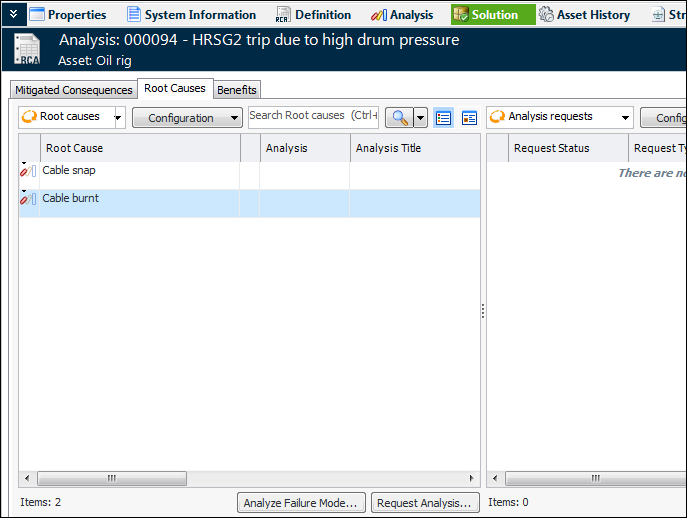
In the RCA window, select the Solution view and the Root Causes tab. The tab lists the causes that were identified in the RCA diagram.
Tip: You can also create the failure mode analysis in the Analysis view. Right-click the root cause and click Analyze Failure Mode.
2.
3.
4.
Click Analyze Failure Mode. The Request Strategy Development Analysis for RCA dialog appears.
5.
Analysis – You can link to a new or existing strategy development analysis.
Failure mode - You can link to a new or existing failure mode in a new or existing strategy development analysis.
New analysis – Select the analysis type and identify the asset. The selected asset’s child assets in the physical hierarchy are automatically added to the new analysis.
Analysis – Click the browse icon () to select the analysis.
6.
Click OK. The Strategy Development Analysis window opens, where you can define the failure mode and implement the action plan.
In the Root Causes tab, the panel on the left shows the new or existing analysis and failure mode. In the RCA window, the Strategy Development view lists all of the failure modes and analyses to which you linked the RCA.
For information about creating strategy development analyses, see:

To Create an Analysis Request

1.
In the RCA window, select the Solution view and the Root Causes tab. The tab lists the causes that were identified in the RCA diagram.
Tip: You can also create the request in the Analysis view. Right-click the root cause and click Request Analysis.
2.
3.
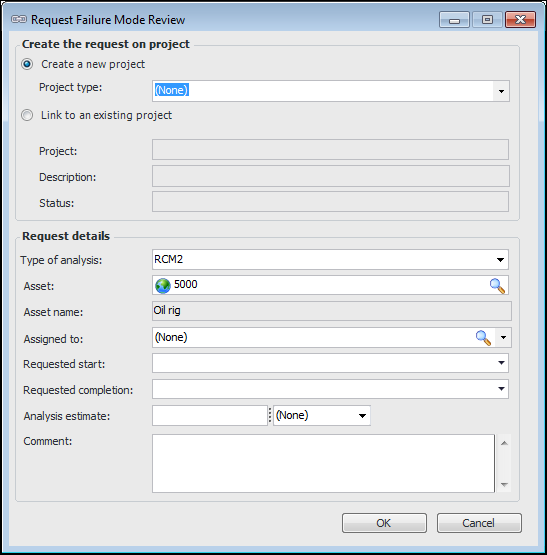
Select the root cause and click Request Analysis. The Request Failure Mode Review dialog appears.
4.
To link to a new project, select Create a new project. Select a project type from the list.
To link to an existing project, select Link to an existing project. Click the browse icon () to select the project and click OK. The project’s number, title, and status are displayed.
5.
6.
7.
Click OK. In the Root Causes tab, the request is added to the Analysis requests table.

To Process an Analysis Request

1.
In the RCA window, select the Solution view, Root Causes tab.
2.
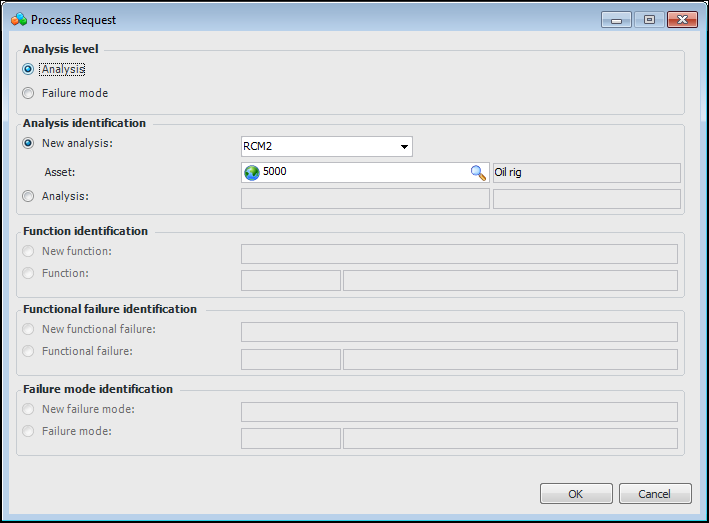
The Process Request dialog appears.
3.
Analysis – You can link to a new or existing strategy development analysis.
Failure mode - You can link to a new or existing failure mode in a new or existing strategy development analysis.
New analysis – Select the analysis type and identify the asset. The selected asset’s child assets in the physical hierarchy are automatically added to the new analysis.
Analysis – Click the browse icon () to select the analysis.
4.
Click OK. The Strategy Development Analysis window appears, where you can develop the analysis. In the Analysis requests table, the request status changes to “Processed”.
For information about creating strategy development analyses, see:

To Cancel or Reopen an Analysis Request

1.
2.
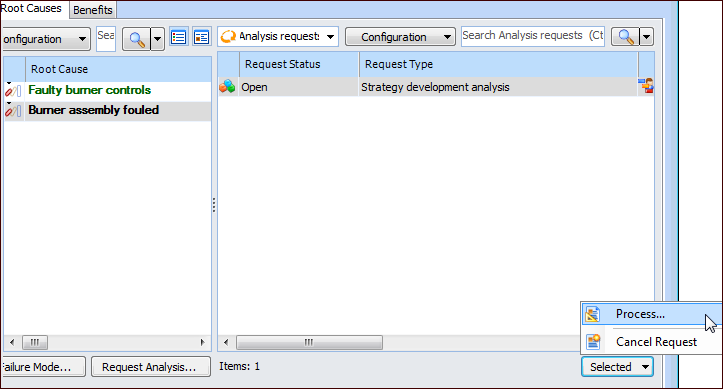
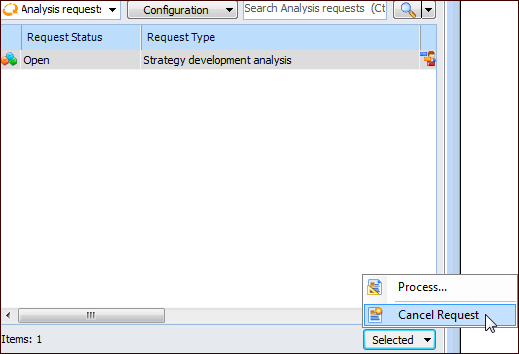
Click the Selected list and click either Cancel Request or Reopen. For example:
The request status changes accordingly.

To Calculate the Solution’s Net Benefit
1.
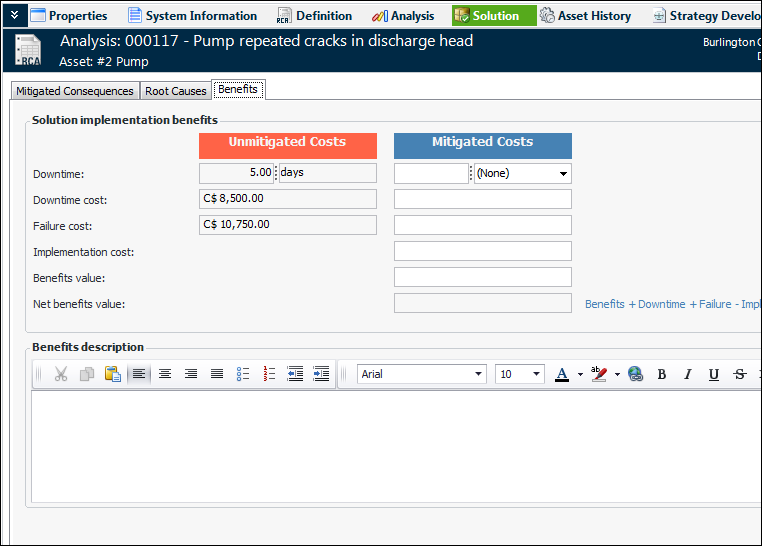
In the RCA window, select the Solution view and the Benefits tab.
2.
3.
Under Mitigated Costs, enter the downtime, downtime cost, failure cost, and cost of implementing the solution.
4.
In Benefits value, enter an amount representing any additional benefits of implementing the solution.
When the amounts are filled in, APM calculates the net benefit of the solution using the formula:
Net benefit = Benefits value + Downtime costs + Failure cost - Implementation costs
5.