|
Creating a Root Cause Analysis
• From one or more failures – From the site’s Performance Management view, Failures tab, you can select failures and start an RCA. See To Start an RCA from One or More Failures.Tip: You can also add failures to the RCA in the Definition view.Note: You can initiate the RCA from the Failure window after evaluating the failure’s suitability for RCA. You can also create a request for an RCA to be performed in the future. See Creating an RCA from a Failure.
•
•To Start an RCA from One or More Failures
1.
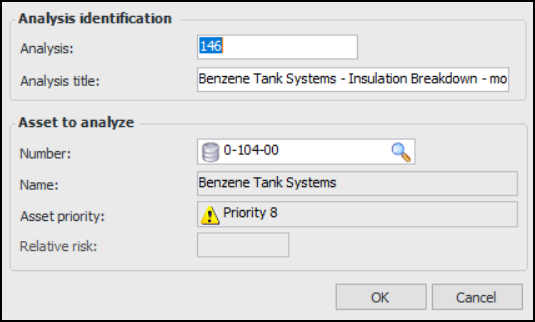
2. Select one or more failures in the table, right-click, and click New RCA. The New RCA dialog appears, showing information about the first failure that you selected.Tip: To create a request for an RCA, right-click one failure and click Request RCA. The Link RCA Request to Project dialog appears.
6.
7. Select the Definition view to see information about the failure(s). The Consequences tab displays the primary failure’s evaluation.
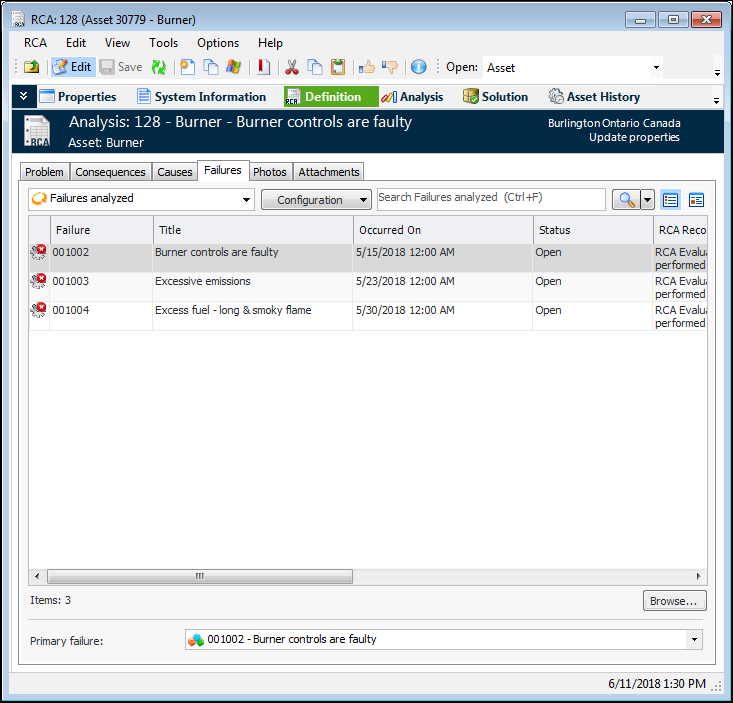
8. If you created the RCA by selecting two or more failures, select the Failures tab to view them. For example:
9. To change the primary failure, select its replacement in the Primary failure list at the bottom of the tab. The information in the Consequences tab changes accordingly.To Start an RCA from an RCA Request
1.
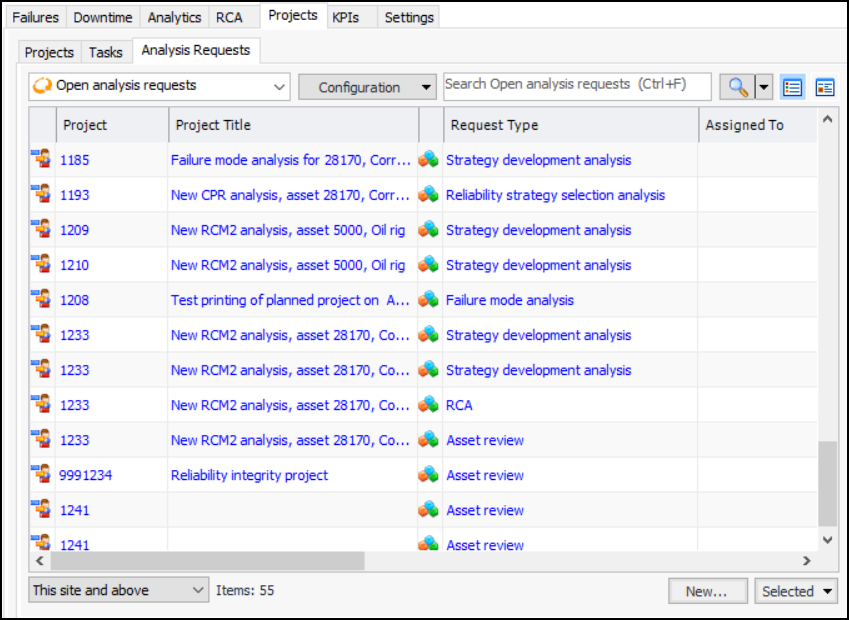
2. Select the Analysis Requests tab. The default table configuration is “Open analysis requests”.
3. Select the RCA request that you wish to process, click the Selected list, and then Process Request. The RCA window appears, showing the title, asset, and planning information from the request. The Analysis Requests tab lists the request. The status of the request changes to “Processed”.To Create an RCA from Scratch
1. On the Site window, select the Performance Management or Strategy Development view and the RCA tab. This tab lists the analyses that have been performed for the site. Click New.Tip: You can also create an RCA from an Asset window. Select the Performance Management view and the RCA tab. Click New.
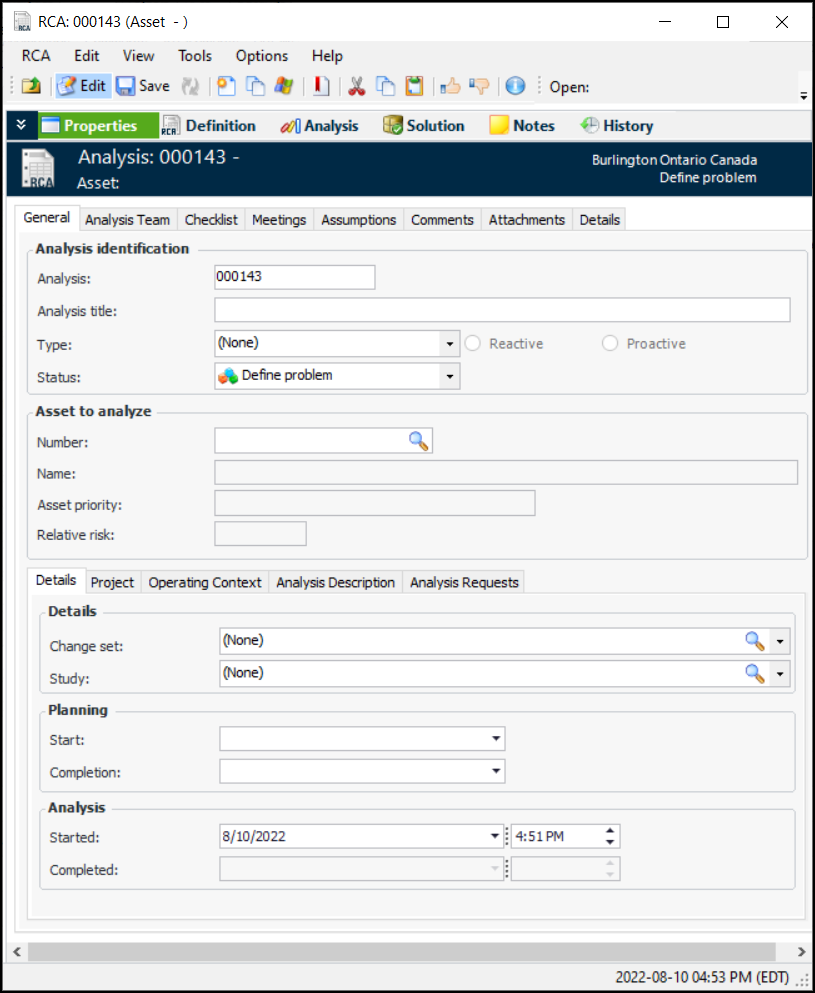
4. Select the type of RCA from the Type list. The Reactive or Proactive option is selected accordingly.Tip: As you are working with the analysis, the status might change to one that does not allow properties to be changed. If the new status can be manually set, you can click the Change Status button to select a different status.
6. Identify the asset to be analyzed. Click the browse icon to select an existing asset on the site. In the Asset Selector dialog, select the Asset Listing or Asset Hierarchy tab to locate the asset. Double-click the asset to select it and close the selector dialog. The asset’s number, name, priority, and relative risk are displayed.When the asset is selected, three views are added to the window: System Information, Asset History, and Strategy Development. These views provide information about the asset, for example, its description, failures, root cause analyses, work order tasks, work requests, indicator readings, failure modes, and strategy development analyses.
7. On the Details tab, you can select a change set from the list. The change set reference is usually a change authorization or change set number from a Management of Change (MOC) system.
9. In the Planning area, specify the start date and the expected completion date for the analysis.
10. On the Project tab, you can add the analysis to a reliability project and associate the analysis with a project task. Reliability projects are typically used to organize and track analyses and objects. They usually use project tasks rather than work orders.
11. Select the Operating Context tab to select an operating context from the list and define the circumstances in which the asset is expected to operate.
12. Select the Analysis Description tab to record information about the analysis.
13. Select the Analysis Team tab and select or create team members. Select the facilitator for the analysis from the list and assign roles. For information about adding members, see Adding Team Members to a Root Cause Analysis.Tip: If the RCA2 was created by processing an analysis request, the originating request is listed in the Analysis Requests tab.
14. On the Comments tab, team members can record comments, add attachments, and review comments. For more information, see Entering and Reviewing Comments on an RCA.
15. Select the Meetings tab to record information about team meetings. For more information, see Recording Team Meetings on an RCA.
16. Select the Checklist tab whenever you wish to mark a standard checklist item as being performed. For more information, see Working with the RCA Checklist.
17. Select the Attachments tab to attach a document, note, or URL to the analysis. For more information about adding attachments, see Adding Attachments to Objects.Tip: In the System Information view, you can review information about the analysis asset. You can also edit the following properties from the Asset tab:In the Process tab, you can also add and edit operating parameters on the Operating Window tab. Changes that you make in the System Information view are saved to the asset record.