|
Performing a Root Cause Analysis
If your organization requires that root cause analyses be sent for approval, this step typically occurs before solutions are implemented. For information, see Sending an RCA for Approval.When you have identified a root cause, you can define its solution in the form of either a strategy development analysis or a request for an analysis. For information, see Creating Solutions for Root Causes.RCA Diagram
To Use the RCA Diagram
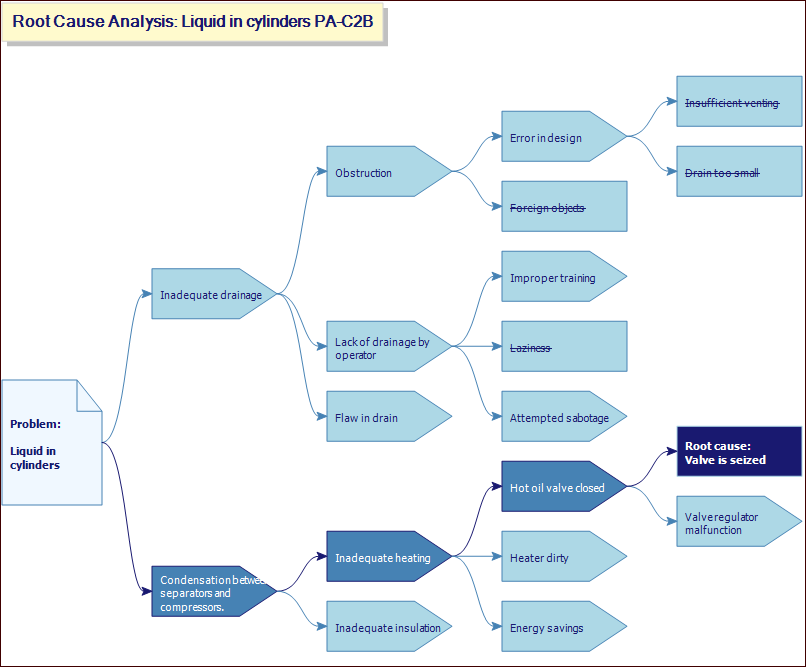
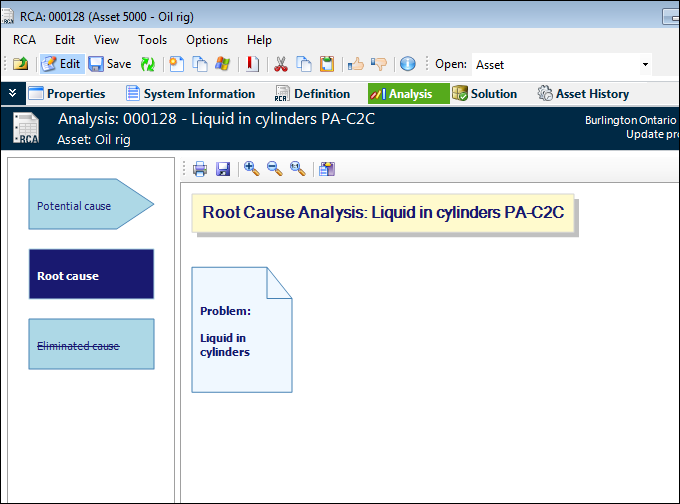
1. Open the RCA and select the Analysis view.
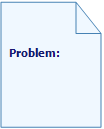
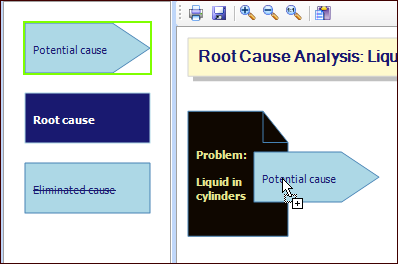
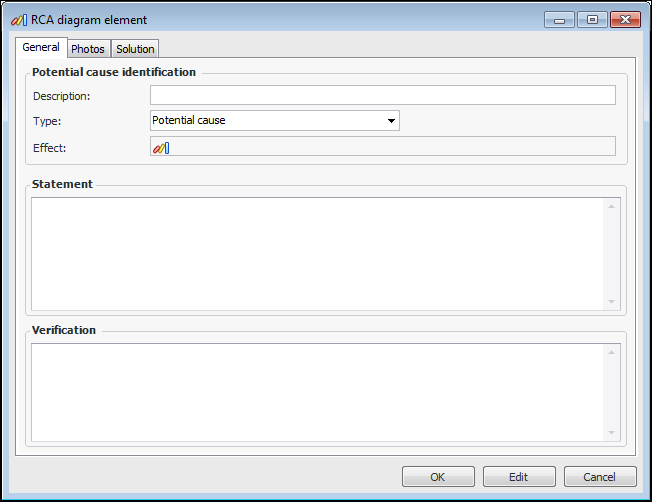
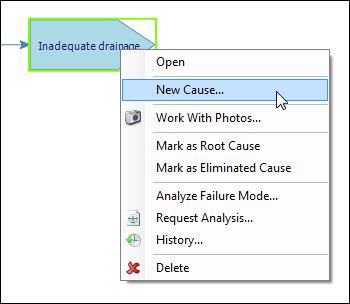
3. The Problem element displays the description from the Definition view, Problem tab. To change the problem definition, double-click the element. The RCA Diagram Element dialog appears, where you can edit the value in the Description box. The Statement box displays the problem statement that was entered in the Definition view. You can edit the statement here.Tip: Or you can right-click the problem element and click New Cause.
5. Provide a brief description in the Description box. Use the Statement box to record a detailed description of the cause and its effects.
6. Use the Verification box to describe how the cause was identified, for example, using technologies or expertise such as vibration analysis, metallurgic review, or fracture analysis.
7. Select the Photos tab if you wish to browse for a photograph to attach to the element.
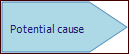
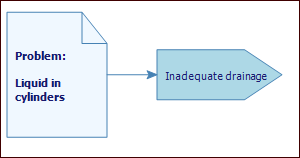
8. Click OK to close the dialog. The cause is added to the diagram:
• Right-click an element and click New cause
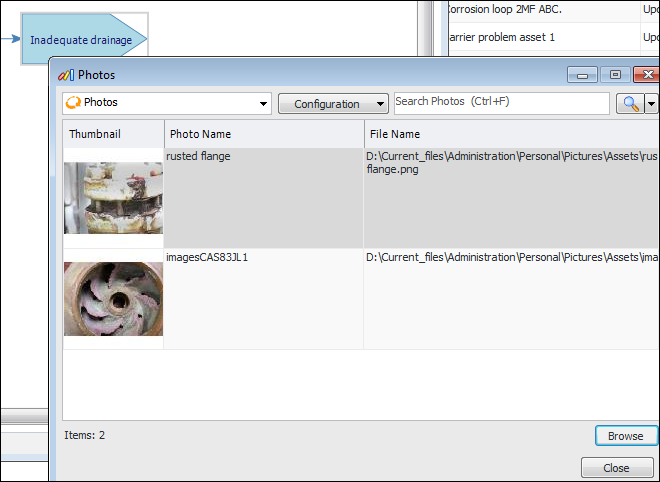
• Right-click an element and click Work with Photos. The Photos dialog appears, where you can view photographs attached to the element or browse for new ones.
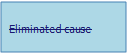
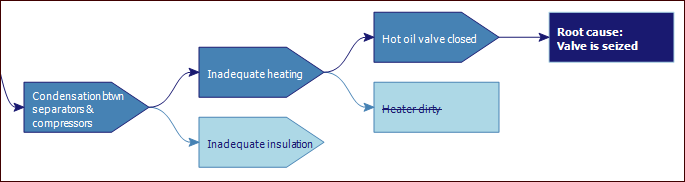
10. When the team eliminates a potential cause, right-click the element and click Mark as Eliminated Cause
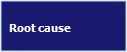
11. Identify a root cause by either dragging the shape to a parent element or right-clicking the element and clicking Mark as Root Cause. The element and its contributing causes change appearance accordingly. For example:
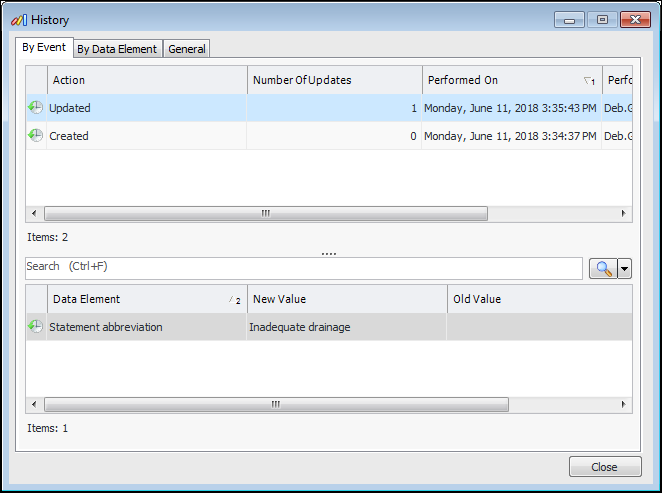
12. To see the history of an element, right-click it and click History. The History dialog shows the actions performed, old and new values, and so on. For example: