Printing RBI Analysis Reports

Several types of RBI analysis reports are provided with APM, which you can print from the Strategy Development Analysis window or from the site’s Strategy Development view.
You can also create custom reports or modify existing reports. For more information, see Reports.

Audit Reports

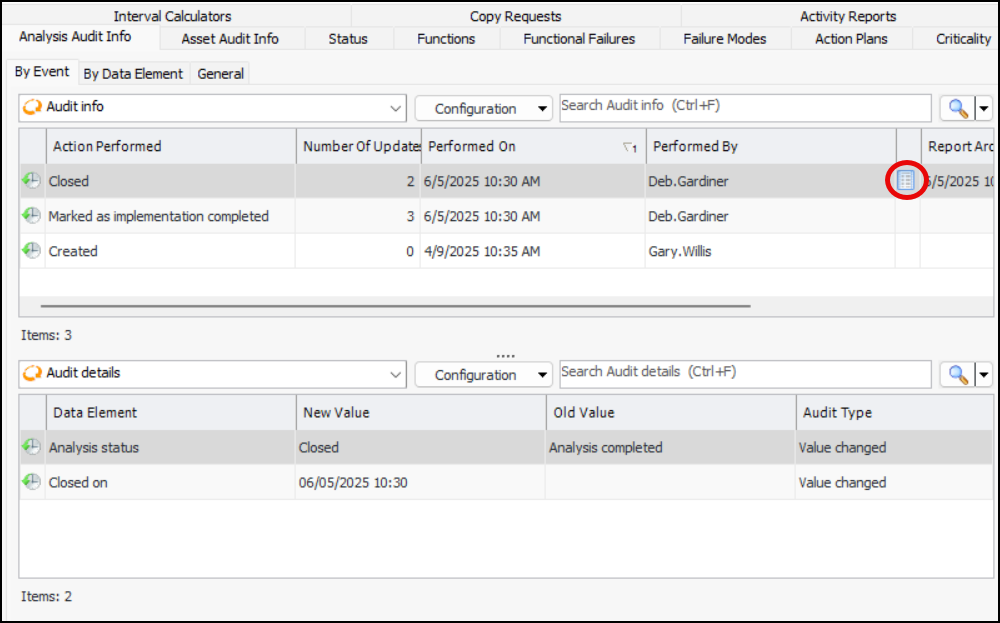
If audit reports are supported for an analysis type, when an analysis of that type is marked “Closed”, an audit report can be created and added to the analysis’s History view, Analysis Audit Info tab, By Event tab. For example:
You can double-click the report icon to open the file.
The type of report and its format (for example, PDF or plain text) are defined in the analysis type assigned to the analysis. For information about enabling this feature, see Setting up Analysis Types.

Analysis Reports

You can print several types of reports that are specific to RBI analyses:
Analysis Report: lists the site, analysis name, primary asset, start and completion dates, status, facilitator, and analysis team. Lists the asset description, process description, operating parameters, degradation descriptions, failure modes, assets, inspection history for each asset, criticality analysis report, analysis notes, inspection plans, and task planning
Note: Be sure to use abbreviations for frequencies when setting up your RBI analyses. Otherwise, frequencies will not be shown for inspection intervals and regulatory frequencies in Analysis and Inspection Plan reports.
Asset List: lists the analysis assets by number, their material types, priority, degradation allowances, in service dates, and names.
Assets: lists the primary asset with its description, process description, operating parameters, degradation description, and each of the failure modes in the analysis.
Criticality Analysis: lists the failure modes and the scores from their probability, confidence, and consequences evaluations.
Inspection History: lists the assets, their indicators, inspection dates, readings, and degradation rates.
Inspection Plan: lists the assets, material, failures modes, design allowances, remaining allowances, selected degradation rates, remaining life, criticality scores, confidence scores, inspection factors, inspection intervals, inspection strategies, regulatory frequencies, and last and next inspection dates.
Notes: consolidates all of the notes on the failure modes into one report.
Task Planning: lists the assets, their materials, failure modes, locations, technologies, frequencies, maintenance groups, next inspection dates, task types, and operating conditions.
You can print general reports that are available for all types of strategy development analysis:
Asset List: lists the analysis assets by number, their material types, priority, degradation allowances, in service dates, and names
Criticality Analysis: lists the failure modes and the scores from their probability, confidence, and consequences evaluations
Failure Mode Details: lists information about the analysis, including status information, team members, and analysis comments. Then it lists details of each failure mode in the analysis, including reference number, failure effects, criticality evaluation, maintenance feasibility assessment, recommended strategy and details. Each failure mode’s indicators and corrective tasks are also listed
Failure Modes: lists the analysis team, analysis comments, operating context, failure modes, failure effects, and asset information
Fault Diagnosis Guide: lists the symptoms identified on all failure modes in the analysis
Tip: You can also print the Fault Diagnosis Guide for the site or an asset. On the Site window, click the Site menu, Print, Failure modes, and then Fault Diagnosis Guide. The site report lists all of the site’s symptoms, the failure modes that reference them, and their primary assets. On the Asset window, click the Asset menu, Print, and Fault Diagnosis Guide. The asset report lists all of the symptoms identified on the asset’s failure modes.
Maintenance Feasibility: lists the analysis information followed by the failure modes and their proposed tasks, probability and consequence analysis results, MEI support, and the results of the feasibility assessment. This includes the ETBF, ETBC, avoidance savings, and original and residual criticality
Modifications: lists action plans that recommend redesign as the desired or compulsory action. The proposed modification is listed, as well as the trade and modification type
Notes and Comments: lists analysis assets, failure modes, and notes, as well as analysis comments
Risk Analysis: lists the analysis number and title, primary asset, and team facilitator. Failure modes are listed by asset, along with the results of their probability and consequence severity evaluations. For each failure mode, the consequence priority and criticality score are displayed
Work Package: lists failure modes according to the trade assigned to them. The frequency and operating condition are listed, as well as the asset number, recommended action description, and task duration. The report does not include action plans that recommend “No scheduled maintenance” and have no action type, that are analyzed separately, or that have not been analyzed
You can print a report or save it to a file. When sending a report to a printer, you can include some or all of the files attached to the analysis and its failure modes.
This topic explains how to print reports. For information about saving a report to a file, see Printing Documents.

To Print Analysis Reports

1.
Open the analysis from the site’s or asset’s Strategy Development view and tab.
Tip: You can also print the report by right-clicking the analysis in any list, clicking Print, the report category, and then the report type.
2.
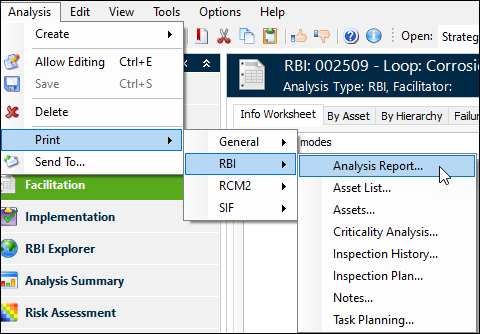
To print an RBI report, click the Analysis menu, Print, RBI, and then the report to print.
To print a general report, click the Analysis menu, Print, General, and then the report you’d like to print.
Tip: You can also print a failure mode’s details report. Open the Maintenance Action Plan window, click the Failure mode menu, Print, and then Failure Mode Details.
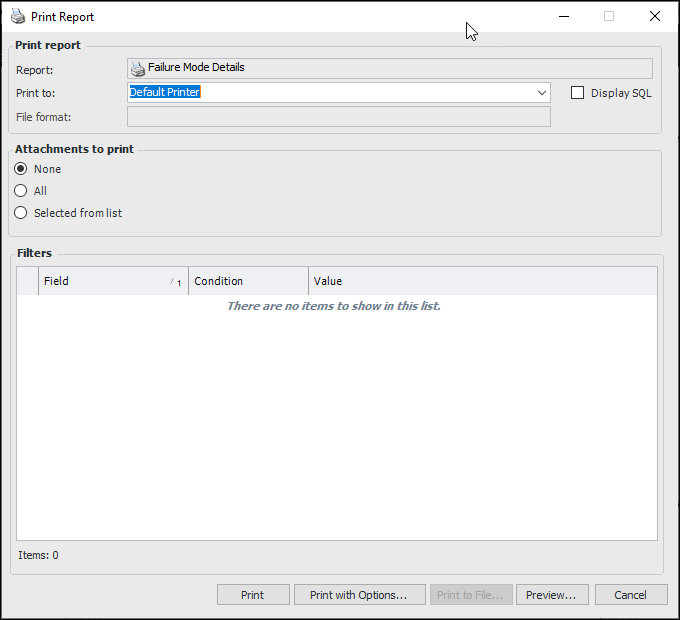
The Print Report dialog appears. For example:
3.
In the Print to box, select “Default Printer”.
4.
Click All to print files attached to the analysis and its failure modes.
Click Selected from list to choose the attachments to print. When you click Print or Print with Options, the Attachments to Print dialog appears, listing the file names, the objects they are attached to, and their attachment types.
Note: You cannot preview a print job that includes attachments.
5.
6.
If you are not printing attachments, you can click Preview to see what the report will look like before printing it.
Tip: In the Preview dialog, click the File menu to print the report, export it to a file, or send it by email in one of several formats.
7.
Click Print. If you are printing selected attachments, the Attachments to Print dialog appears. Select the attachments and click OK.
Click Print with Options to change printer options.
If you are printing selected attachments, the Attachments to Print dialog appears. Select the attachments and click OK.
The Print dialog appears, where you can change the printer, select printer properties, and specify the number of copies to print. If you are not printing attachments, you can specify a page range. When you are finished, click OK.
The report and any selected attachments are sent to the printer and a progress dialog appears.