
Reviewing Indicator Collection Information on an RBI Analysis

After you have developed the action plans for the analysis, you can generate a report that identifies which of the indicators assigned to action plans are already included on one or more standard tasks, as well as which are not being collected.
This topic explains how to generate an indicator collection report and view the information.

To Generate an Indicator Collection Report
1.
2.
Select the Indicators tab and then the Collection tab.
3.
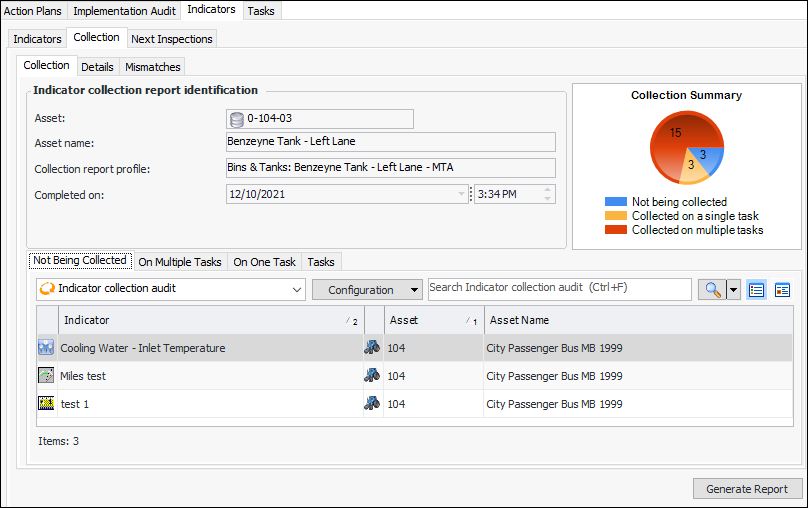
Click Generate Report. The information is added to the tab. Here is an example for an MTA2:
4.
On the second Collection tab, you can select tabs to view indicators that are not included on a standard task, that are included on two or more tasks, and that are included on one task. The Tasks tab lists the standard tasks that the indicators are collected on.
Tip: Right-click in any table and click Export to Excel to create a printable spreadsheet of the information.
5.
Select the Details tab to view information about the report itself, for example, the date when it was generated.
6.
Select the Mismatches tab to view indicators that are assigned to tasks with differing values.