Adding Failure Modes to an RBI Analysis

A failure mode is a single event that causes a functional failure. For risk-based inspection, the failure of concern is loss of containment of pressurized equipment. Examples of failure modes are “Sudden rapid fracture after stress” and “Corrosion due to moisture associated with atmospheric conditions”.
There are several ways to add failure modes to an analysis:
Browse the Damage Mechanisms Library and select RBI failure modes that apply to the asset. In the analysis window, select the Facilitation view and the Info Worksheet tab. Click the New list, Browse, and then Damage Mechanism Library. The Browse Damage Mechanism Library appears, where you can select one or more failure modes.
Tip: The Damage Mechanism view is available in the Maintenance Action Plan window. This view shows all of the damage mechanism’s information in read-only format for your reference.
Create each failure mode individually using the Maintenance Action Plan window. On the Info Worksheet tab, click the New list and then From Scratch to open this window.
Use the form view on the Info Worksheet tab to add two or more failure modes. You can use this method when the analysis already has at least one failure mode.
This section explains how to create an individual failure mode using the Maintenance Action Plan window. When the first failure mode has been added, you can use the form view to quickly add several failure modes with their failure effects and recommended strategies. See:

To Create a Failure Mode

1.
Open the analysis, select the Facilitation view and then the Info Worksheet tab.
2.
3.
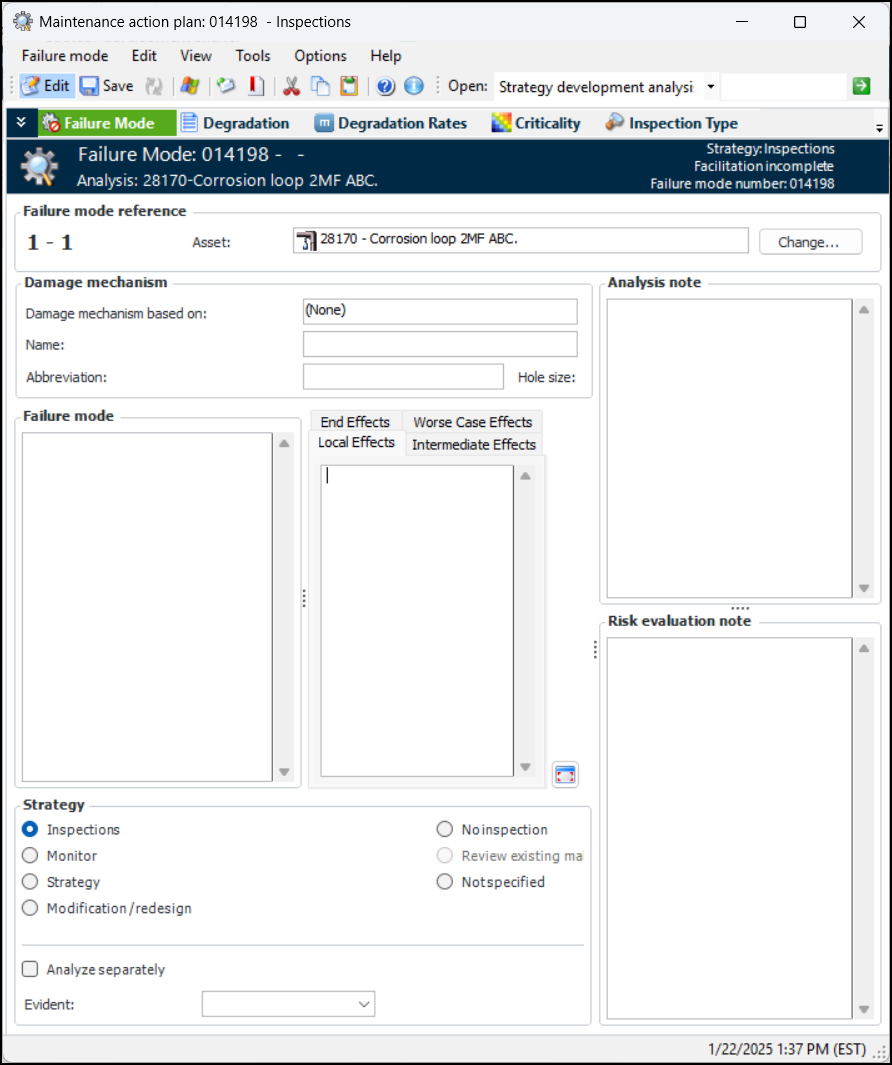
Click the New list and then From Scratch. The Maintenance Action Plan window appears. For example:
The Failure mode reference area displays the unique identifier for the failure mode, which consists of the asset’s sequence number and the failure mode number.
Tip: You can hide the notes boxes by selecting an option in the analysis’ failure mode options. In the Strategy Development Analysis window, select the Properties view and the Failure Mode Options tab. On the User Interface tab, click Hide notes sidebar.
4.
Click Change. The Change Asset dialog appears.
Click OK. The dialog closes and the asset number and name are shown in the Asset box.
Tip: You can also change one or more failure mode’s assets on the Strategy Development Analysis window by selecting the Implementation view and the Action Plans tab. Select the action plans, right-click, and click Change Asset.
Tip: Select the Asset History view to see information about the analysis asset’s checksheets, failures, work orders, and work requests. If APM has been configured to access live information in an SAP Plant Maintenance system, you can view the notifications and maintenance orders associated with the analysis asset’s equipment or functional location.
5.
In the Damage mechanism area, provide a descriptive name for the damage mechanism and a short form in the Abbreviation box.
6.
In the Failure mode box, describe the failure mode.
7.
If the Failure effects box is displayed, describe what happens when the failure mode occurs.
If the analysis supports extended failure effects, select the appropriate tabs and enter information:
Local Effects –Local effect on the piece of equipment
Intermediate Effects – Intermediate effect on a higher level equipment or asset
End Effects – End effect on the asset or system being analyzed
Tip: Click to open the Extended Effects dialog.
8.
You can then close the Maintenance Action Plan window. The current analysis maintains a reference to the failure mode, but you cannot assign it a recommended strategy.
9.
Inspections entails examination and/or testing to determine the physical and metallurgical condition of equipment in terms of fitness-for-service.
Monitor indicates that proactive tasks are performed to find problems before they occur, for example, monitoring inhibitor injection rates.
Strategy is selected for failure modes that require more complex responses, for example, two or more types of inspection.
Modification/redesign is any one-time change to the equipment, training, maintenance or operating procedures, and so on.
No inspection indicates that no monitoring or mitigation activities are required.
Review existing maintenance is available for secondary action plans only. This strategy alerts the analysis team to review an asset’s existing maintenance program to identify items that are no longer required.
Not specified means that an action type has not been determined.
10.
In the Evident list, select “Yes” or “No”. A failure mode is evident if its effects become apparent to the operating crew under normal circumstances if the failure mode occurs on its own.
11.
Select the Degradation view to record information about the asset’s degradation pattern, mechanism, barriers, and so on. For more information, see Recording Degradation Data on RBI Failure Modes.
12.
Select the Degradation Rates view. You can use this view to enter theoretical and regulatory information and to review degradation rates, operating parameters, barriers, checksheets, and indicators for the asset. You can also create a comparative analysis of indicators in preparation for performing the risk analysis. For more information, see Adding Degradation Rates to RBI Failure Modes.
13.
If it is available, select the Susceptibility view. Susceptibility to failure evaluation examines the asset’s non-age related degradation patterns. It can provide an alternative to probability of failure analysis for these failure modes. For more information, see Evaluating Susceptibility to Failure for RBI Failure Modes.
14.
Select the Criticality tab to perform failure mode risk analysis. For more information, see Performing Risk Analysis for RBI Failure Modes.
15.
Select the Failure Information view and the Failure Data tab to provide failure-tracking information. For more information, see Recording Failure Data for RBI Failure Modes.
16.
In the Failure Information view, select the Failure Pattern tab to record the failure pattern. For more information, see Recording Failure Data for RBI Failure Modes.
17.
Select the Feasibility view to evaluate whether the proposed maintenance strategies are worth doing; that is, whether implementing the maintenance tasks will cost less than the savings achieved by avoiding the failure. For more information, see Evaluating the Feasibility of RBI Maintenance Tasks.
18.
Select the Implementation view to develop action plans. For more information, see Developing Primary RBI Action Plans and Creating Secondary RBI Action Plans.
19.
Select the Details view to select a failure type and failure classification, assign usage details, and see review requests and related root causes. For more information, see Recording and Reviewing RBI Failure Mode Details.
20.
In the Details view, select the Documents tab to browse for standard documents that are relevant to the analysis.
21.
In the Details view, select the Symptoms tab to assign keywords or phrases that summarize the evidence an operator would see when the failure occurs or is about to occur. For more information, see Adding Symptoms to a RBI Failure Mode.
22.
In the Details view, select the Note tabs to add and review the analysis note and risk evaluation note.
23.

To Develop Failure Modes Using the Form View

1.
Open the analysis, select the Facilitation view and then the Info Worksheet tab.
2.
3.
4.
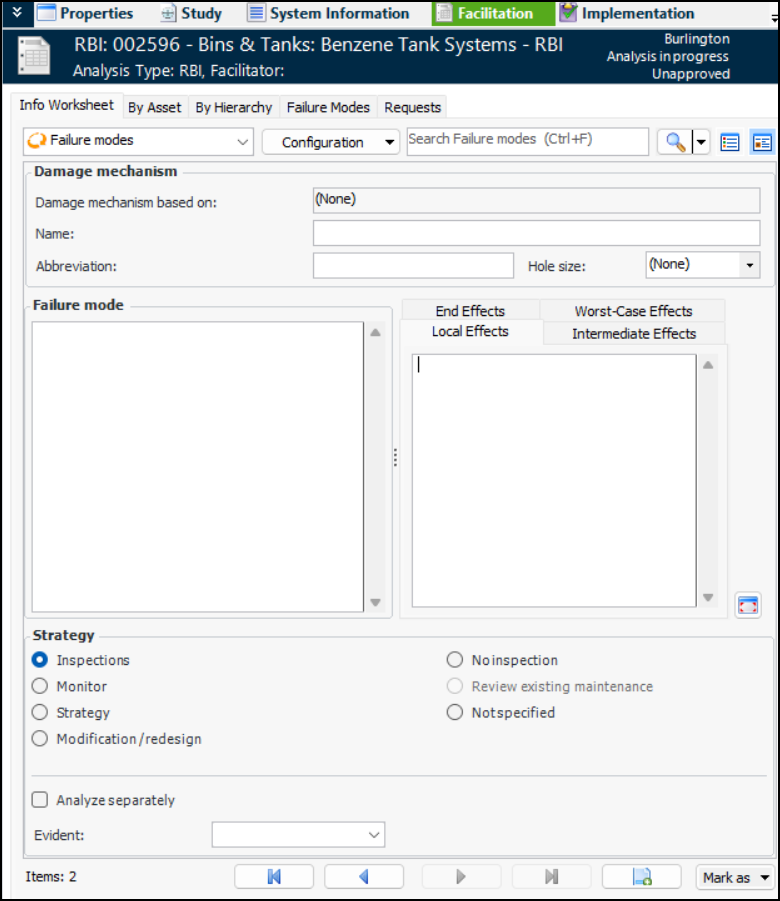
Click to view failure modes in the form view. Click at the bottom of the window to add a new failure mode. The Failure mode reference area displays the reference numbers for the new failure mode. For example:
The buttons at the bottom of the window allow you to navigate between failure modes and to add failure modes to analyses.
Note: In order for the New button () to work in the Form view, you must not add filters to the Failure Modes table configuration.
5.
6.
7.