|
Adding Failure Modes to the RBI Damage Mechanisms Library
Tip: You can view a list of the failure modes that have been created from a library entry. Double-click the entry in the Damage Mechanisms tab to open its Failure Mode window. Select the Usage view to see a table of failure modes based on the damage mechanism.Showing or Hiding Information on a Failure Mode
•
•
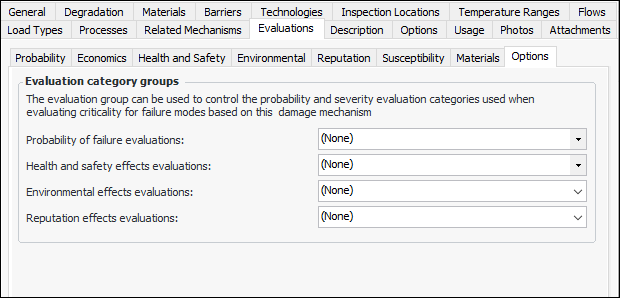
• You can select or clear options on individual tabs, and your selections are summarized on the Options tab. On this tab, you can also specify that failure mode descriptions cannot be changed in failure modes created from the entry.Steps to Add a Failure Mode to the Damage Mechanisms Library
•
•
• Tip: You can also set up material-specific options for evaluations. See To Set Options for Evaluations.
•
•
•
•
•
•
•To Create and Identify the Failure Mode
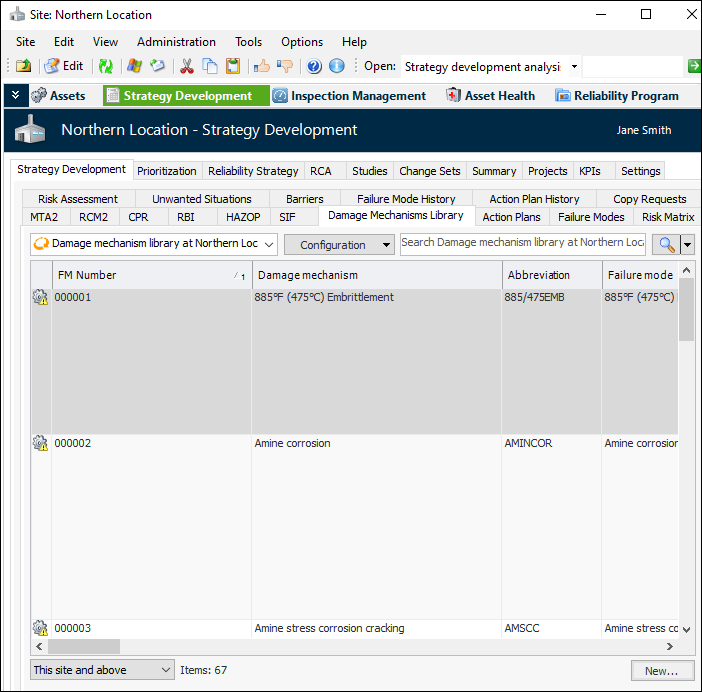
1. On the Site window, select the Strategy Development view and tab. Select the Damage Mechanisms Library tab.
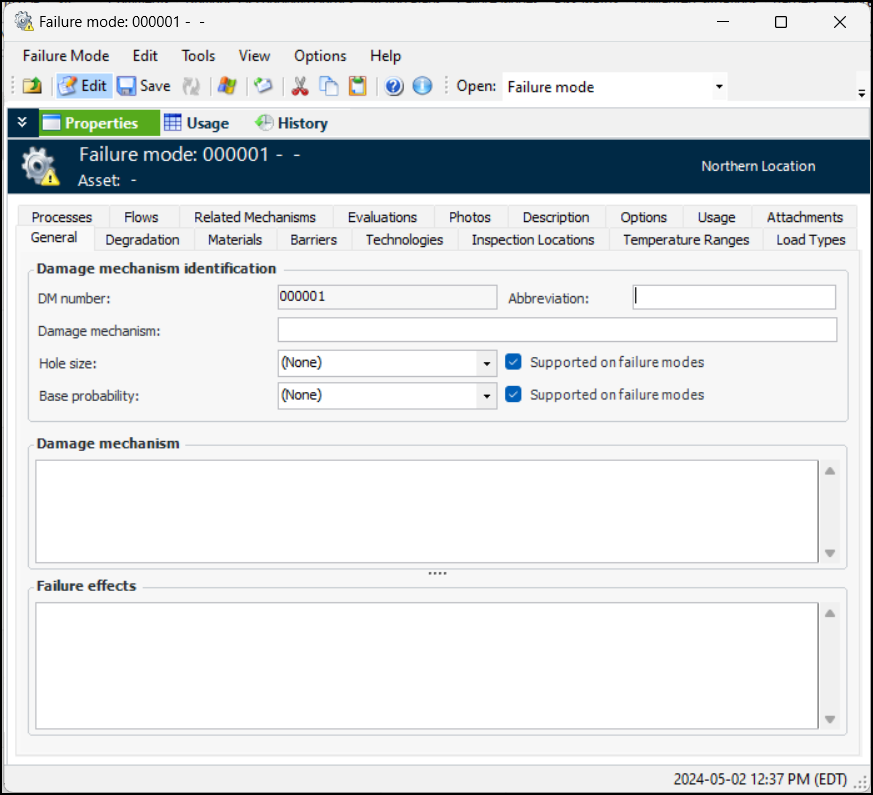
2. Click New. The Failure Mode window appears.
3. On the General tab, in the Damage mechanism identification area, provide a name for the mechanism. The name is added to the window banner. Provide an abbreviation, if required.
5. In the Damage mechanism and Failure effects boxes, enter descriptions of the failure mode and its effects.
6. Select the Description tab to add information about the damage mechanism. The description is not copied when the failure mode is added to an analysis.To Select Degradation Information
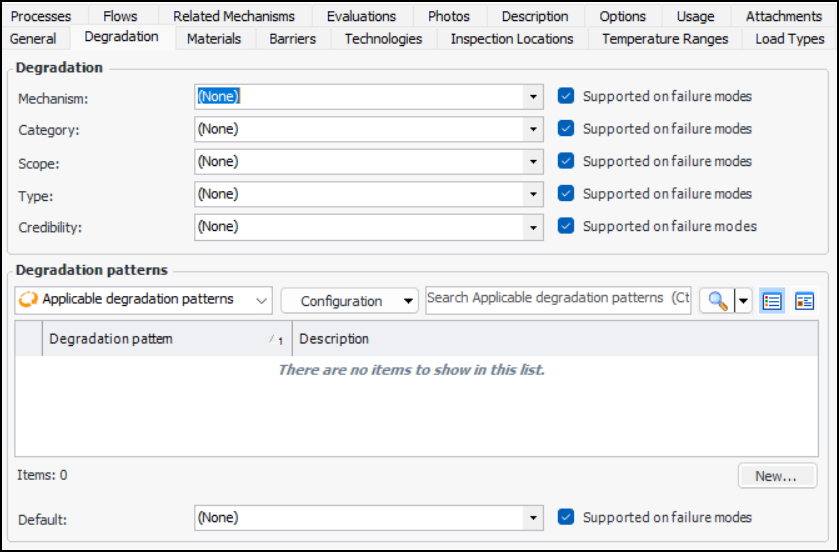
1. In the Failure Mode window, select the Degradation tab.
2. You can disable some types of information that are shown by default. This prevents the information from appearing in failure modes created from library entries. To disable an item, clear its Supported on failure modes option. Your selections are summarized on the Options tab.
3. In the Degradation area, select the following information:
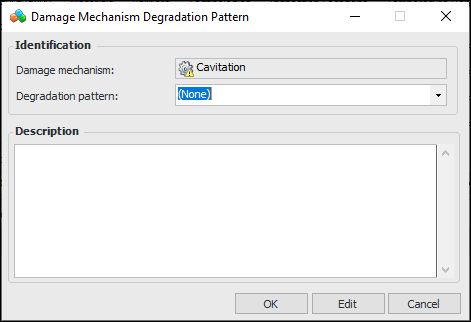
Note: If degradation patterns are not supported on failure modes for this damage mechanism, clear the Supported on failure modes option. Skip to To Select Materials Information.For each pattern, click New. The Damage Mechanism Degradation Pattern dialog appears:
6. Provide a description for this failure mode and click OK. The dialog closes and the pattern is added to the Applicable degradation patterns table.
7. In the Default list, select the degradation pattern to be selected by default when the failure mode is added to an analysis.To Select Materials Information
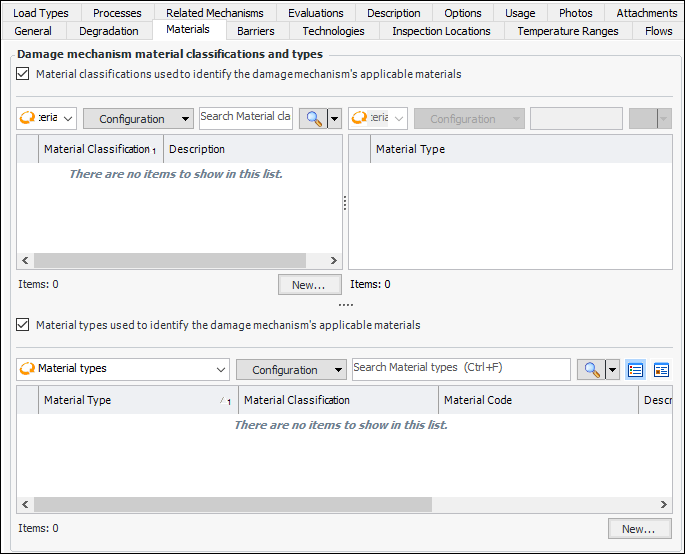
1. In the Failure Mode window, select the Materials tab.
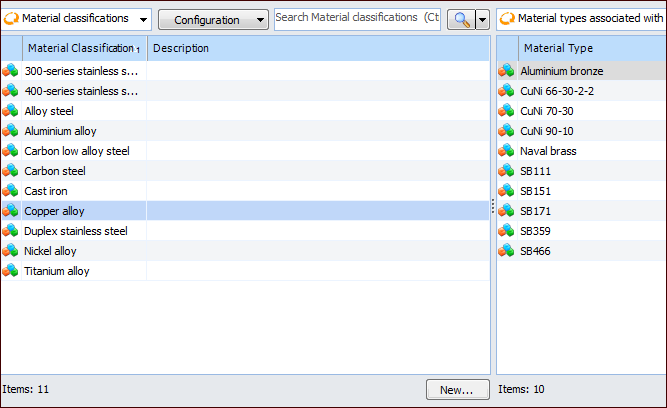
2. Select Material classifications used to identify the damage mechanism’s applicable materials, if appropriate. Material classifications provide broad categories of materials (for example, Stainless Steel) that are associated with specific material types (for example, High Chromium Stainless Steel) with a standard material code to identify the type.
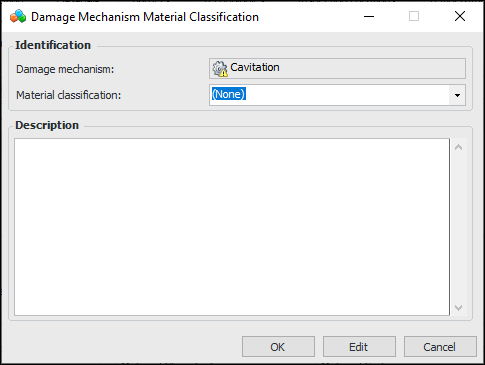
• For each classification that you wish to add, click New. The Damage Mechanism Material Classification dialog appears:
• Enter a description and click OK. The dialog closes and the material classification is added to the Material classifications table.
4. Select Material types used to identify the damage mechanism’s applicable materials. Add the material types that apply to this damage mechanism. The material type identifies the substance from which the equipment is made and which is subject to deterioration.
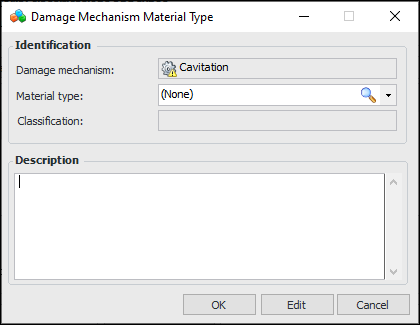
• For each material that you wish to add, click New. The Damage Mechanism Material Type dialog appears.
•
• Enter a description and click OK. The dialog closes and the material is added to the Material types table.To Add Barriers
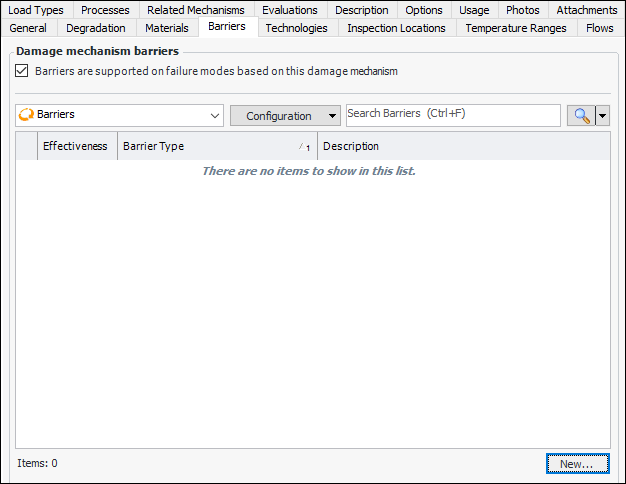
1. In the Failure Mode window, select the Barriers tab. A barrier is a means of slowing or mitigating asset degradation. For example, coating, lining, and chemical treatment are used to slow corrosion in metal piping.Note: To prevent barriers from being selected on failure modes created from the library entry, clear Barriers are supported.
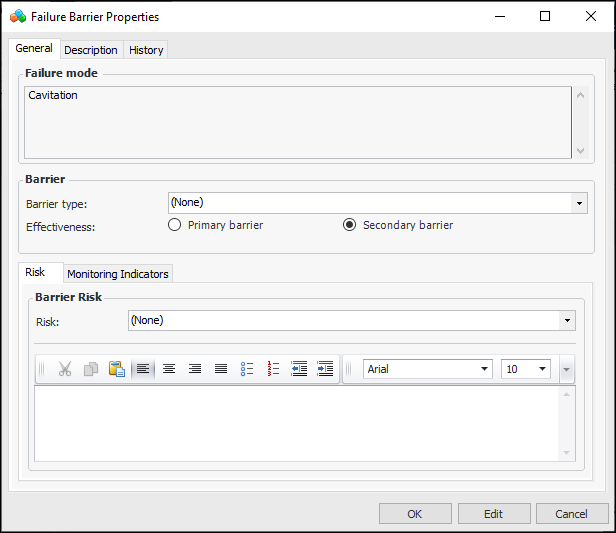
2. To add a barrier, click New. The Failure Barrier Properties dialog appears.The Failure mode area displays the failure mode description.
• Primary barrier – The barrier is most effective in controlling deterioration.
• Secondary barrier – The barrier does not control deterioration completely or is effective for a limited time. Typically, two or more secondary barriers are assigned to an asset.
4. On the Risk tab, select a risk-ranking value, for example, “High”, “Medium”, or “Low”. This value represents the risk of corrosion if the barrier is not successfully applied. Provide a reason for selecting the risk level in the text box below.
5. On the Monitoring Indicators tab, add the indicators that monitor the compliance status of the barrier. Click Browse to add an existing indicator template or click New to create one.
6. When you have finished defining a barrier, click OK. The dialog closes and the barrier is added to the tab.To Add Technologies
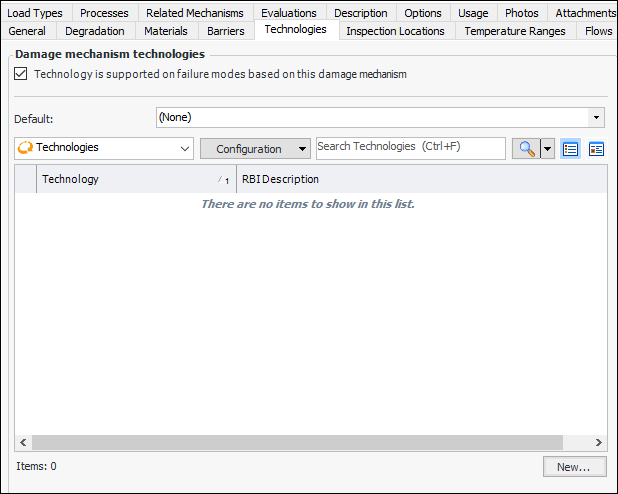
1. In the Failure Mode window, select the Technologies tab. Technologies are the methods or tools used to determine the condition of in-service equipment to measure degradation.Note: To prevent technologies from being selected on failure modes created from the library entry, clear Technology is supported.
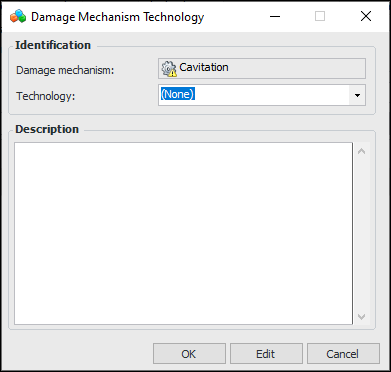
2. For each technology, click New. The Damage Mechanism Technology dialog appears.
4. Enter a description and click OK. The dialog closes and the technology is added to the Technologies table.
5. In the Default list, select the technology to be selected by default when a failure mode based on this library entry is added to an analysis.To Add Inspection Locations
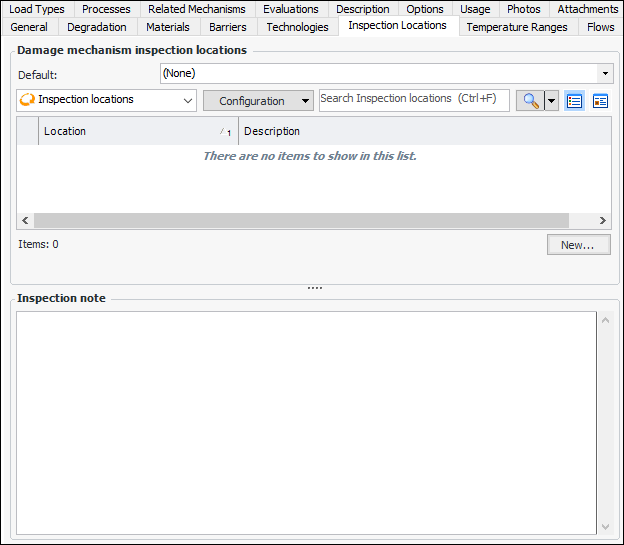
1. In the Failure Mode window, select the Inspection Locations tab to identify the area of the asset to be inspected for deterioration, for example, a specific elbow or joint on a piping segment. A location can also refer to a general area, such as a location exposed to excessive moisture.
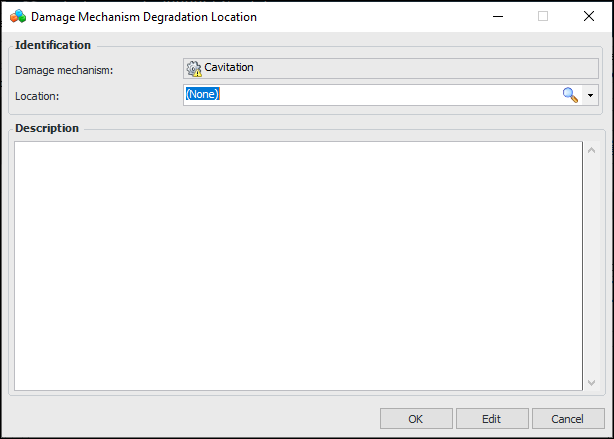
2. For each location that you wish to add, click New. The Damage Mechanism Degradation Location dialog appears.
4. Enter a description and click OK. The dialog closes and the location is added to the Inspection locations table.
5. In the Default list, select the location to be selected by default when the damage mechanism is added to an analysis. Provide a location note, if applicable.To Add Temperature Ranges
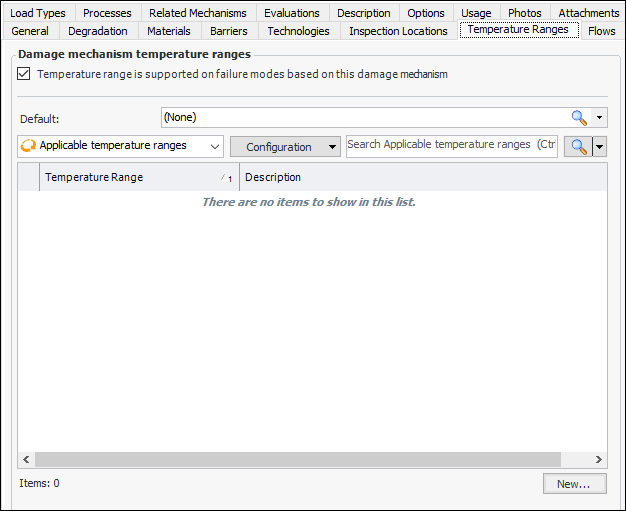
1. In the Failure Mode window, select the Temperature Ranges tab to identify the temperatures at which the damage mechanism typically occurs.Note: To prevent temperature ranges from being selected on failure modes created from the library entry, clear Temperature range is supported.
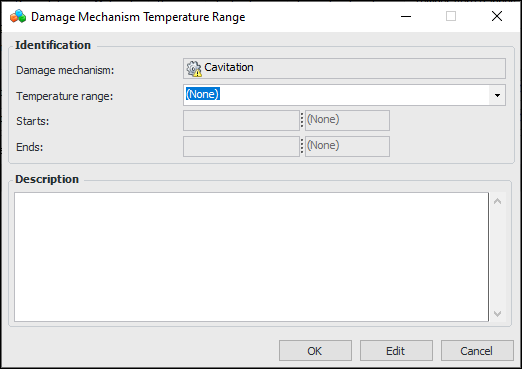
2. For each temperature range, click New. The Damage Mechanism Temperature Range dialog appears.
4. Enter a description and click OK. The dialog closes and the technology is added to the Applicable temperature ranges table.
5. In the Default list, select the temperature range to be selected by default when a failure mode based on this library entry is added to an analysis.To Add Flow Conditions
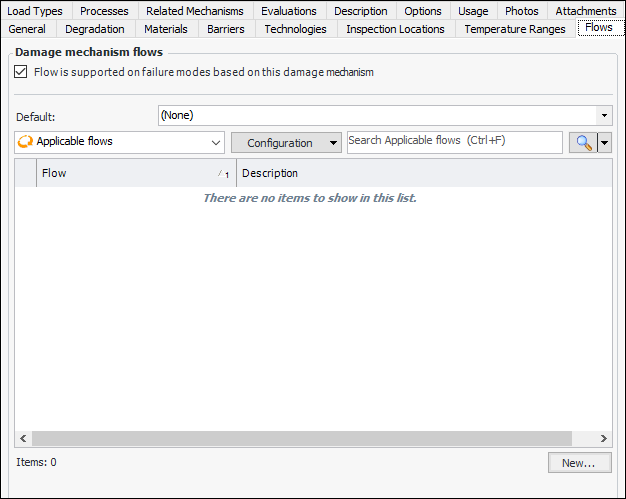
1. In the Failure Mode window, select the Flows tab. Flow is an aspect of the operating environment in which the damage mechanism is prone to occur. Examples are motionless-static and hydrodynamic.Note: To prevent flow conditions from being selected on failure modes created from the library entry, clear Flow is supported.
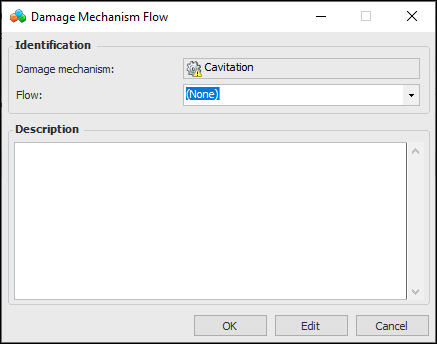
2. For each flow condition, click New. The Damage Mechanism Flow dialog appears.
4. Enter a description and click OK. The dialog closes and the flow condition is added to the Applicable flows table.
5. In the Default list, select the flow condition to be selected by default when a failure mode based on this library entry is added to an analysis.To Add Types of Loading
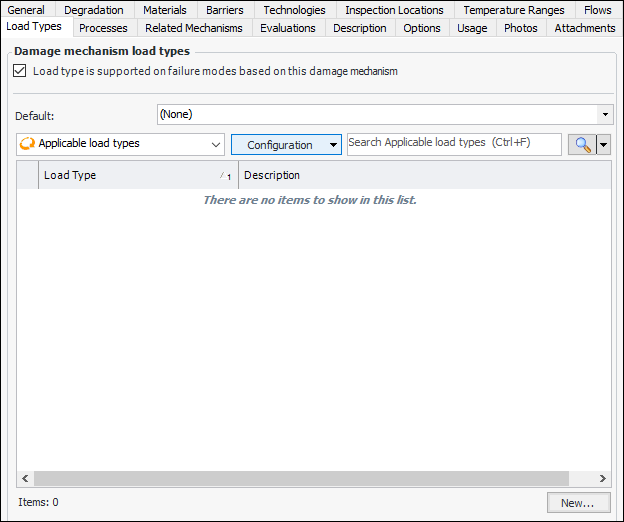
1. In the Failure Mode window, select the Load Types tab. Load type is an aspect of the operating environment in which the damage mechanism is prone to occur. Examples are static stress, cyclic stress, and impact.Note: To prevent load types from being selected on failure modes created from the library entry, clear Load type is supported.
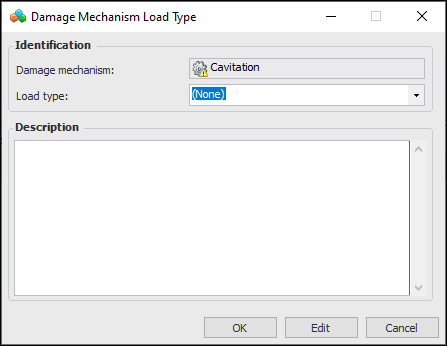
2. For each type of loading, click New. The Damage Mechanism Load Type dialog appears.
4. Enter a description and click OK. The dialog closes and the load type is added to the Applicable load types table.
5. In the Default list, select the load type to be selected by default when a failure mode based on this library entry is added to an analysis.To Add Process Conditions
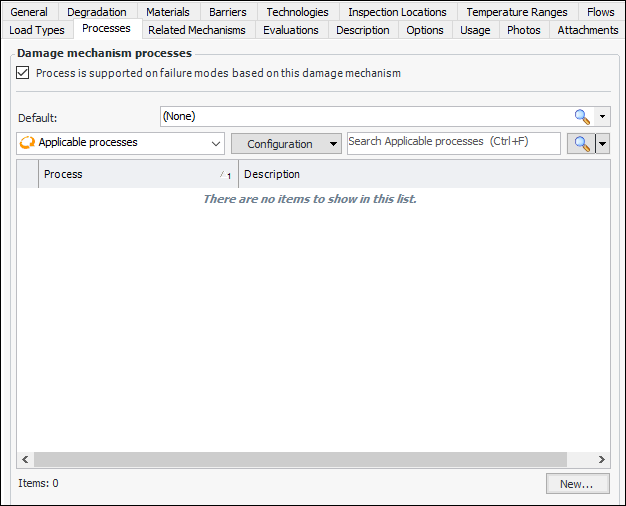
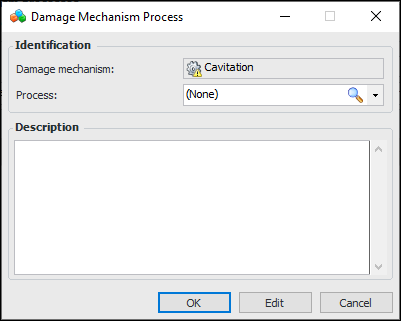
1. In the Failure Mode window, select the Processes tab. Process is an aspect of the operating environment in which the damage mechanism is prone to occur. Examples are hydrogen, phosphoric acid, and carbon.Note: To prevent processes from being selected on failure modes created from the library entry, clear Process is supported.
2. For each process, click New. The Damage Mechanism Process dialog appears.
4. Enter a description and click OK. The dialog closes and the process is added to the Applicable processes table.
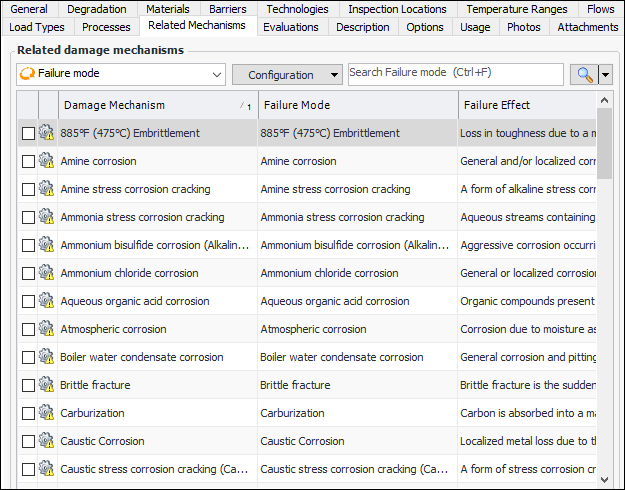
5. In the Default list, select the process to be selected by default when a failure mode based on this library entry is added to an analysis.To Identify Related Damage Mechanisms
1. In the Failure Mode window, select the Related Mechanisms tab.To Set Options for Evaluations
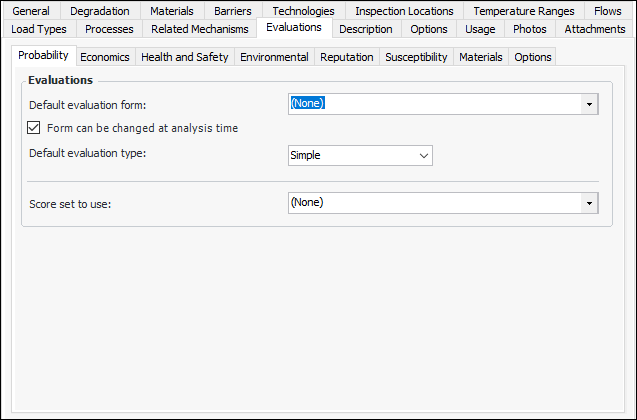
1. In the Failure Mode window, select the Evaluations tab to add the evaluation forms that will be available in the failure mode when it is added to an analysis.
2. On the Probability tab, provide the following information:
• Simple – The evaluator can select one statement for each category on the form.
• Detailed – The evaluator can select two statements for each category on the form.
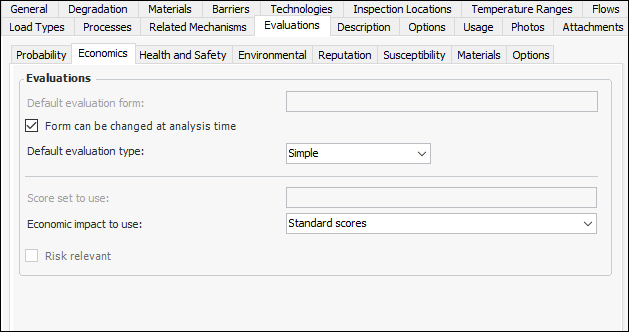
3. Select the Economics tab.
• Simple – The evaluator can select one statement for each category on the form.
• Detailed – The evaluator can select two statements for each category on the form.
5. On each of the Health and Safety, Environmental, and Reputation tabs, provide the following information:
• Simple – The evaluator can select one statement for each category on the form.
• Detailed – The evaluator can select two statements for each category on the form.
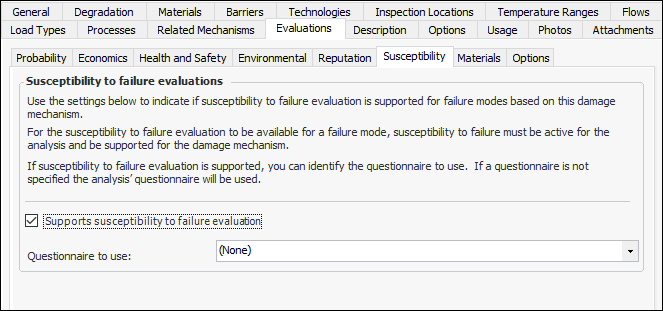
6. Select the Susceptibility tab. Susceptibility to failure evaluation provides an alternative to probability of failure analysis for assets prone to degradation that is not age-related.
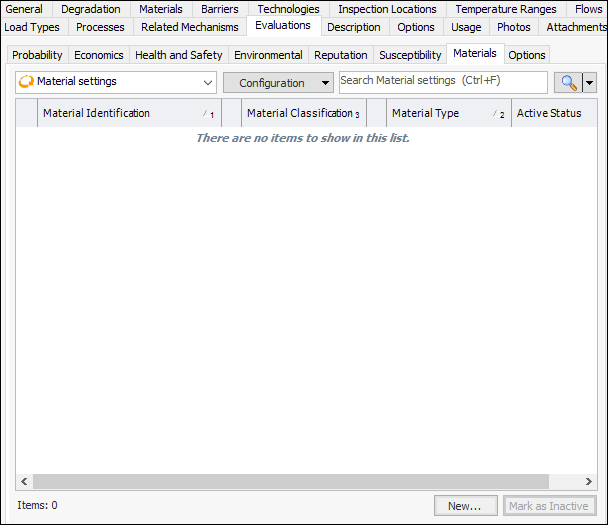
9. Select the Materials tab.
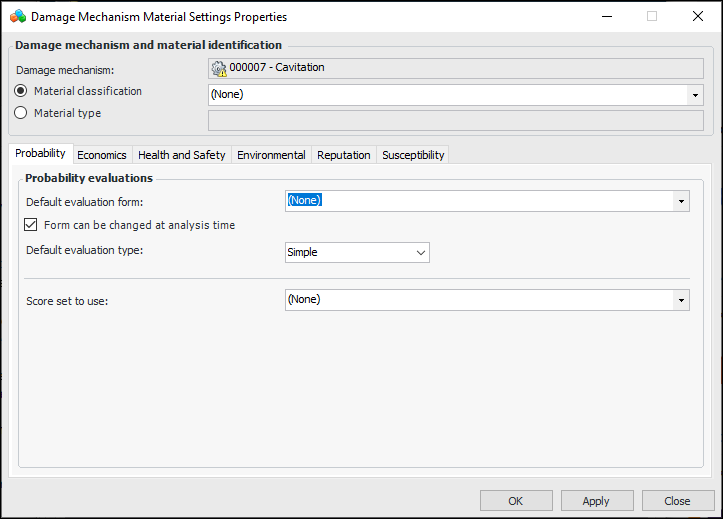
10. For each materials type or classification that requires specific options, click New. The Damage Mechanism Material Settings dialog appears:
13. Click OK to close the dialog. The setting are added to the table.
14. Select the Options tab.To Review Options for the Failure Mode
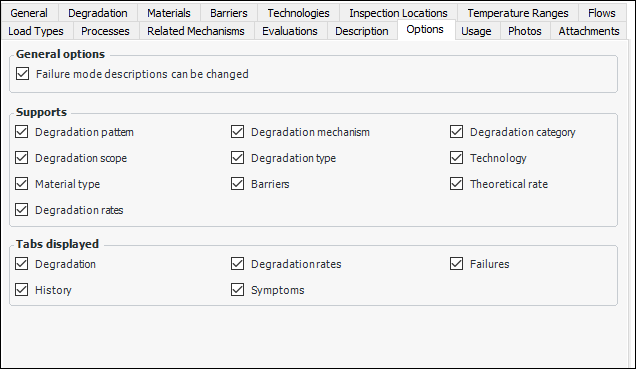
1. In the Failure Mode window, select the Options tab to view lists of the items that are shown or disabled in failure modes created from the entry.
• In the General options area, you can prevent failure mode descriptions from being changed by clearing Failure mode descriptions can be changed.
• In the General options area, you can specify that information can only be copied to other failure modes that are based on this damage mechanism.
• In the Supports area, review the items that are displayed on failure modes created from the entry. Revise the selections as needed.
• In the Tabs displayed area, you can clear the options for any tabs that you do not want to show on failure modes.To Set Usage Options
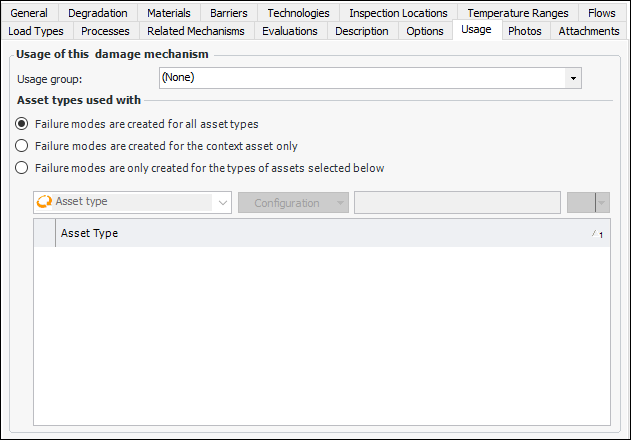
1. In the Failure Mode window, select the Usage tab to assign a usage group to the library entry and specify the asset types it can be used with.
2. Select a group from the Usage group list. Usage groups control the library entries that are available in an RBI analysis. For example, if a usage group is specified in the analysis’ failure mode options, only entries assigned the same usage group are available to select in the Browse Damage Mechanisms Library dialog.Tip: To create a group, right-click in the Usage group list and click New. The Properties dialog appears, where you can name the group and change the default icon, if required. When you click OK, the usage group is added to the list and to the site’s Strategy Development settings on the Failure Modes, Usage Groups tab.
• Failure modes are created for all asset types – When the library entry is added to an RBI analysis, a failure mode is created for every analysis asset, irrespective of asset type.
• Failure modes are created for the context asset only – When the library entry is added to an RBI analysis, a failure mode is created for the primary asset.
• Failure modes are only created for the types of assets selected below – When the library entry is added to an RBI analysis, a failure mode is created for all analysis assets of the selected types. When you select this option, the site’s asset types are displayed in the table. Select the asset types that apply.To Add Inspection Photos and Attachments
1. In the Failure Mode window, select the Photos tab to browse for inspection photos to add to the library entry.
2. On the Attachments tab, you can add files, folders, notes, or URLs to provide additional information about the damage mechanism. For more information, see Adding Attachments to Objects. The attachments are not copied when the failure mode is added to an analysis.
3. When you have finished defining the failure mode, close the Failure mode window. The failure mode is added to the Damage Mechanisms Library tab.