|
Working with Barriers on RBI Failure Modes
To Work with Barriers on a Failure Mode
1. Open the analysis and select the Facilitation view, Info Worksheet tab. Double-click the failure mode to open the Maintenance Action Plan window.
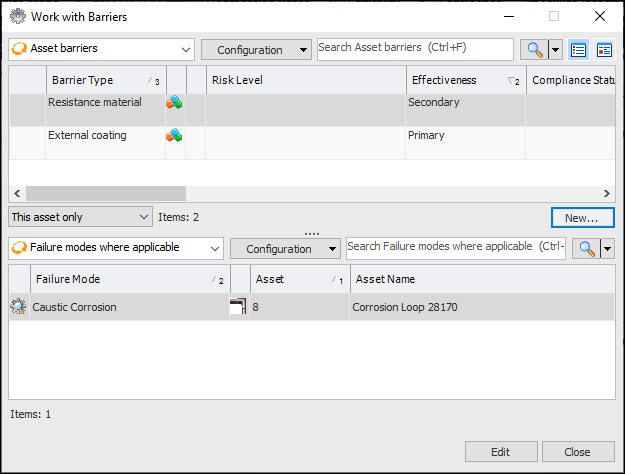
3. Select the Degradation view, Barriers tab. This tab lists the asset’s barriers. Barriers that have been added to the failure mode have check marks.
4. In the Work With list, select one of the following:
• Select Asset Barriers to work with barriers assigned to the failure mode’s asset. This option is useful if the failure mode’s asset is not the primary asset of the RBI analysis.
• Select Primary Asset Barriers to work with barriers assigned to the primary asset of the RBI analysis.
• To add a barrier, click Edit. You can now click New to open the Properties window, where you can define the barrier. When you click OK, the barrier is added to the asset. It is also listed in the Barriers tab, where you can select it for the failure mode.
• To delete a barrier from an asset and the failure mode, right-click it in the list and click Delete. In the confirmation message, click Yes. The barrier is removed from the asset. If it was selected in the failure mode’s Barriers tab, the check mark is removed.