|
Adding Barriers to RBI Failure Modes
Tip: In the analysis’ failure mode settings, select the Barriers tab to set the default behavior for adding barriers to assets from the failure mode. You can specify that barriers are added to the failure mode asset or to the primary analysis asset.Tip: You can also use the Work With list to view, add, and delete barriers. See Working with Barriers on RBI Failure Modes.To Add Barriers to a Failure Mode
3.
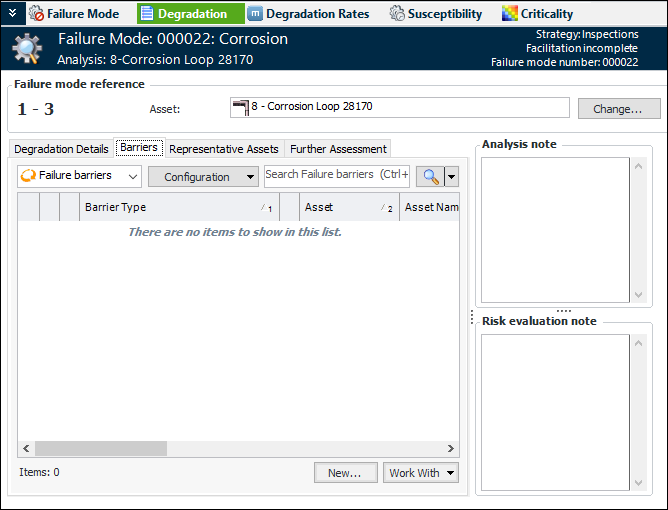
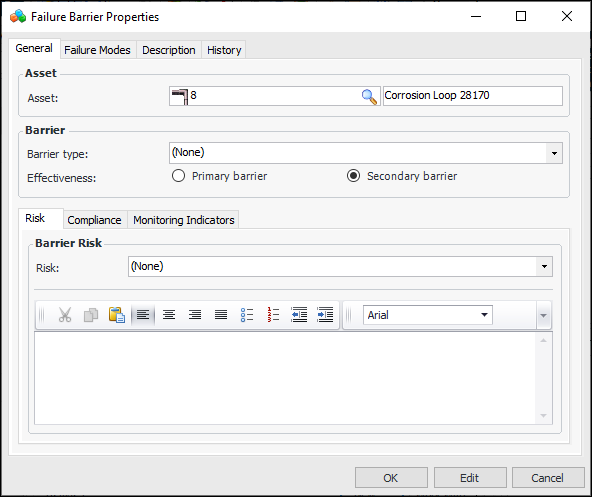
4. To add a new barrier to the asset, click New. The Failure Barrier Properties dialog appears.
5. The Asset boxes show either the failure mode’s asset or the primary asset on the analysis. To create the barrier for another asset, click the browse icon ().
• Primary barrier – The barrier is most effective in controlling deterioration.
• Secondary barrier – The barrier does not control deterioration completely or is effective for a limited time. Typically, two or more secondary barriers are assigned to an asset.
7. On the Risk tab, select a risk-ranking value, for example, “High”, “Medium”, or “Low”. A barrier’s risk ranking identifies the relative severity of the problem that the barrier is meant to prevent or mitigate. Provide a reason for selecting the risk level in the text box below.
8. Select the Compliance tab and add the following information:
9. Select the Monitoring Indicators tab. On this tab, you can select or create indicators to be used to check the effectiveness of the barrier.
10. Select the Description tab to add more information about the barrier.Tip: The Failure Modes tab lists the failure modes that reference the barrier. The History tab provides an audit history of the actions performed on the barrier record in APM.
11. Click OK. The Failure Barrier Properties dialog closes and the barrier is added to the asset and listed on the Barriers tab.To Add Barriers from a Library Failure Mode
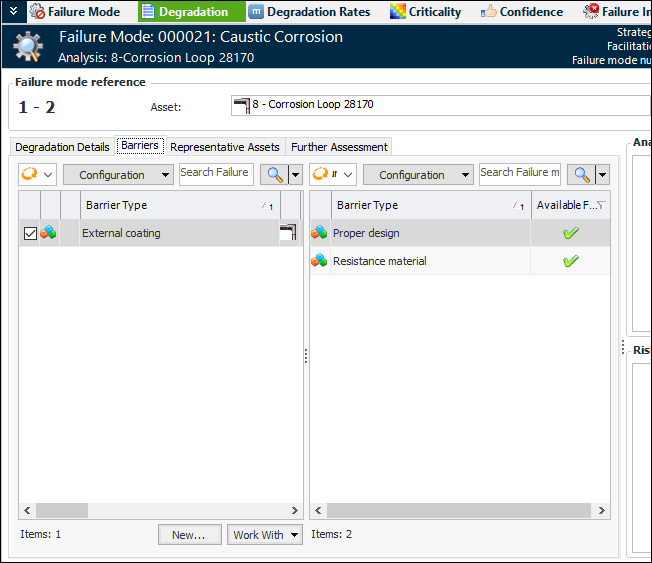
3. Select the Degradation view, Barriers tab. This tab lists the barriers on the asset on the left and the library barriers on the right. For example: