Adding Assets to an RBI Analysis

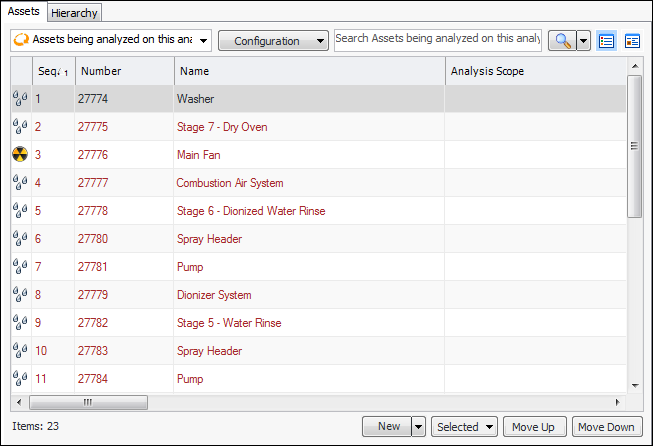
In a new analysis, the Properties view, Assets tab displays the primary asset or system and its asset type. The second Assets tab and the Hierarchy tab display the primary asset and its descendants, if included in the analysis. As the analysis progresses, you might find it necessary to add assets to the analysis.
When you create an analysis that includes the primary asset’s descendants, a snapshot is taken of the asset’s physical hierarchy. This analysis hierarchy remains static. That is, any changes made to the site’s physical hierarchies are not automatically made to the analysis hierarchy. However, when you add assets to an analysis, the analysis hierarchy is refreshed with any changes that have occurred to the physical hierarchy. Also, at any time you can update the analysis hierarchy to reflect changes. For more information, see Updating the Asset Hierarchy Snapshot for an RBI Analysis.
Tip: An asset can be added to an analysis by dragging the asset from a table and dropping it on the analysis’ list of assets. For example, you can drag an asset from the site’s list of assets and drop it on the analysis’ list of assets. If analysis options specify that descendants be included, the copied asset’s descendants are added to the analysis. The asset’s failure modes are not copied to the analysis.
Assets are given sequence numbers as they are added to the analysis. The asset’s sequence number contributes to the failure mode’s reference number. You can change the sequence numbers of assets and failure modes using the Move Up and Move Down buttons on the Assets tab.
You can also update the sequence numbers for all assets, failure modes, or both using the Renumber Objects option on the Tools menu. For more information, see Renumbering Assets and RBI Failure Modes.
Tip: In the System Information view, you can review information about the analysis asset. You can also edit the following properties from the Asset tab:
In the Process tab, you can also add and edit operating parameters on the Operating Window tab. Changes that you make in the System Information view are saved to the asset record.
Tip: After the analysis is completed, you can return and see a snapshot of an asset’s properties as they were at the time the asset was analyzed. In the Strategy Development Analysis window, select the Properties view and then the Assets tabs (or the System Information view, Hierarchy or Assets tab). Right-click the asset in the table and click Asset Snapshot. The Asset Snapshot dialog displays the information that was current either on the date that the asset was added or on the date that the analysis status changed to “Analysis completed”.
You can add assets to the analysis by browsing for existing assets or by creating one or more child assets in the analysis. When creating assets, the new child assets are added to the parent asset’s hierarchy.
This topic explains how:

To Browse for Assets

1.
2.
3.
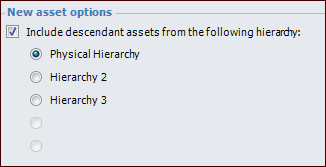
Select the Properties view, Analysis Options tab. This tab shows the settings that apply when you add assets to the analysis. For example:
4.
To include child assets, ensure that Include descendant assets is selected and choose the hierarchy to take them from. APM duplicates the physical hierarchy for the asset and its descendants in the analysis asset hierarchy.
Note: Descendants that are already included in the analysis are ignored when the analysis is updated. Component assets and their descendants cannot be included in the analysis.
5.
Select the Assets tab and the second Assets tab. In the New list, click Browse. The Browse Assets dialog appears.
Tip: You can also select the Hierarchy tab and click Browse.
If the primary asset represents a circuit, Show assets in circuit is available and selected. The Circuit tab lists assets included in the primary asset’s circuit.
6.
7.
Click OK. The dialog closes and the assets are added to the list to be analyzed. If you chose to include descendants, they are also added to the analysis hierarchy. If the new asset’s parent is not included in the analysis hierarchy, the asset is placed beneath the primary asset.
Tip: To re-sequence an asset, select it in the table and click Move Up or Move Down until it is in the correct position. The asset sequence numbers are changed appropriately.

To Create Assets

1.
On the General tab, select the Assets tab and the second Assets tab.
2.
Click the New list and then Assets. By default, the primary asset is designated the parent.
Right-click an analysis asset and click Create Multiple Child Assets. By default, the asset you selected is designated the parent.
Tip: You can also create assets on the Hierarchy tab. Click New or right-click an asset and click Create Multiple Child Assets.
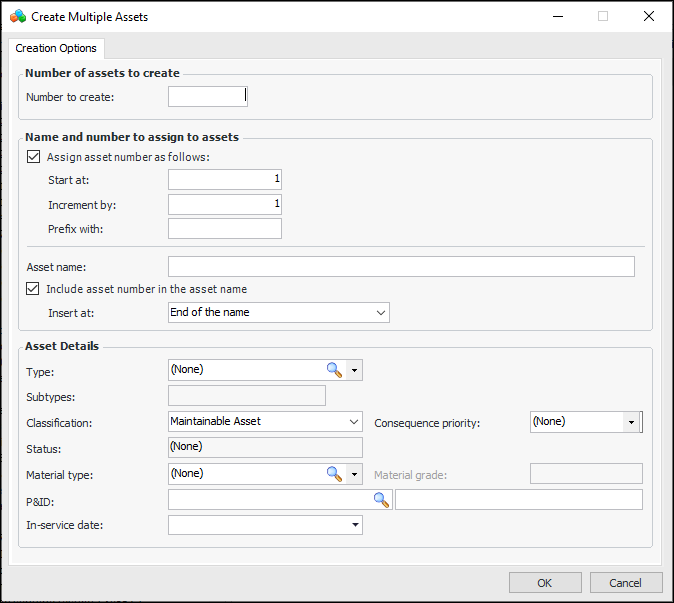
The Create Multiple Assets window appears.
3.
Note: If the assigned number already exists, “(2)” is added to the asset number.
4.
In the Asset details area, select the options for the new assets:
If the asset type has one or more default subtypes, those subtypes are added to the Creation Options tab. A tab is added to the window for each default subtype. These specifications tabs will appear on the new child assets.
Note: You cannot create component assets using the Create Multiple Assets window.
5.
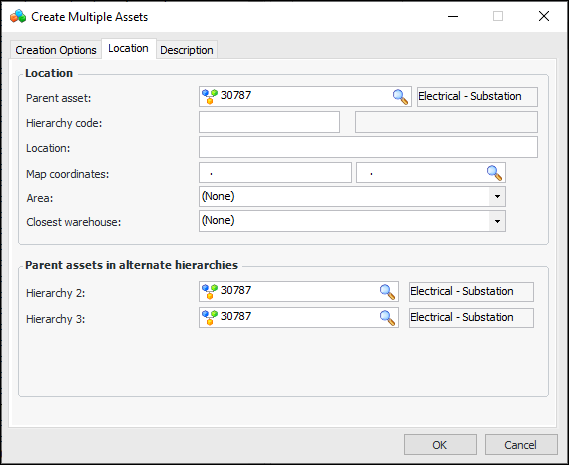
Select the Location tab. This tab displays information about the parent asset in the physical and any alternate hierarchies. For example:
6.
7.
Tip: You can click the browse icon and point to the location on a map to have APM assign the coordinates. For more information, see Setting Map Coordinates.
8.
If you are using additional hierarchies, you can select parent assets in alternate hierarchies to establish the position of the new assets. Click a browse icon to select a parent asset.
9.
Select the Description tab to add information to be added to each asset’s description.
10.
Click OK. The child assets are created and added to the asset hierarchy.