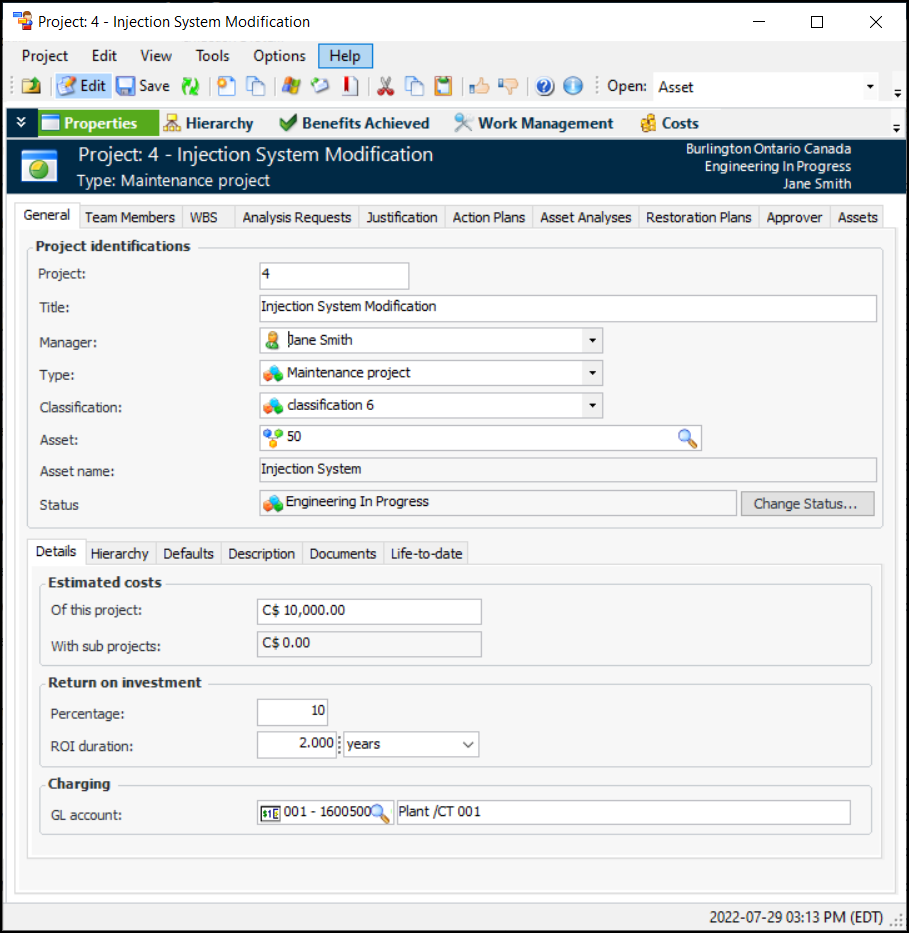
The Properties view displays general information about the project, work breakdown structures, analysis requests, project justification, action plans, approvers, and assets involved. This information is entered when creating a project. For example:
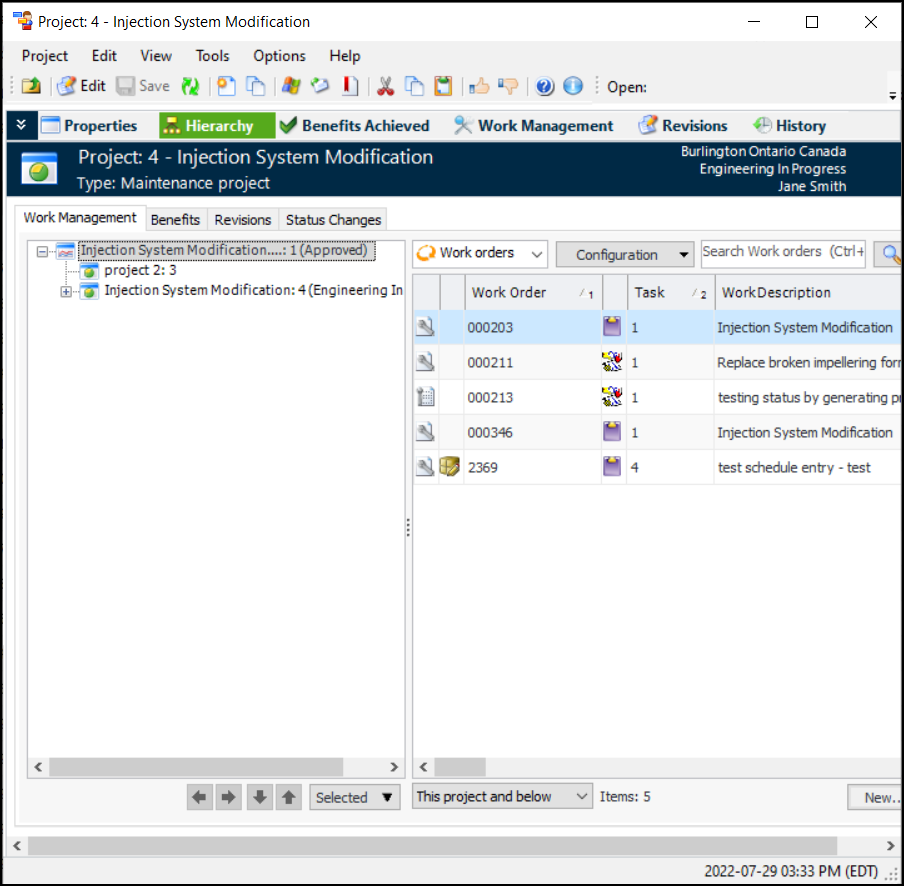
The Hierarchy view displays the location of the project within the project hierarchy. From the tabs, you can view the following information:
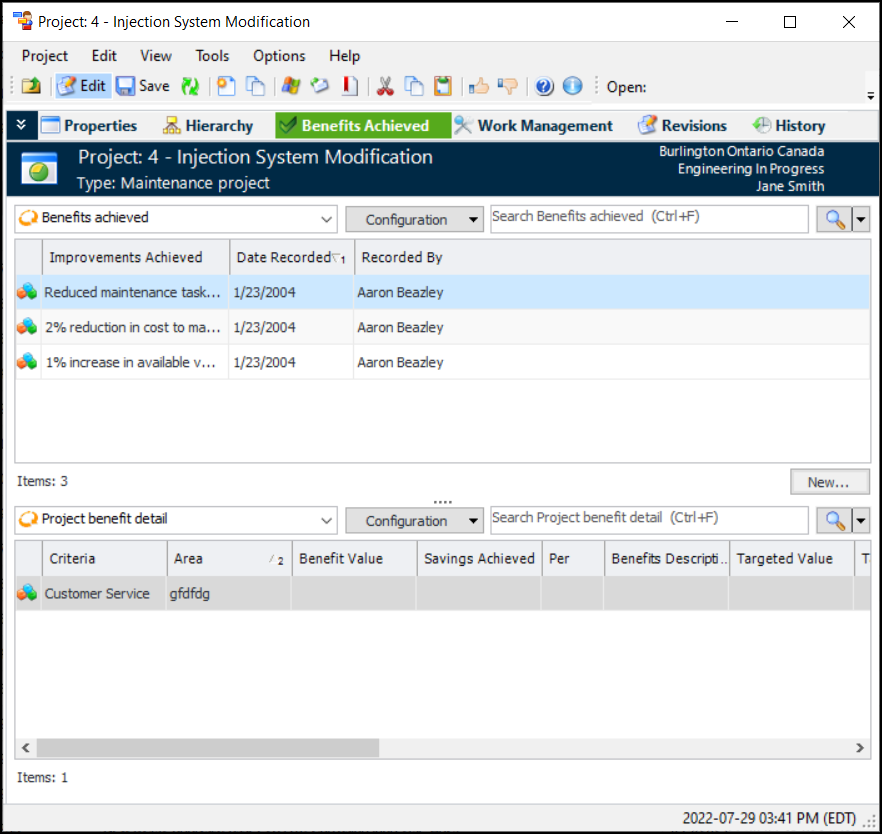
The Benefits Achieved view displays the benefits achieved for the project. The table lists the effectiveness of the project with respect to the expected benefits and project justification entered in the project planning stage. For more information regarding recording benefits achieved, see
Recording Benefits Achieved.
The Work Management view provides a summary of all the work orders and work requests for the current project. You can also create new work orders and work requests from this view. All tabs in this view support recursion so you can view work orders for the current project or for the current project and all its sub-projects. For an explanation of creating work orders in projects, see
Creating Work Orders and Tasks for Projects. For information about creating work requests, see
Creating Work Requests for Projects.
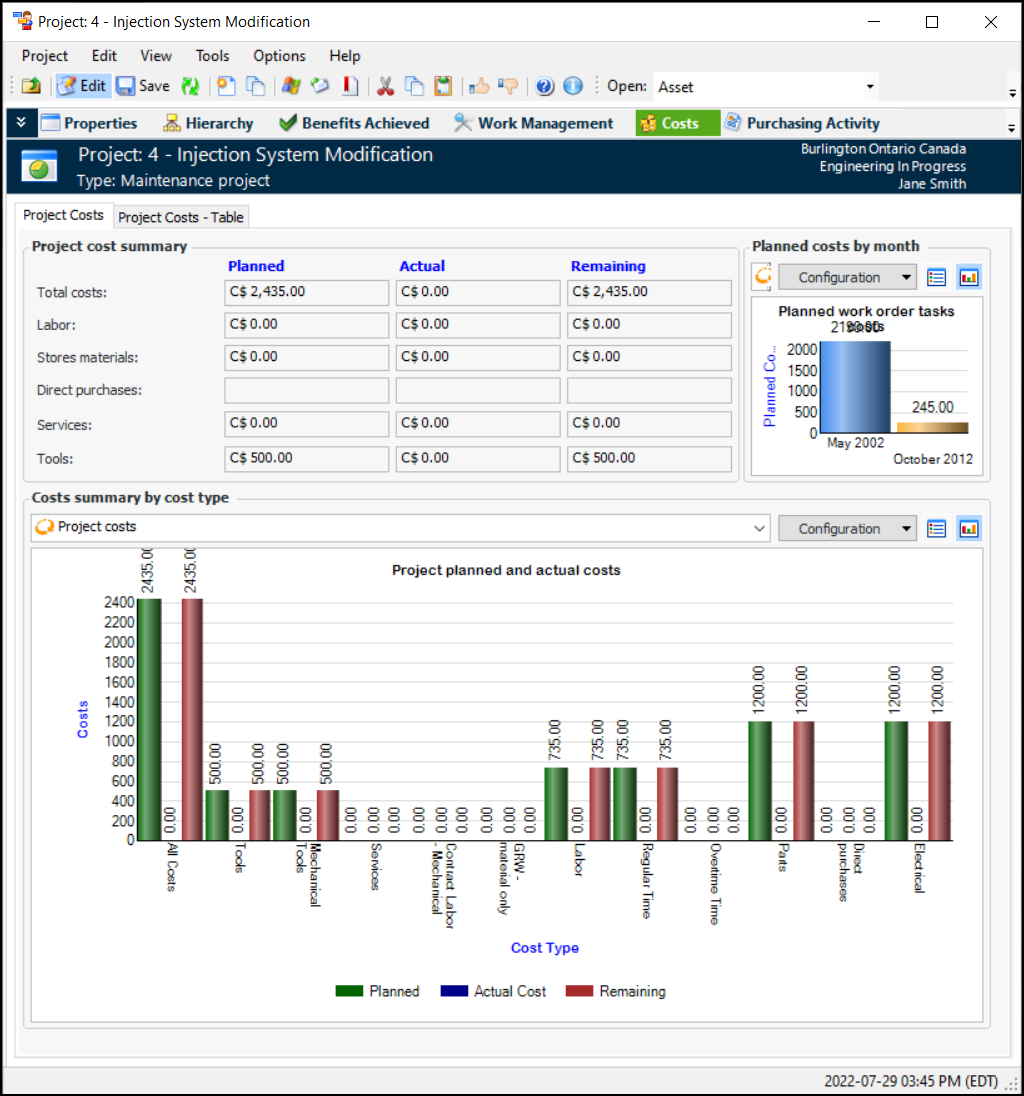
The Costs view displays the costs summary of the project and its sub-projects, including planned, actual, and remaining costs in both chart and tabular formats. The summary amounts for labor and materials in this view originate from Accounting Settings.
The Purchasing Activity view displays RFQ requirements, purchase orders, and invoices for the project.
The Revisions view lists all revisions for the project. You can also create revisions from this view.
The History view lists the audit information, status changes, approvals, and asset activity reports for the project.