|
Sending Projects for Approval
Your site’s approval settings determine if projects require approval. When a project is sent for approval, the route selected is based on the project that is being approved. Each approval route for projects can identify the project or projects it can be used with. Alternatively, on the project itself, you can add the project to a new or existing route. Approval route selection is not based on the project’s GL account segment.This topic explains how to send a project to be approved. Before you send the project for approval, you might want to review the project’s approval settings. See Adding Projects to Approval Routes.To Send a Project for Approval
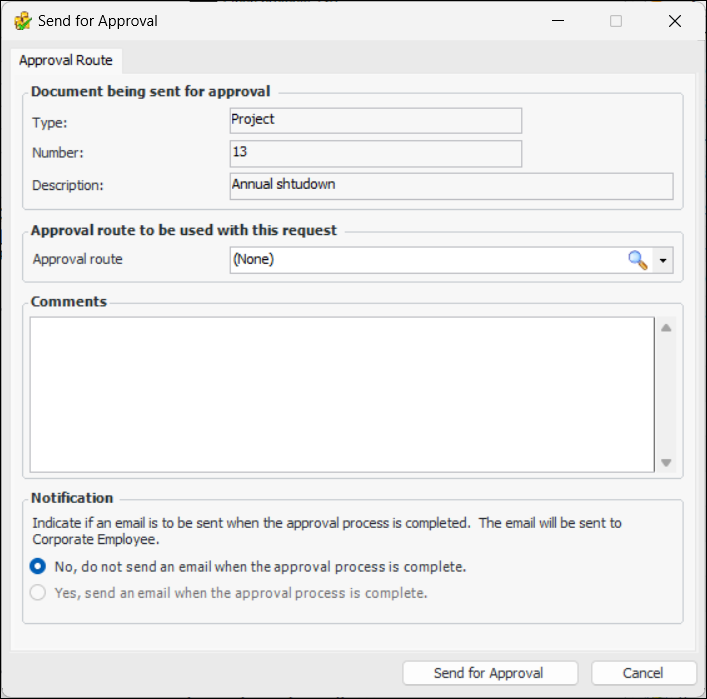
1. In the Project window, select the Project menu and then select Send for Approval. The Send for Approval dialog appears.
2. If a default route has been selected for projects, it is displayed in the Approval route box. You can click the browse icon () to select another route.
3. Enter a comment, if you wish. Requester comments are displayed in the site’s Approvers view, Requests tab, as well as in the Approval Request window in the Request Info tab.To have APM automatically send an email to the originator when all approvers have reviewed the request, select Yes, send an email when the approval process is complete.
5. Click Send for Approval. The project approval request is sent to the first approver on the approval route selected, and the project’s status is updated.