|
|


Redrafting Projects
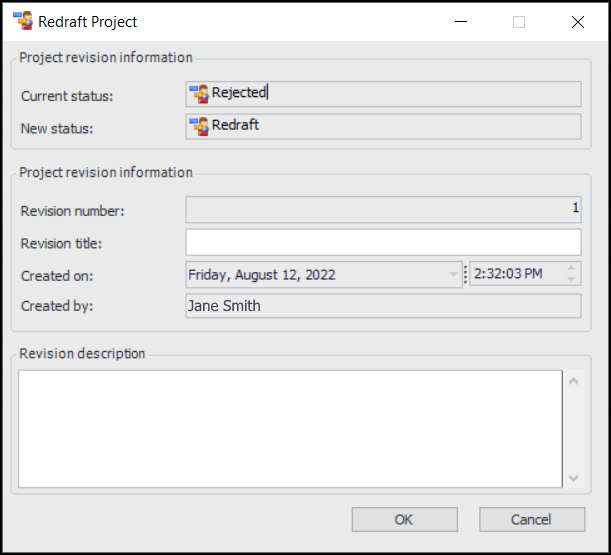
Note: The following topics discuss the revision process assuming that your site project statuses are constructed in the manner suggested in the Project Management settings topics. To view the suggested settings, see Capital and Operational Project Management. If your site does not require project approvals, you can make any changes allowed when a project has that status. See Setting up Project Statuses for more information about project status controls.Tip: Select the Revisions view to view a list of the changes made to a project.To Re-Draft a Project
 is enabled.