|
Using Projects to Track Analysis Requests
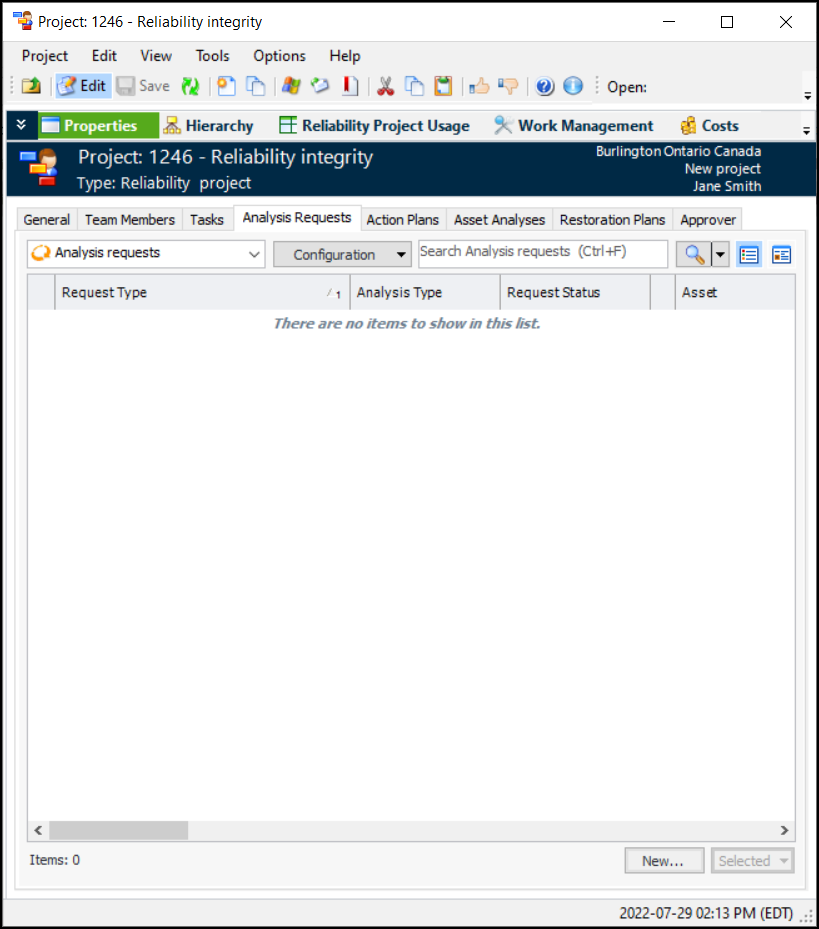
• Note: The Analysis Requests tab is visible if the project type supports it. If this tab is hidden, you can enable it if you have the required security profile. For more information, see Setting up Project Types.To Create Analysis Requests on a Project
1.
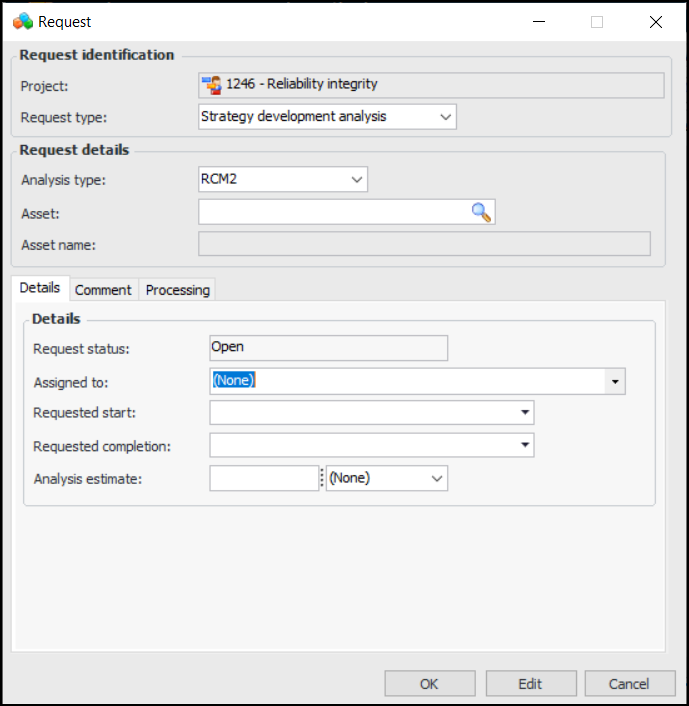
3. Click New. The Request dialog appears.
4. When you select the type of analysis from the Request type list, the Request details area changes to suit the analysis. Select the analysis type and provide the required information:
6. Select the Comment tab to add information about the request.
7.To Process an Analysis Request
•
• On the Site window, select the Performance Management view, Projects tab, Analysis Requests tab. The default configuration for this tab is “Open analysis requests”.
2.
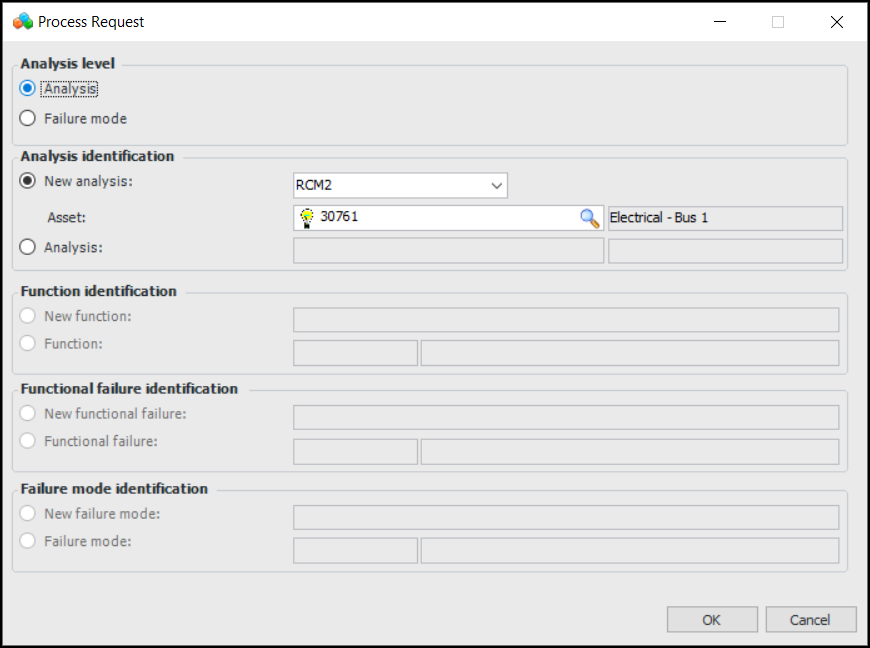
• Analysis – You can link to a new or existing strategy development analysis.
• Failure mode - You can link to a new or existing failure mode in a new or existing strategy development analysis.
• New analysis – Select the analysis type and identify the asset. The selected asset’s child assets in the physical hierarchy are automatically added to the new analysis.
• Analysis – Click the browse icon () to select the analysis.
6. Click OK. The Strategy Development Analysis window appears, where you can develop the analysis. The request status changes to “Processed”.To Cancel or Reopen an Analysis Request
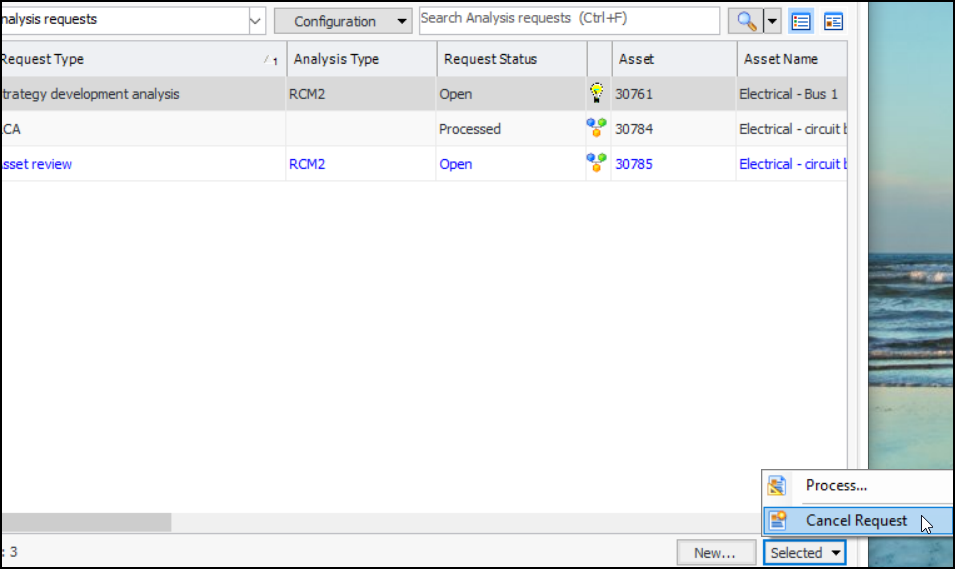
1. Tip: You can also select the site’s Performance Management view, Projects tab, and Analysis Requests tab. Select “All analysis requests” in the configuration list. Right-click the request to cancel or reopen it.
2. Select the analysis request. Click the Selected list and select either Cancel Request or Reopen. For example: