
|
Setting up Payment Terms
To Set up Payment Terms
1. From the Site window, select the Administration menu and then Purchasing Management Settings. The Purchasing Management Settings dialog appears.Tip: You can also access purchase management settings from the Site window by selecting the Purchasing view, Settings tab, and the Purchase Order Management Settings node in the tree.
2. Select the Payment Terms tab. This tab shows a list of payment terms.
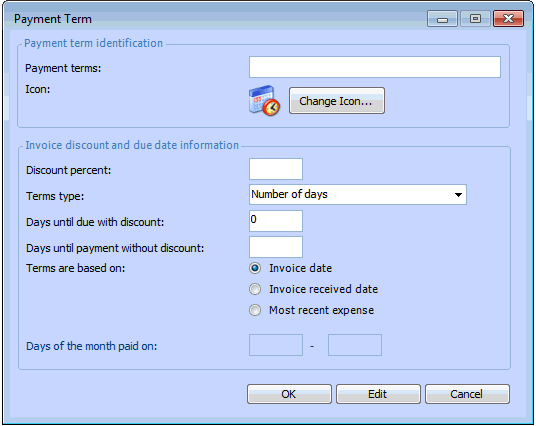
3. Click New. The Payment Term dialog appears.
The percentage of the discount associated with this payment term. For example, if the term is 1% 10, net 30, you would enter a discount of 1.
• Day of the month: Invoices using this term are always paid on selected days during each month. For example, you may always pay your invoices on the 1st and 15th of the month.
• Number of days: Invoices using this term are always paid a certain number of days after the invoice date. When you select this type, you can enter the number of days until payment is due, and the number of days you will receive a discount (optional).
The number of days until the discount date when this term is used. For example, if the term is 1% 10, net 30, you would enter 10 days.This setting is only applicable to payment terms using the Number of days terms type.
The number of days until payment is due when this term is used. For example, if the term is 1% 10, net 30, you would enter 30 days.This setting is only applicable to payment terms using the Number of days terms type.
• Invoice date: the days until due is added to the invoice date to calculate the due date
• Invoice received date: the days until due is added to the invoice’s date received to calculate the due date
• Most recent expense date: the days until due is added to the latest expense date on the invoice’s lines. For example, if the invoice is matched to six receipts, the date on which the latest of the receipts was received is used.This setting is only applicable to payment terms using the Number of days terms type.
This setting is only applicable to payment terms using the Day of the month terms type.
5. When you are finished, click OK to save the payment term.
6.