Procurement Life Cycle

The procurement system in APM enables you to purchase materials, tools, and services from outside suppliers. This topic provides an overview of how the procurement function works in APM.

Purchase Order Creation

Purchase demand comes from work order tasks and requisitions. You can also create a purchase order from scratch.
When the purchase demand comes from work order tasks and requisitions, APM uses business rules, the status of the purchase order, and purchase order properties to determine whether or not the line can be added to an existing purchase order. If no existing purchase order is appropriate, APM will create a new purchase order and add a PO line for the purchase demand.

Business Rules

The procurement business rules, which you configure when you first implement the procurement system in APM, detail the conditions under which a purchase order line can be added to an existing purchase order. You can select any or all of the following conditions:

Purchase Order Status

The status of a purchase order determines whether or not a PO line can be added. The purchase order must be open, not approved, and not printed.

Purchase Order Properties

The properties of a purchase order need to match the PO line you want to add. The PO line and purchase order must have the same supplier, the purchase order must have been created today, and its cost distribution must be at the line level.
TOP

Purchase Order Life Cycle

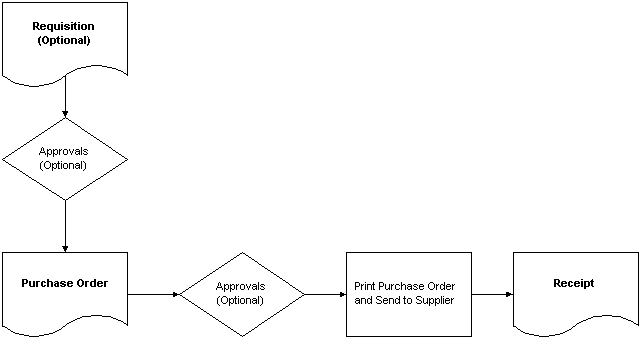
The following diagram illustrates the life cycle of a purchase order, from requisition to purchase receipt.

Requisition

A requisition is used to request materials, tools, services, or contractors needed by your organization. Each item on the requisition is contained in a requisition line. If an item is available in a warehouse, that requisition line is filled using a pick list. If an item needs to be purchased from a supplier, that requisition line is filled using a purchase order line.
A requisition or each requisition line may need to be approved, depending on your organization’s approval policy.
Once the requisition or requisition line has been approved, you can select the lines to turn into purchase order lines. Only items purchased through replenishment requisitions get received into inventory. Items purchased through manual requisitions are considered to be non-stocked direct purchases.

Purchase Order

A purchase order is used to order materials, tools, or services from your organization’s suppliers. The purchase order groups items a buyer wants to order from the same supplier with the same purchasing information.
Each item on the purchase order is contained on a purchase order line. A purchase order line can be created from scratch or from a requisition line. APM automatically adds purchase order lines to the appropriate existing purchase order or, if no appropriate purchase order exists, creates one. See Purchase Order Creation for more information.
A purchase order may need to be approved, depending on your organization’s approval policy. Once it has been approved, you can print it and send it to the supplier.

Print and Send to Supplier

Four methods are available to send a purchase order to the supplier:
Mail: A copy of the document is printed to your default printer. You can then send the printout to the supplier by mail.
Fax: A copy of the document is faxed to the supplier. If the selected contact already has a fax number, the system enters it here. Otherwise, you must enter the fax number for this contact.
Note: Before you can send a document by fax, your APM administrator must have set up the Microsoft fax service.
Email: APM creates a report using the file format specified in Purchasing Management settings. The report is then attached to an email message and emailed to the supplier. If the selected contact already has an email address, the system enters it here. Otherwise, you must enter the email address for this contact.
You can export an RFQ bid sheet in Microsoft Excel format to one or more suppliers. On the RFQ, the supplier must be set to have the RFQ sent to them by email, and on the Email Info tab, the Spreadsheet option must be selected as the attachment type.
If you are sending an Excel spreadsheet to suppliers, they can enter their bid information in the document and email it back to you. You can then import the bid information into the RFQ.
Note: To send a purchasing document by email you must be using a MAPI-compliant messaging application such as Microsoft Outlook or Outlook Express.
Note: If you will be sending the document as an Excel spreadsheet, you must have MS Excel 2010 or later installed on your computer.
Phone: The document is communicated to the supplier in some other manner (for example, over the telephone). If the selected contact already has a telephone number, the system enters it here. Otherwise, you must enter the telephone number for this contact.
Courier: A copy of the document is printed to your default printer. You can then send the printout to the supplier using the selected courier.
Once you print a purchase order, APM assumes you have sent it to the supplier. You can no longer add purchase order lines to a printed purchase order unless you decide to redraft the order. You can change anything on the purchase order when you redraft it, including the lines and purchasing properties. A redrafted purchase order needs to be sent for approval again (if necessary) and printed again before being sent to the supplier.

Receipts

When your organization physically receives the materials or tools ordered on a purchase order or blanket release, you need to create a receiving report that indicates what was received, who received it, and where it was received. Each receiving report can record the receipt of one or more lines, from one or more purchase orders or blanket releases. When you receive each line, the system creates a receipt transaction, and changes the status of the line to “Received”.
If you receive only one line on a purchase order, the system creates a purchase receipt. You can receive material purchases into a warehouse or simply mark them as received. To receive more than one purchase order line at a time, you must use a receiving report. If you receive an item using a purchase receipt, you will not be able to print it on a receiving report.
TOP

Procurement Accounting

Procurement accounting includes the costs recorded on each purchase order line and on the purchase order, the cost distribution selected for the purchase order, and the cost distribution selected for the purchase order line.

Costs

Each line of the purchase order includes the cost of the item times the quantity ordered, minus any discount applicable to the supplier item, plus any freight charges, extra charges, and taxes. The total of all these costs is the loaded cost -- the amount you actually pay to the supplier. The cost of the purchase order is the total cost of all the purchase order lines.
Note that when tax rates are created, you can specify if they are included in the loaded cost or are charged to a separate account. If the cost of taxes is included in the loaded cost, they will be charged to the appropriate account based on the cost distribution you select. If you have indicated that the tax rate should be charged to a separate account, it will not be included in the loaded cost. However, APM does not post a separate transaction for taxes. The cost of the taxes will not automatically be charged to the account specified on the tax rate.

Purchase Order Cost Distribution

You can choose to distribute the costs of a purchase order to a single account or by line. When you distribute to a single account, the entire cost of the purchase order is charged to the cost type and work order, asset, warehouse, or GL account that you select. When you distribute costs by line, you can choose the cost distribution and accounts for each line of the purchase order.

Purchase Order Line Cost Distribution

If you select by line as the cost distribution method for the purchase order, you can choose to distribute the costs of each purchase order line to multiple accounts or to a single account. For example, if you want to record taxes in a separate account, you could charge the purchase order line to two accounts: one for the cost of the taxes and another for the cost of the item itself. When you distribute the cost to a single account, the entire amount is charged to the cost type and work order, asset, warehouse, or GL account that you select.
TOP