**Setting up Policies for Adding Demand to Purchase Orders

When there is demand for an item that needs to be purchased, the system will search for an appropriate existing purchase order and add the demand as a purchase order line. You can select purchasing policies for your site that will allow the system to determine which purchase order to use for any demand. This topic explains how to set the policies for your site.
For more information on how APM selects purchase orders for demands, see Purchase Order Creation Rules.

To Set up Purchasing Policies

1.
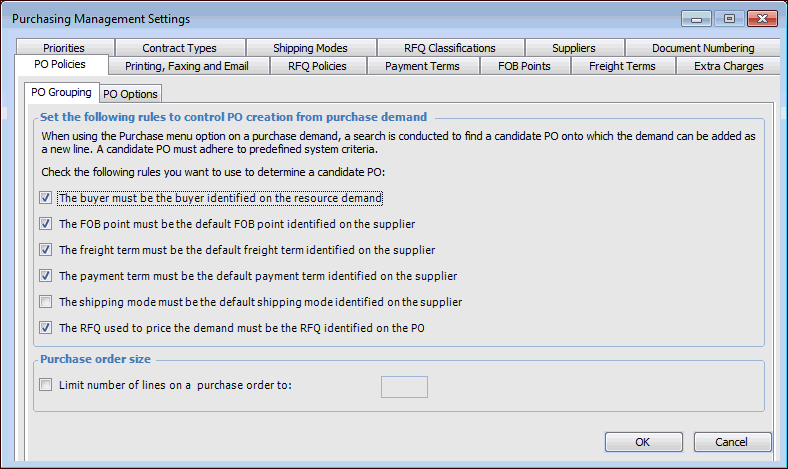
From the Site window, select the Administration menu and then Purchasing Management Settings. The Purchasing Management Settings dialog appears.
Tip: You can also access purchase management settings from the Site window by selecting the Purchasing view, Settings tab, and the Purchase Order Management Settings node in the tree.
2.
Select the PO Policies tab, then the PO Grouping tab.
3.
4.
You can also set the maximum number of lines allowed on a purchase order. To do this, select the option Limit the number of lines and then enter the maximum number of lines allowed on purchase orders.
5.
When you are finished, click OK to save the changes and close the Purchase Management Settings dialog.