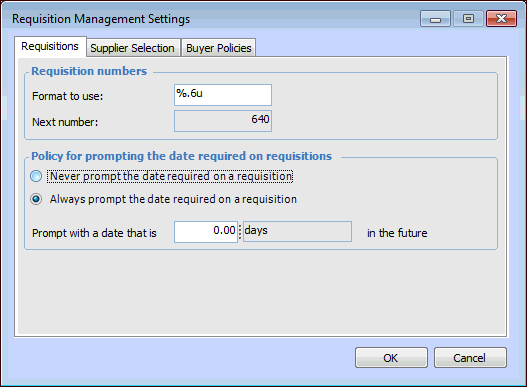
Setting Options for Requisitions

In requisition management settings, you can select the following options:
Requisition numbers – Select the format to use for numbering. You can also view the next number to be used.
Prompting for the Date Required – The date required on a requisition can be set to never or always prompt.
This topic explains how to set these options.

To Set Options for Requisitions

1.
From the Site window, select the Administration menu and then Requisition Management Settings. The Requisition Management Settings dialog appears.
Tip: You can also access requisition settings from the Site window by selecting the Requisitions view, Settings tab.
2.
Select the Requisitions tab.
3.
For example, a format that says “%.6u” would generate six-digit numbers padded with zeros: 001234.
% indicates the start of the number definition.
.6 indicates that the numbers should have six digits. Numbers with less than six digits will be padded with zeros.
u indicates that the number is an unsigned integer (that is, it cannot be a negative number).
4.
Never prompt the date required on a requisition: The Date required box is blank by default when a requisition is created.
Always prompt the date required on a requisition: The system fills in a date required by counting from today’s date the entered number of days into the future. If you enter “0”, the system will enter today’s date.
5.