APM supports integration with Oracle® E-Business Suite. The APM integration with Oracle Purchasing involves data exchanges between the two systems:
In the Enterprise window, click the Administration menu,
Interoperability and Integration Settings, and then
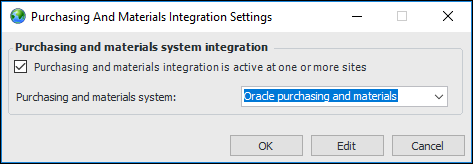
Purchasing and Materials Integration. In the settings dialog that appears, activate the integration and select the system:
When you click OK, integration information is added to the user interface. You can now define settings.
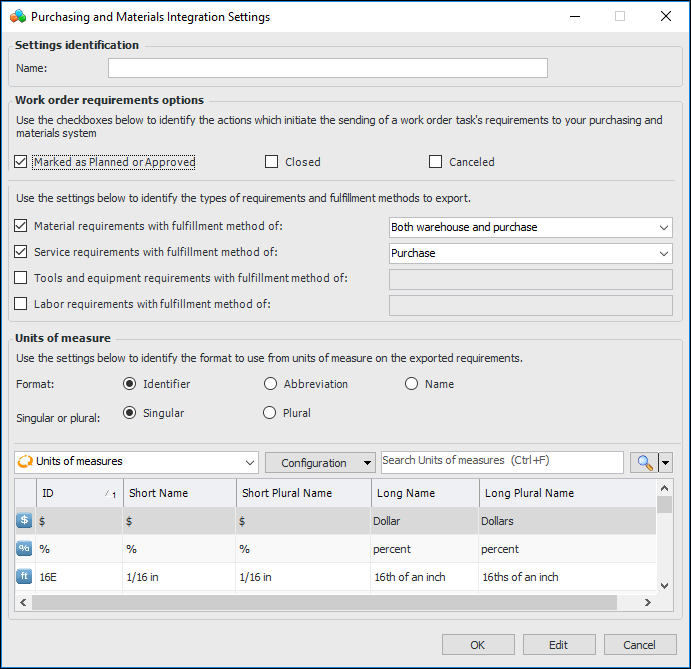
In the Enterprise window, select the Integrations view,
Purchasing Integration tab. Click
New to open the Purchasing and Materials Integration Settings dialog:
In the Site window, click the Administration menu,
Interoperability and Integration Settings, and then
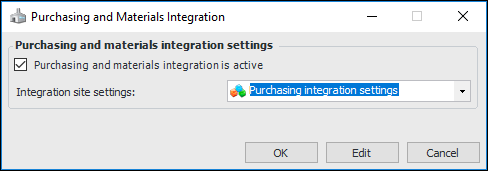
Purchasing and Materials Integration Settings. In the dialog that appears, activate the integration and select the site settings. For example:
In the Enterprise window, the Data Export view displays database views of objects and their properties. The
Assets tab lists all assets in APM by site and includes the asset properties used for exports to external systems. On this view, you will also find the work order task export view, lists of work order task reserve demands, and work order task requisition demands.
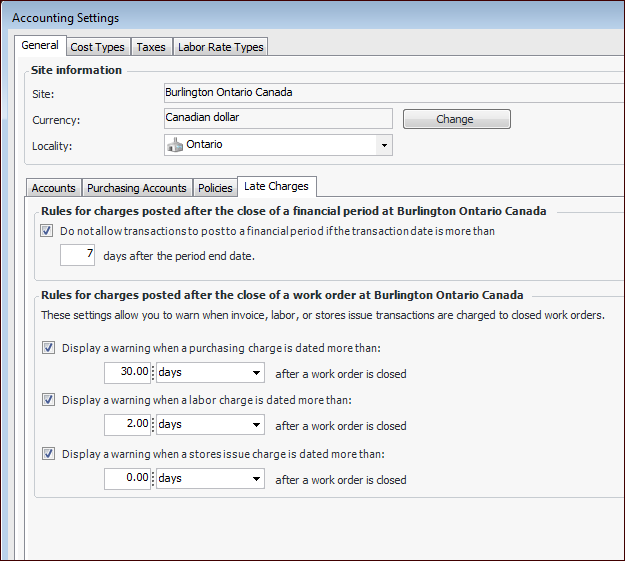
Note: The Work Order Tasks tab lists calculated values based on dates: “purchasing changes allowed until” and “stores charges allowed until”. In order for these values to be accurate, the site rules for late charges must be defined in days. For example, open the site’s Accounting Settings dialog, select the
General tab and then the
Late Charges tab: