
|
Printing an Asset Activity Report Edition
To Print an Asset Activity Report Edition to the Default Printer
2. Select the Editions view. This tab displays all published editions for the asset activity report.
3. Right-click an edition from the list and select Print, then Report Edition. The Print Report dialog appears. For example:
4. In the Print to box, select “Default Printer”.
• Click All to print all of files attached to the object.
•
6. If you are not printing attachments, you can click Preview to see what the report will look like before printing it.
• Click Print. If you are printing selected attachments, the Attachments to Print dialog appears. Select the attachments and click OK.
• Click Print with Options to change printer options.To Print an Asset Activity Report Edition to a File
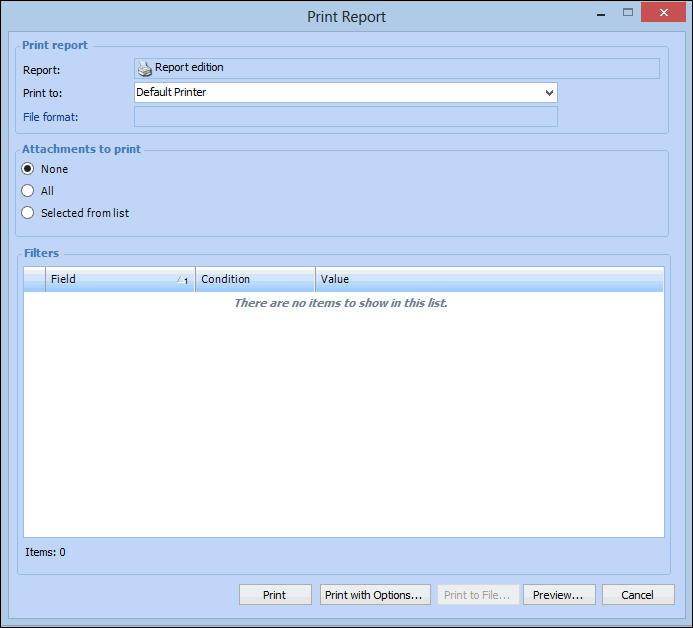
2. Right-click an edition from the list and select Print, then Report Edition. The asset activity reports’ print report dialog appears. For example:
3.
5. Click Preview if you want to see the report before it is saved to a file.
6. Click Print to File. The Save As dialog appears.
7. Provide a name for the document. Navigate to the location where you want to save the file and click Save. The report is saved to a file.