|
Printing Documents
For documents that are sent to a printer, attachments can also be selected to print with the report. For attached embedded Microsoft Word® and Excel® documents, any footer information is replaced with the source object name, user name, and date and time of printing.To learn how to include attachments to an asset activity report and its sections, see Adding Attachments to an Asset Activity Report and Adding Attachments to an Asset Activity Report Section. For information about adding attachments to all other types of objects, see Adding Attachments to Objects.To Print a Document to a Printer
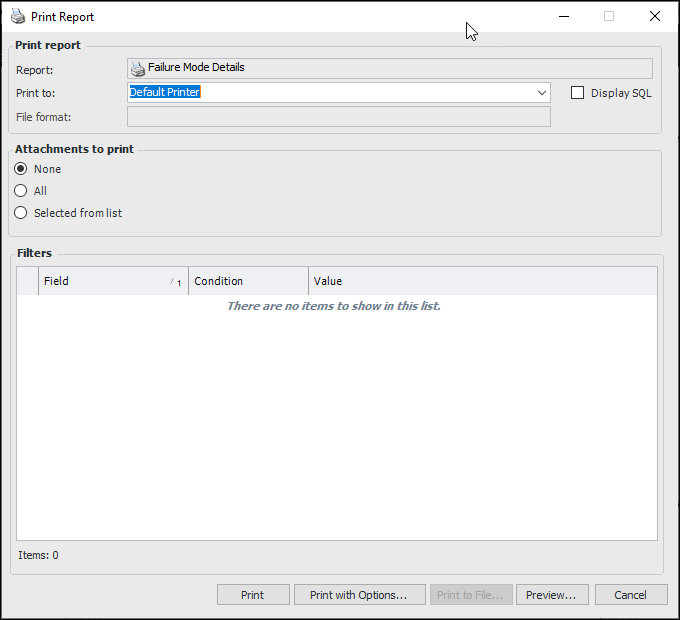
2. On the object’s menu, select Print and then select the type of document you want to print. For example, in the Work Request window, click the Work request menu, Print, then Work Request Form. The Print Report dialog appears. For example:
3. In the Print to box, select “Default Printer”.
• Click All to print all of files attached to the object.
•
5. If you are not printing attachments, you can click Preview to see what the report will look like before printing it.
• Click Print. If you are printing selected attachments, the Attachments to Print dialog appears. Select the attachments and click OK.
• Click Print with Options to change printer options.To Print a Document to a File
2. On the object’s menu, select Print and then select the type of document you want to print. For example, in the Work Request window, click the Work request menu, Print, then Work Request Form. The Print Report dialog appears. For example:
3.
5. Click Preview if you want to see the report before it is saved to a file.
6. Click Print to File. The Save As dialog appears.
7. Provide a name for the document. Navigate to the location where you want to save the file and click Save. The report is saved to a file.