Setting up the Project Team

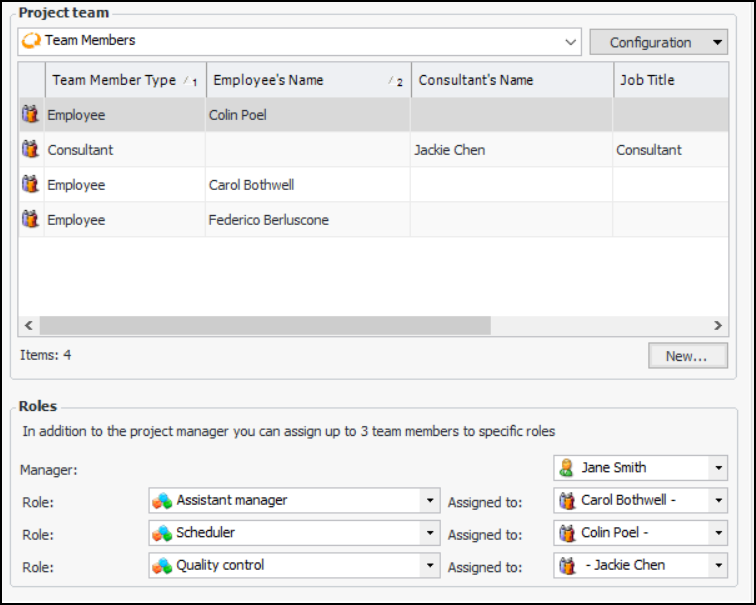
The project team identifies everyone involved in the planning and activities associated with the project. The project team can be made up of employees of your company, consultants from outside your company, or a combination of both. In addition to the project manager, you can assign up to three team members to specific roles.
Note: This information is visible if the project type allows team members. If this tab is hidden, you can enable it if you have the required security profile. For more information, see Setting up Project Types.

To Set up the Project Team

1.
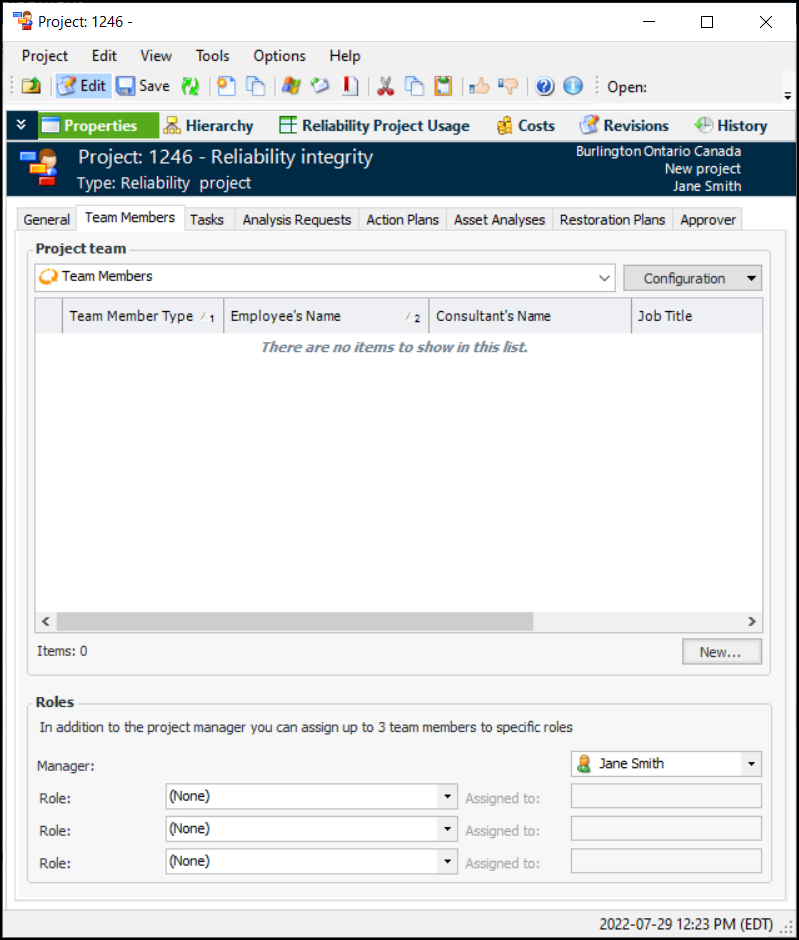
Select the project’s Properties view, General tab. Details about the project you are working on will be displayed.
2.
3.
Select the Team Members tab. This tab shows the list of team members assigned to the project.
4.
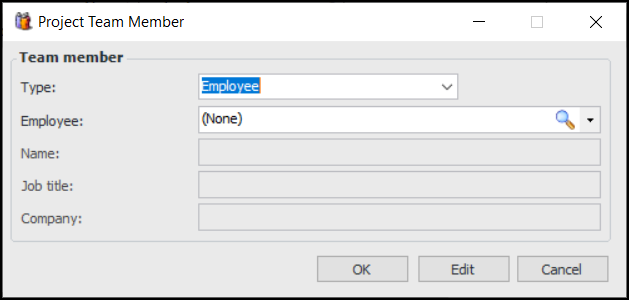
Click New for each member that you wish to add. The Project Team Member dialog appears:
5.
If the team member is not an employee, select “Consultant” from the Type list and enter the appropriate information.
6.
If the team member is an employee, select “Employee” from the Type list, select the employee from the list, or browse to select the employee. The employee is added to the Employee box.
7.
Click OK to save the information and close the dialog.
8.
9.