Adding Materials to be Purchased to a Work Order Task

This section describes how to add requirements for materials that must be purchased to an existing work order task.
You can add both supplier resources from your resource catalog and non-catalog items. To add warehouse items to a task, see Adding Warehouse Items to a Work Order Task.
Note: If the work order has already been approved or marked as planned, you will not be able to add requirements to it. To add requirements to a planned work order, you must first redraft it.

Overriding GL Accounts

APM automatically derives a GL account for charges to an asset or work order task based on the site’s accounting settings. You can override the derived maintenance GL account for labor, direct purchases, and inventory usage charged to an asset or work order. When the account number is overridden, the replacement account number is used on subsequent documents and transactions (work order requirements, timecards, issue transactions, purchase order lines, and receipts). The option to override a GL account is available only if the work type has been set up to allow the override.

To Add Material Purchase Requirements

1.
2.
3.
Select the Planning tab. This tab shows planning information, including the list of requirements currently selected for the task.
Note: This tab will only be available if the task’s work type includes planning information.
4.
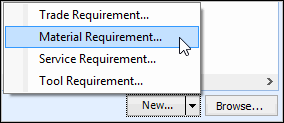
Click the down-arrow beside the New button. Select Material Requirement.
Tip: You can also select the Materials tab to view all material requirements for the work order task, and then click New.
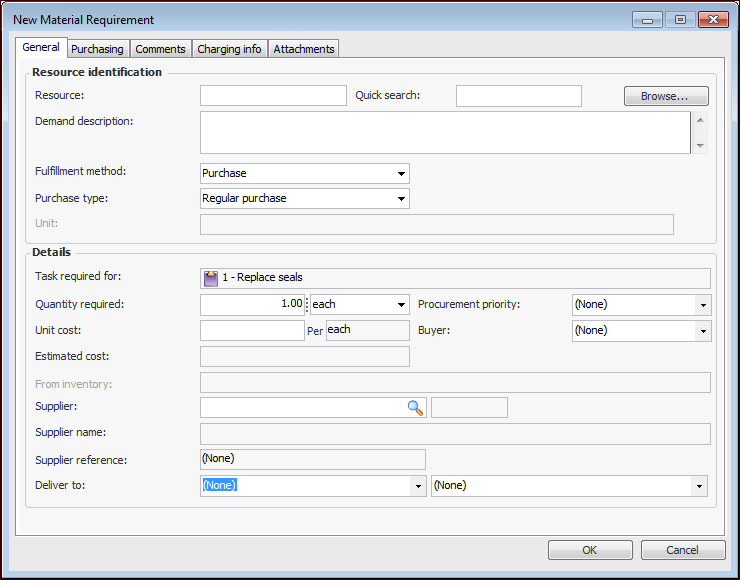
The New Material Requirement dialog appears.
Tip: To add several different requirements at once, click Browse. The Browse Catalog dialog appears. Select each resource that you want to add. You can select resources on more than one tab. When you are finished, click OK. The resources are added to the list. You may need to open each requirement and edit the settings.
5.
On the General tab, select the resource or enter a description:
6.
Select Purchase.
Select Regular purchase (used for most purchases).
7.
By default, the system enters the default supplier of the resource. If necessary, you can change the supplier by clicking either All Suppliers or Valid Suppliers and selecting a new supplier from the selection dialog.
8.
Select the Comments tab to enter your notes. For requirements that must be purchased, you can also add instructions in the Purchasing description box. This information is copied to subsequent documents in the purchasing flow, for example, the purchase order line created from the work order task.
9.
To override the GL account or cost type, select the Charging Info tab and make the appropriate changes (only available if overrides are allowed for the task’s work type).
10.
Select the Attachments tab to view or add attachments to the material requirement.
11.
Click OK to save the requirement and close the dialog.
12.