Printing Work Order and Task Reports

You can print reports from a work order or work order task. The standard report forms that come with APM contain information about work order tasks, including asset information, task details, description, requirements, a list of indicators, filters, and comments. The work package also allows you to print standard procedures for the tasks.
If the option is enabled for the site, APM also saves a copy of the report as a PDF file. Reports are found in the History view for the work order or work order task.
Note: Before you can print reports, the report formats must be selected in work management settings.
This section explains how:

To Print a Report from a Work Order

1.
2.
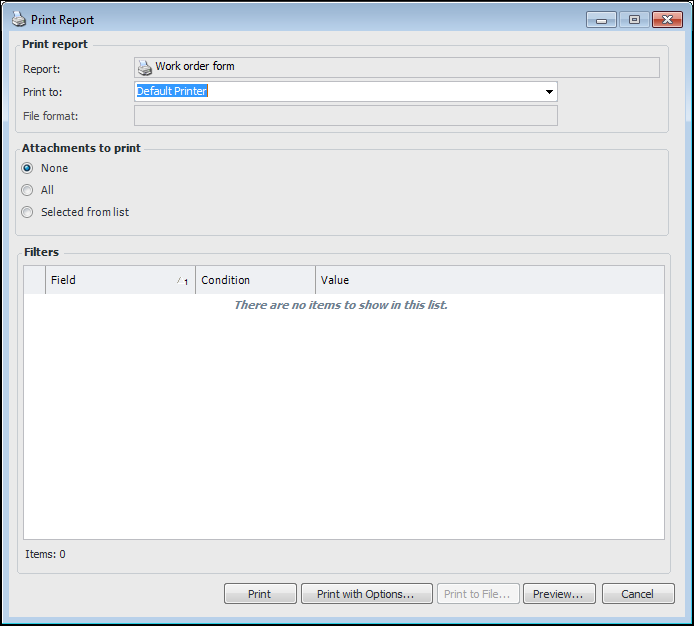
On the Work Order menu, select Print and then Work Order Form. The Print Report dialog appears.
3.
Tip: For more information about printing options, see Printing Documents.

To Print a Work Package from a Work Order

1.
2.
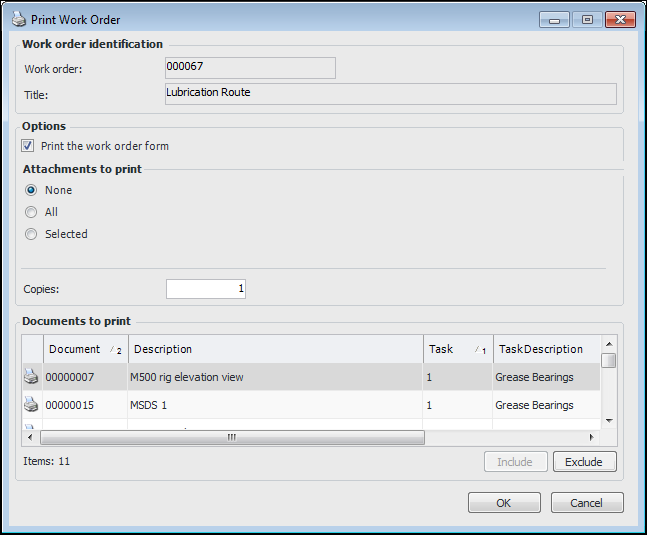
On the Work Order menu, click Print and then Work Package. The Print Work Order dialog appears.
3.
Print the work order form is selected by default. Clear this option if you want to print only the procedures.
4.
5.
Tip: For more information about printing options, see Printing Documents.
6.
Click OK.

To Print a Report from a Work Order Task

1.
2.
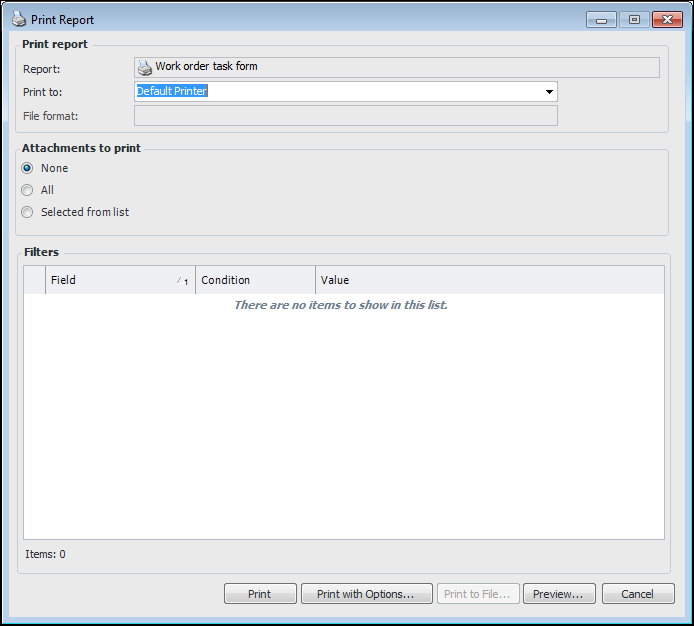
On the Task menu, click Print, and then Work Order Task Form. The Print Report dialog appears.
3.
Tip: For more information about printing options, see Printing Documents.

To Print a Work Package from a Work Order Task

1.
2.
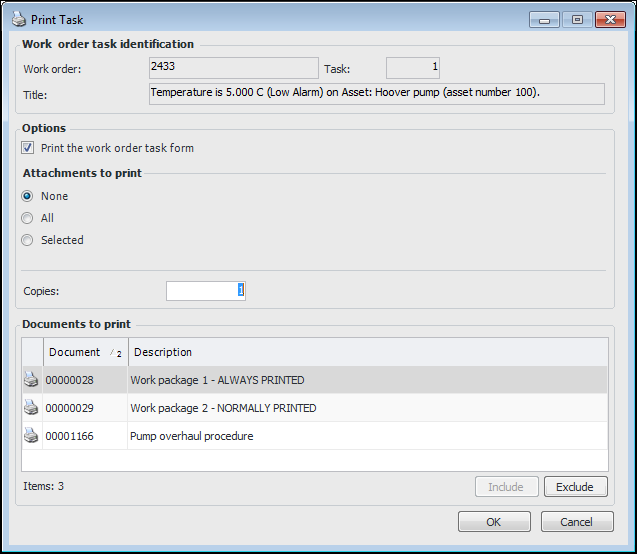
On the Task menu, click Print, then Work Package, and then For Task. The Print Task dialog appears.
Tip: You can also print the work package for the work order. Select the Task menu, click Print, then Work Package, and then For Work Order.
3.
Print the work order task form is selected by default. Clear this option if you want to print only the procedures.
4.
5.
6.
Click OK.
Tip: For standard documents with the print option Normally printed or Printed on request, you can change the print option. On the work order task’s Procedures tab, right-click the procedure, click Set Work Package Option To, and then either Must Be Printed or Not Printed.

To View Saved Reports

1.
2.
3.