|
|


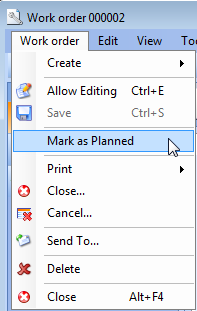
Marking a Work Order as Planned
While you are planning a work order, the work order status is “In planning.” Once you have finished planning all of the tasks on a work order, move the work order to the “Planned” status. If the site’s Unplanned Work Order Policy has been set to “do not allow activity on unplanned work orders,” users will not be able to record labor or service transactions, create requisitions, purchase orders, or pick lists, or enter indicator readings for the work order until it moves to the “Planned” status.If a work order requires approval, APM sets the work order status to “Planned” once it has been fully approved. The Mark as Planned option is not available for work orders requiring approval.Once a work order has the “Planned” status, the planning information for the work order is frozen. You will not be able to add tasks, requirements, indicators, or procedures to the work order. To change the planning information for a planned work order, you must redraft it. See Redrafting a Work Order.To Mark a Work Order as Planned