|
Entering Planning Information for a Work Order Task
This section explains how to enter information relating to the task’s date, material, and labor requirements.You can also add the material, labor (trade and service), and tool requirements for the task.To Enter Planning Information
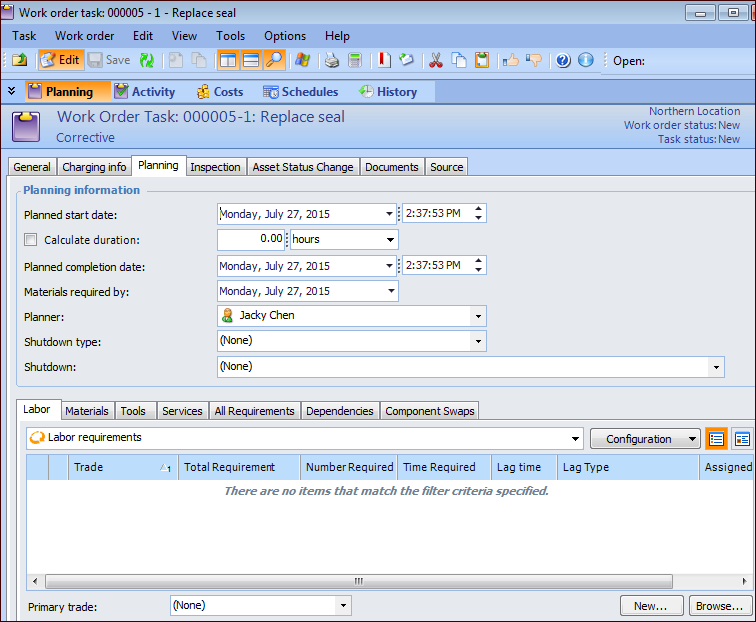
3. Select the Planning tab. This tab shows planning information including the list of requirements currently selected for the task.
The date and time that the work order task is planned to begin. This date provides information to the people scheduling and working on the task, and may affect how the task is scheduled.
Approximately how long the task will take to complete. APM uses this information when a task is placed on a schedule.You can enter an estimated duration. Or, if you have entered trade, tool, or time-based service requirements, you can have the system calculate a duration by selecting the Calculate estimated duration option.
Select this option to have the system calculate the task’s estimated duration. The system sets the task’s estimated duration to the trade, tool, or service requirement with the longest total duration (Lag time plus the Required for time).Note: This option is only available if trade, tool, or time-based service requirements have been added to the task.
The current planned completion date for this work order task. This should be the date that you expect the task will be finished. When the work order has the status “Planned”, “Scheduled”, or “Work in progress”, the date can only be edited if you click the Change Date button.
If you have added trades to the task, the system selects the first trade added as the Primary Trade for the task. If necessary, you can select a different trade as the primary trade. This reference allows you to sort and filter lists of tasks by primary trade.
6. You can now enter the trade, service, material and tool requirements for the task. For more information, see: