|
Changing the Planned Completion Date
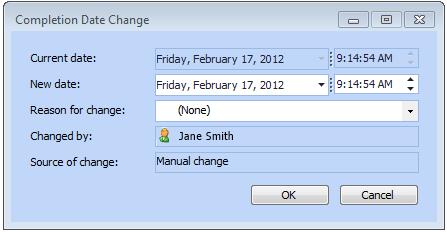
When you change the planned completion date, select the reason that you are changing the date. The list of reasons is set up in the Work Management settings under the site’s Administration menu.Note: There might be limitations on the completion date that can be entered for a task if scheduling relationships have been entered for the task. See Scheduling Relationships.To Change the Planned Completion Date for a Work Order Task
1. Open the work order task, and select the Planning view.
3. Select the Planning tab.
4. If the work order has the status “in planning”, you can directly edit the Planned completion date box.
5. If the work order has a “planned”, “scheduled”, or “work in progress” status, click Change. The Completion Date Change dialog appears.Tip: If your security settings allow, you might be able to add a completion date reason to the list. Right-click in the Reason for change box and select New. Enter a description of the reason and then click OK.
7. Click OK. The date change is saved.