|
Changing the Order of Indicators to Read on a Work Order Task
To Change the Order of Indicators to Read on a Work Order Task
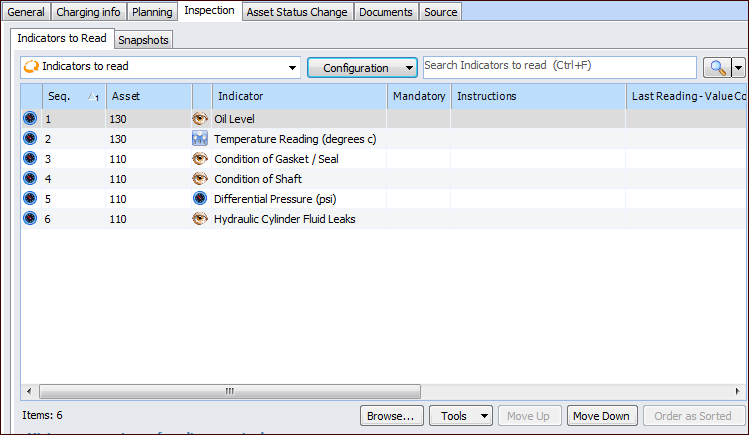
3. On the Planning view, select the Inspection tab. This tab shows the current list of indicators to be read for the task.
•
• Apply a sort to a column other than “Sequence”, for example, “Asset” or “Mandatory”. The Order as Sorted button becomes available. Click it if you wish to update the indicators’ sequence numbers. A confirmation message appears. Click Yes. The sequence numbers now reflect the indicators’ positions in the table.