Adding Standard Documents to a Work Order Task

This topic explains how to add standard documents to a work order task and set the printing options for documents that allow it.
Standard documents allow you to provide additional information to employees who will be performing the work described on work order tasks. You can link the work order to existing documents on the site or create standard documents.
Some standard documents are always printed with a work package, some are never printed, and some allow the user to select whether or not to print the document. This depends on the type of standard document and its settings.
This topic explains how:

To Link a Standard Document to a Work Order Task

1.
2.
3.
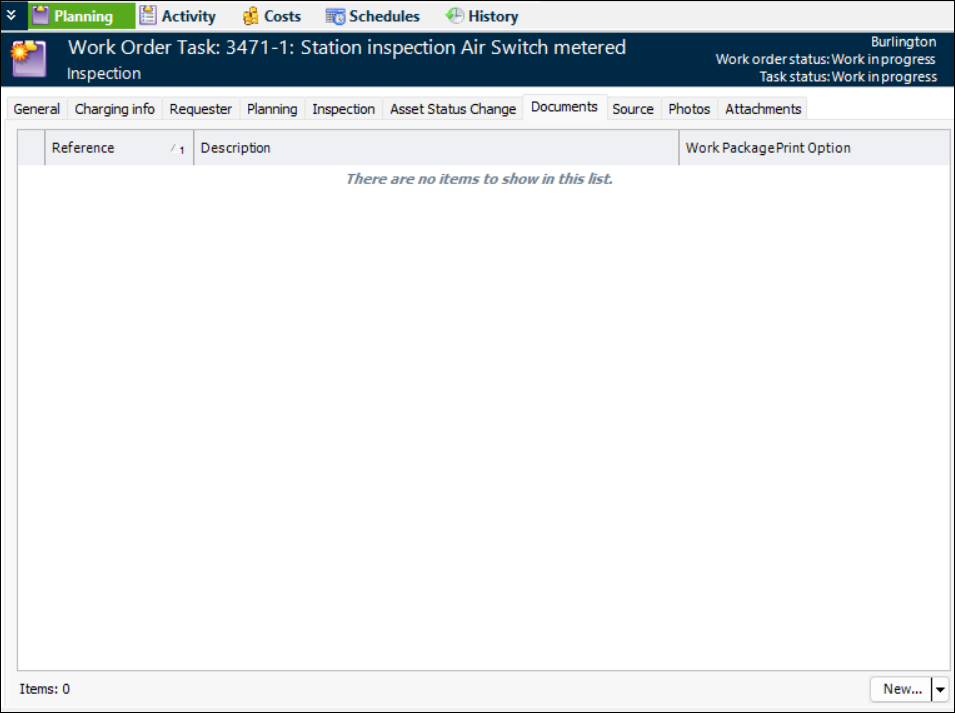
Select the Documents tab. This tab shows a list of the standard documents currently on the work order task, if any.
4.
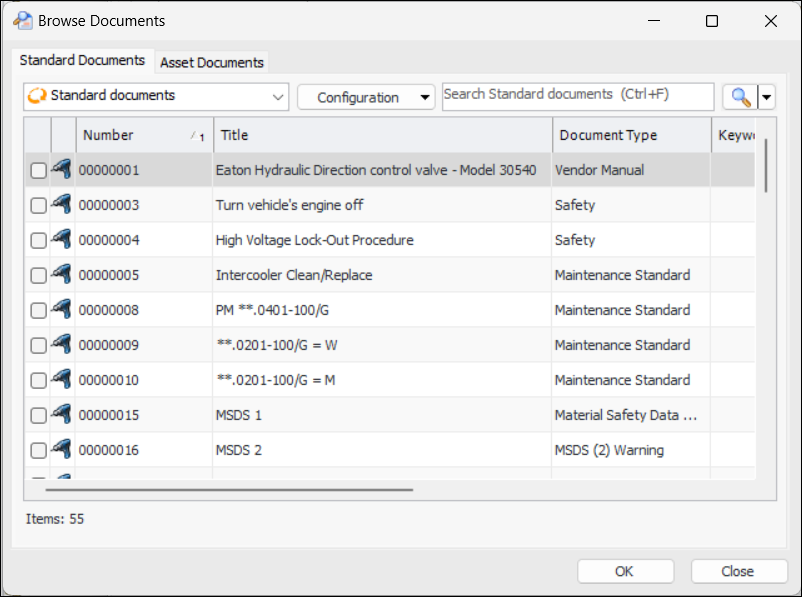
Click the New list and then Browse. The Browse Documents dialog appears. You can choose from a list of all documents (Standard Documents), a list of documents for the current project (if the work order is being charged to a project), or a list of documents for the asset to work on. For example:
5.
Select the documents that you want and click OK. The documents now appear in the Documents tab.

To Create a Standard Document

1.
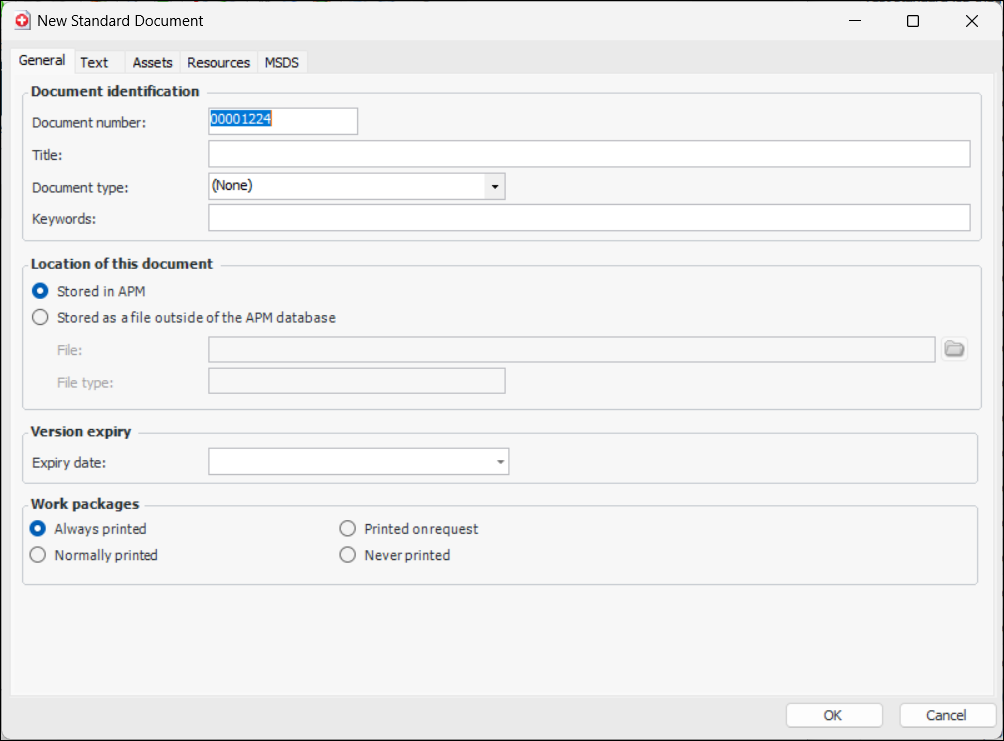
At the bottom of the Documents tab, click the New list and then New Document. The New Standard Document dialog appears. For example:
2.

To Change Printing Options

1.
2.
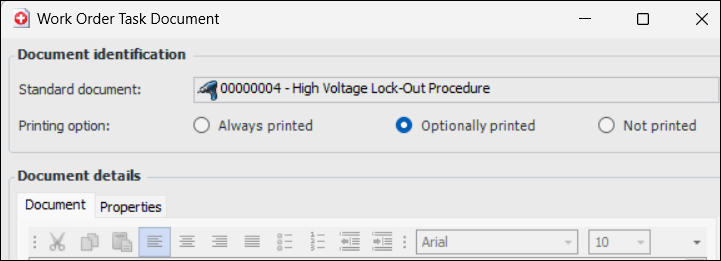
If the printing options are enabled, select the option you want. If you select Optionally printed, the user printing the work package can decide whether or not to include the procedure.
If these options are unavailable, either the document cannot be printed due to its type or the setting cannot be changed due to the print options selected on the standard document itself.
3.