Adding a List of Indicators to Read to a Work Order Task
Indicator readings are used to enter the actual reading of an indicator at a specific moment in time. Readings are usually collected via work order tasks. Once you have collected the readings, you can enter and process them from the work order.
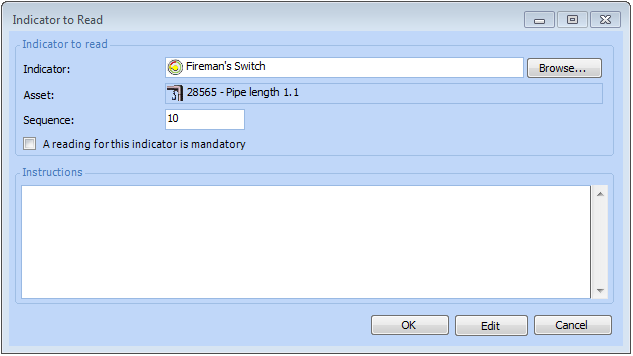
When you add an indicator to a work order task, you can enter instructions for collecting the reading. These instructions are then available on the checksheet.

To Add Indicators to Read to a Work Order Task
1.
2.
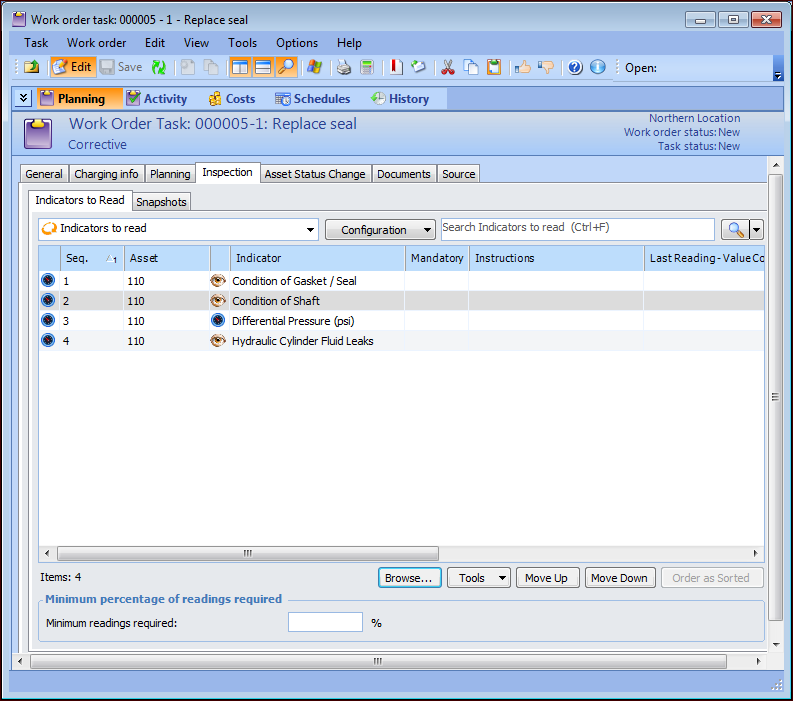
On the Planning view, select the Inspection tab. This tab shows the current list of indicators to be read for the task.
3.
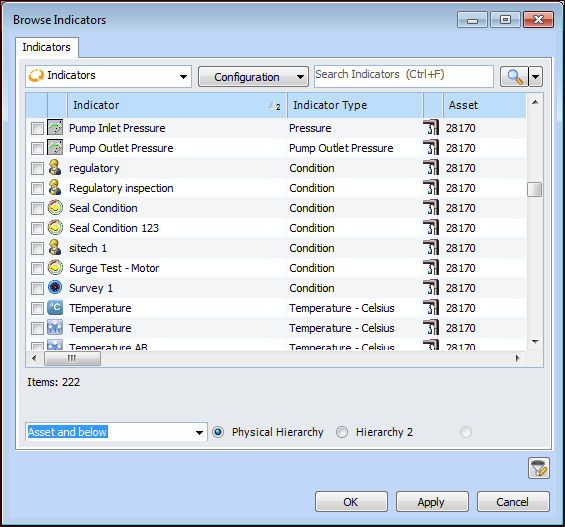
Click Browse. The Browse Indicators dialog appears. The dialog shows a list of indicators for the task’s asset to work on.
4.
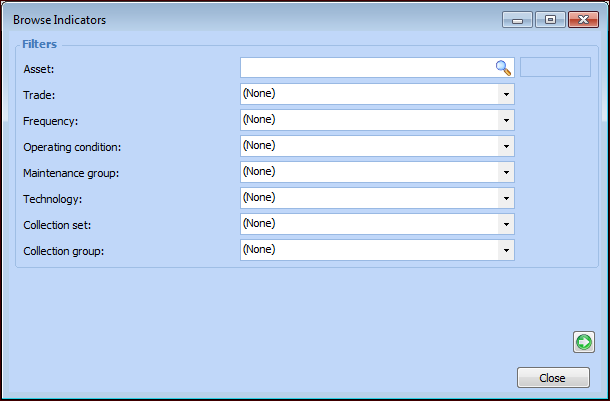
Select the filter values and click to return to the Browse Indicators dialog.
5.
Select the indicators to be read and click OK. The Browse Indicators dialog closes and the indicators appear in the table.
6.
Enter the Minimum readings required percentage, so that only qualifying indicators that have readings will create a checksheet from the work order task.
Note: If the work order is created from a standard task, the percentage is copied from the standard task.
7.
8.
9.
10.