Placing a Hold on a Work Order Task

This section explains how to place a hold on a work order task.
Holding a work order task restricts the actions that can be performed on the task. For example, holding a task might restrict the ability to mark the task as planned. Another hold might restrict users from reporting activity for the task.
Although holds can only be placed at the task level, holding one or more tasks on a work order may affect certain work order level actions, such as Send for approval or Mark as planned.

To Place a Hold on a Work Order Task

1.
From the Site window, select the Work Management view and then the Work Orders tab.
2.
On the Tasks tab, find the work order task that you want to hold.
3.
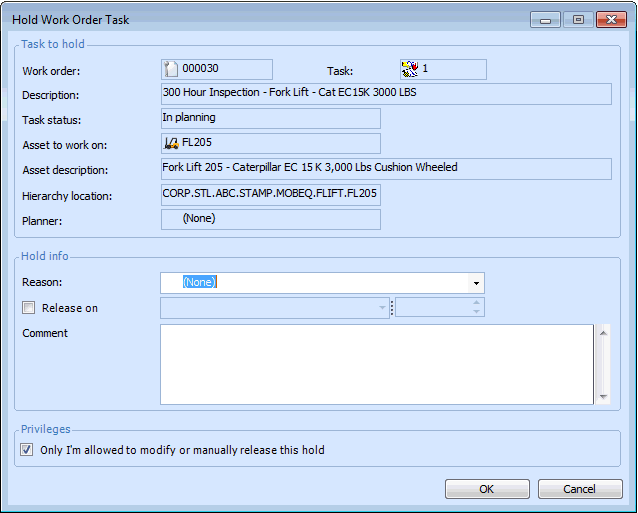
Right-click the task and select Holds and then New. The Hold Work Order Task dialog appears.
4.
For example, if you create a hold with a Report Activity setting of “allowed with warning”, the comment will be displayed on warning messages when users try to report activity for the task.
5.
Click OK to save the hold.