Overriding Purchase Demands

You can make changes to a planned and/or approved purchase demand (from a requisition or a work order requirement) from the My Desk view. Your changes are saved and carried to the purchase order line created for the purchase demand. The original purchase demand information is also saved for reference.
Once you have reviewed the purchase demand and entered any necessary overrides, you can mark the demand as reviewed so that it can be added to a purchase order.
Note: The My Desk view only displays the tabs described below if you are set up as a buyer on your employee record and the Purchasing Desk option is selected on the My Desk Settings tab.

To Override Purchase Demands

1.
Select the site’s My Desk view and the Purchase Demands tab.
2.
Select Waiting to be reviewed by you from the configuration list.
Tip: To see unreviewed purchase demands for all buyers, select Waiting to be reviewed by purchasing from the configuration list.
3.
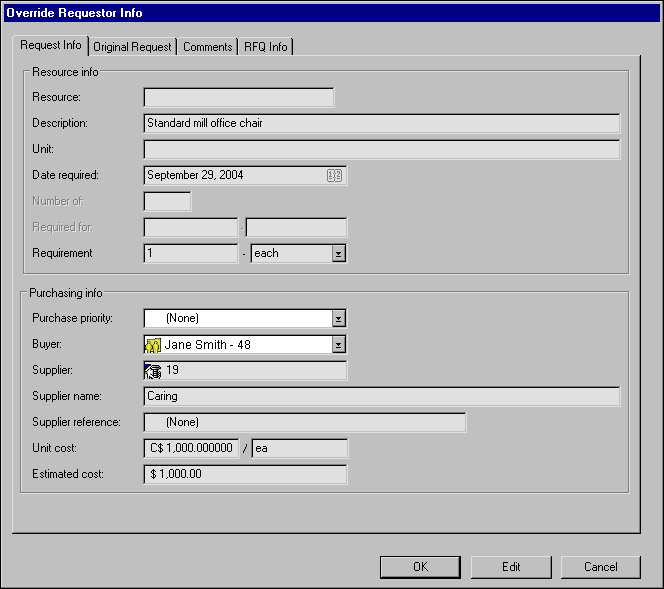
Right-click the demand and select Override Requestor Information. The Override Request Info dialog appears.
4.
5.
Repeat steps 2 to 4 for each purchase demand you need to override.
6.
When you are finished reviewing the purchase demand, you can mark it as having been reviewed. For more information, see Marking Demand as Reviewed.